4. Calendar, roster, waitlist and walk-ins
The Calendar is where reception arranges the day: one column per physiotherapist, drag to move a booking, click a gap to book it, and open any booking in a side sheet.
4.1 Views and toolbar
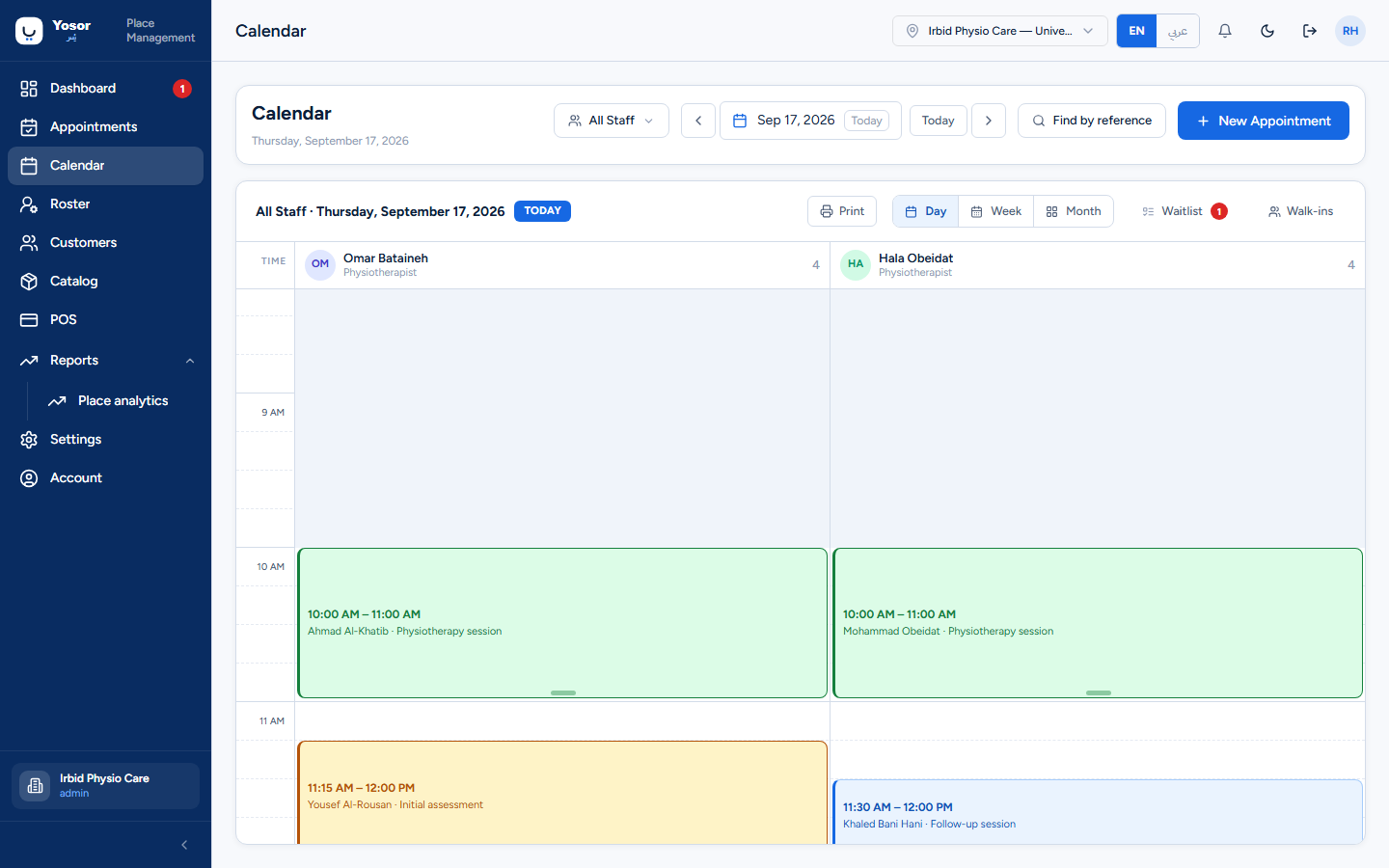
| Control | Does |
|---|---|
| All Staff | filter the columns to one or more physiotherapists (only staff marked Show in calendar are listed) |
| ‹ ›, date, Today | move by day, week or month depending on the view |
| Find by reference | look up any booking by its reference without leaving the day you are on |
| New Appointment | the booking sheet, empty |
| prints the day or week (not the month) | |
| Day / Week / Month | the view |
| Waitlist | the waiting-list panel; the badge counts customers waiting |
| Walk-ins | the walk-in queue (day view only) |
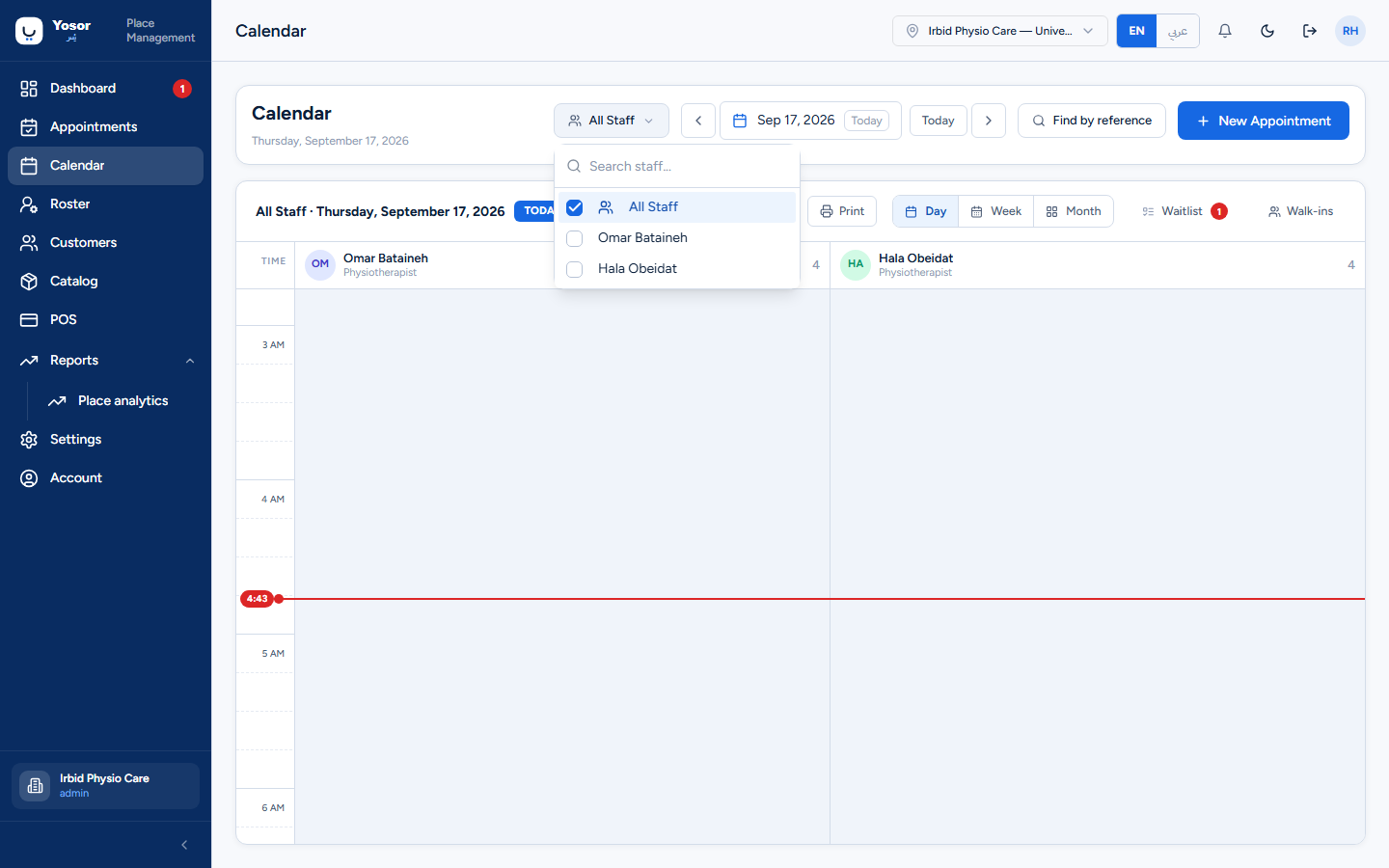
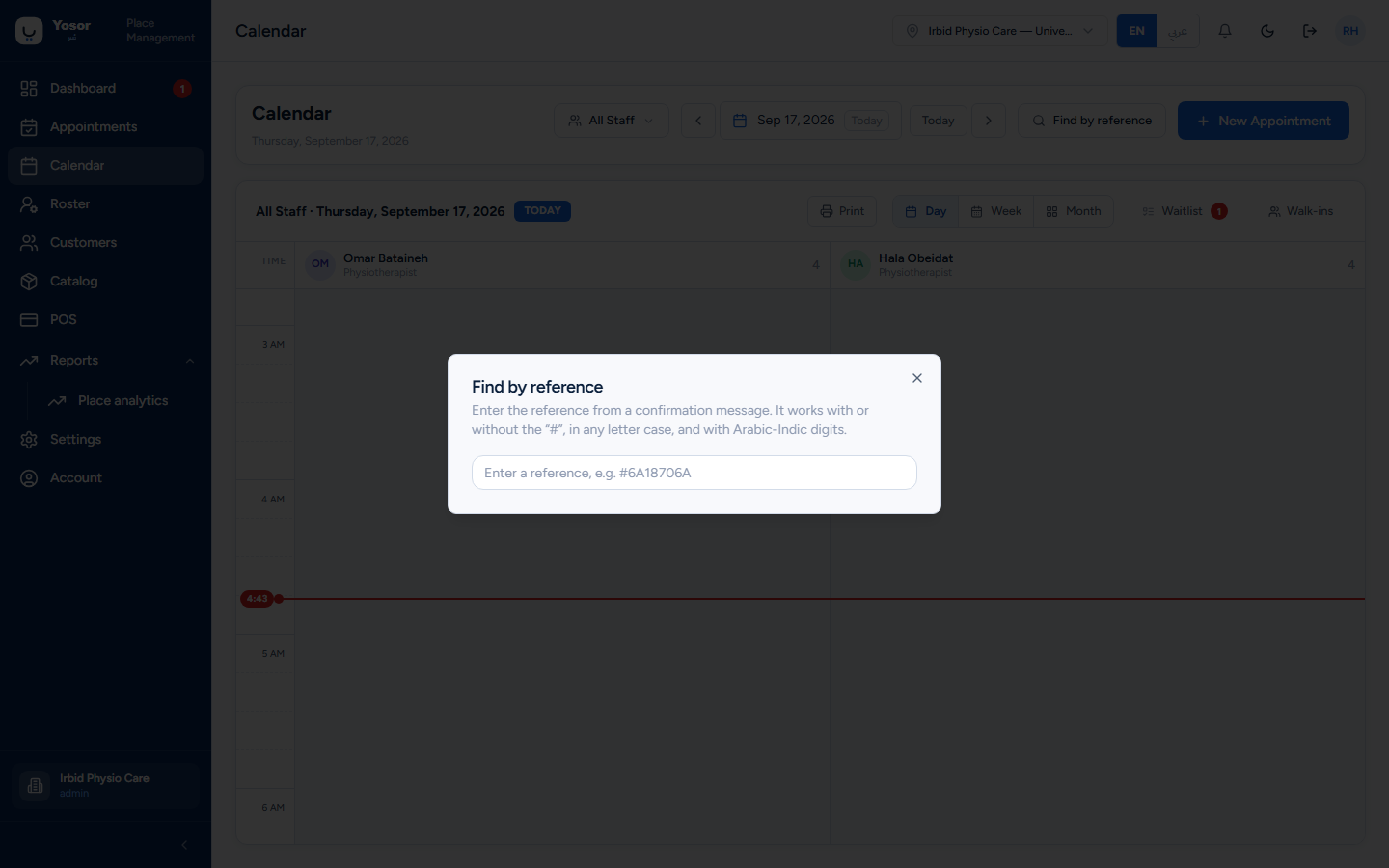
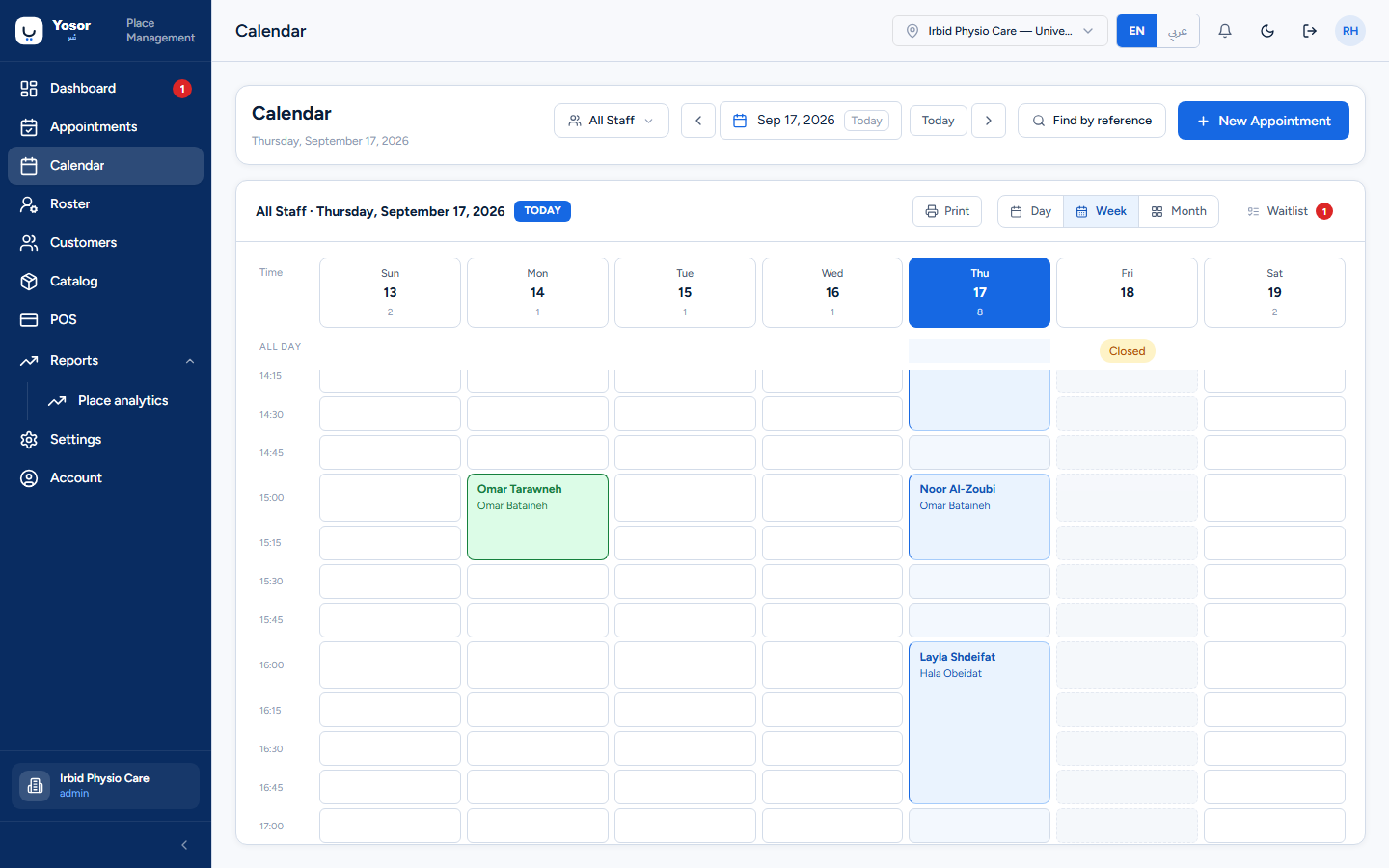
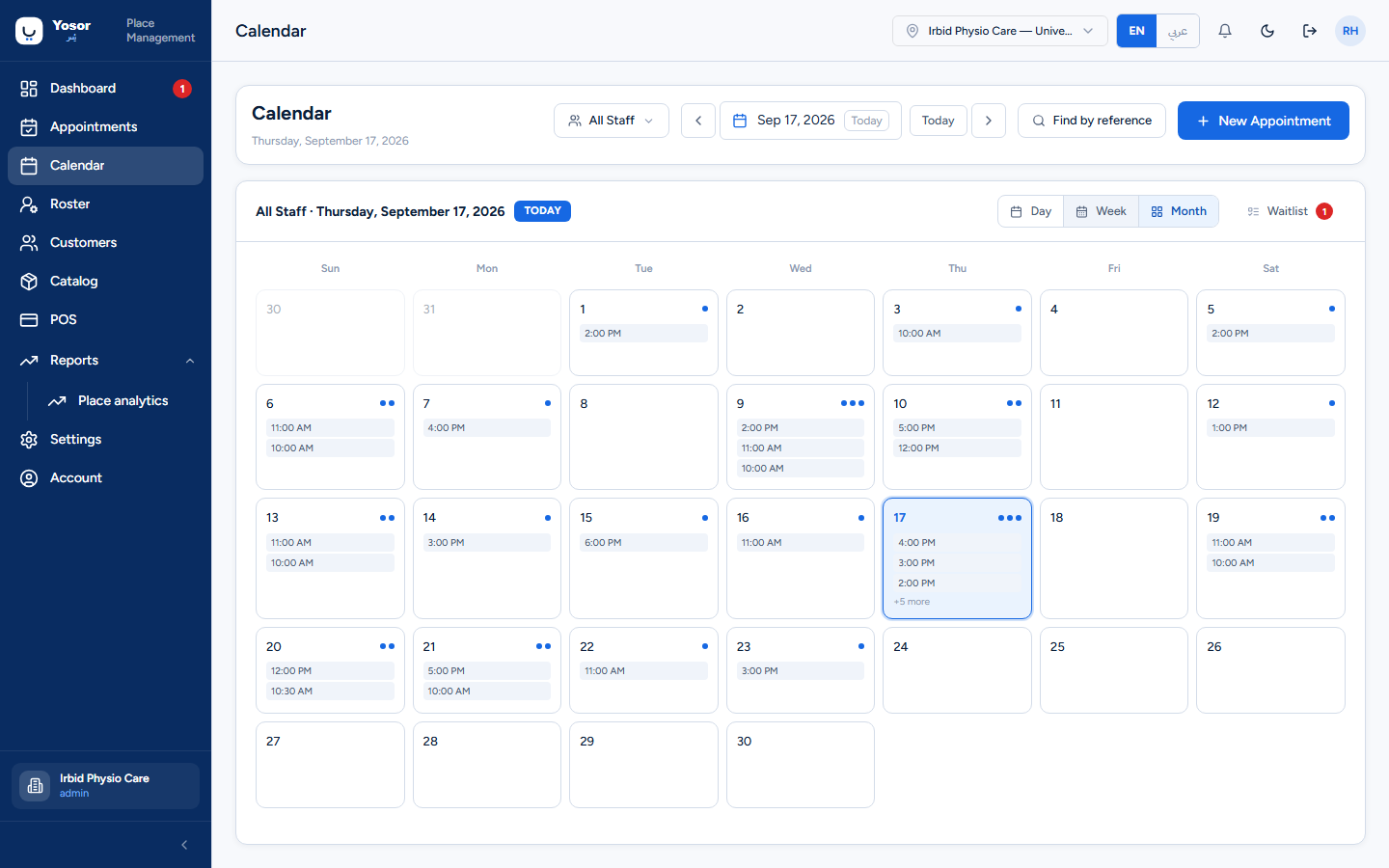
The grid shades hours outside each branch's opening hours (Settings › Business setup › Opening hours). When no hours are recorded the whole day is drawn, which is not the same as "closed". Double-booked slots are marked.
4.2 Working on the grid
- Click an empty slot — opens the booking sheet with that physiotherapist, date and time filled in.
- Drag a booking to another time or column — reschedules it. If the new slot clashes, the booking
is put back and the conflicting reservation is named.
- Right-click a slot — Add appointment or Add blocked time (lunch, training, admin: types
are defined under Settings › Scheduling › Blocked time types). Blocked time has no customer and sends no message.
- Click a booking — opens the reservation sheet.
4.3 The reservation sheet
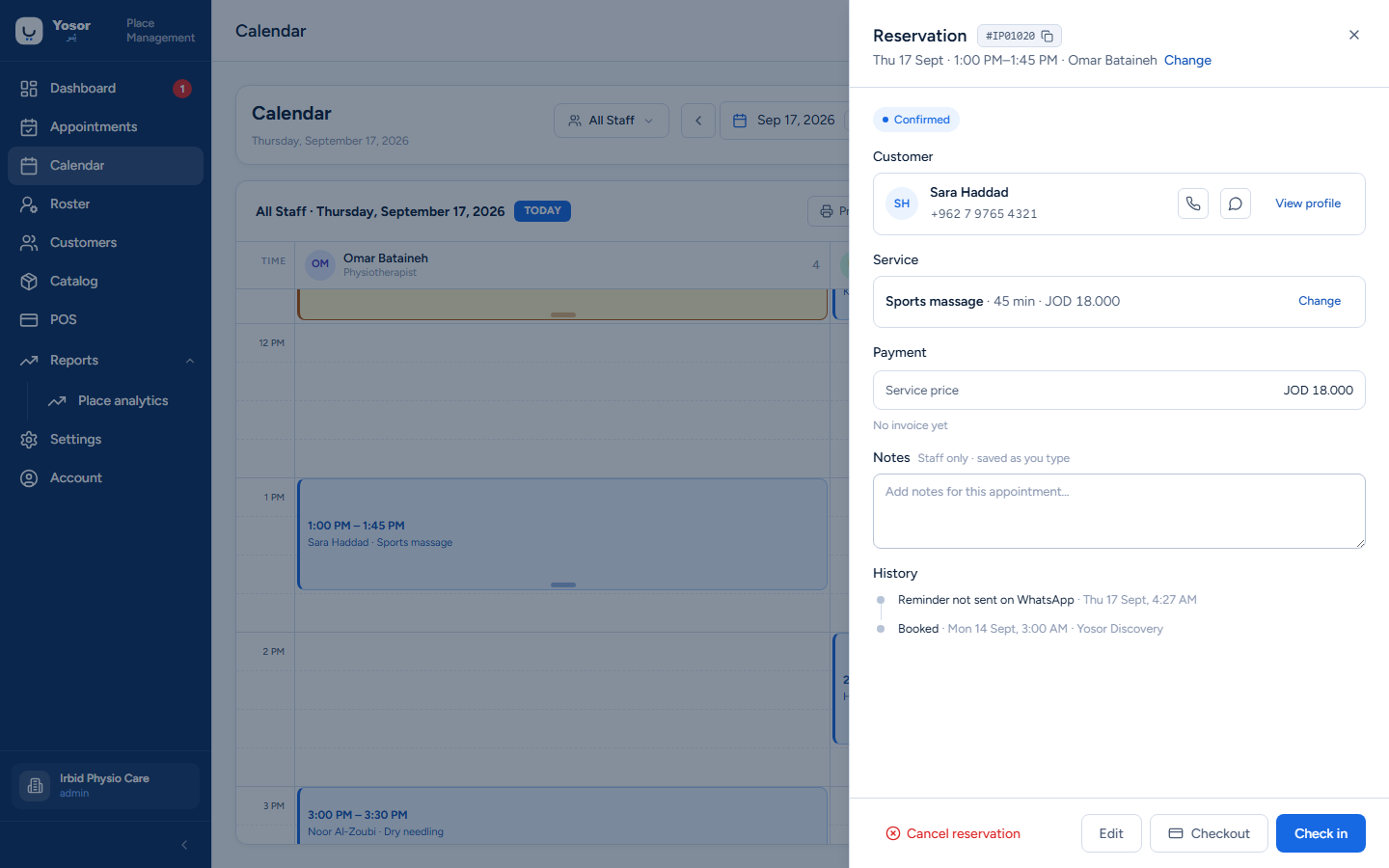
The header shows the service, a copyable reference, the when-line and Change (date, time or physiotherapist). Sections:
- Status with Change status; Checked in · hh:mm once the customer arrived.
- Customer — the name links to the customer record; View profile opens a quick peek over the
sheet; Call, WhatsApp and copy-phone; the allergy pill.
- Service (Change service) and the coverage line.
- Branch — Move this booking to another branch, with a Notify the customer switch.
- Room — the station or room assigned, if the clinic uses resources.
- Payment — invoice status, paid and outstanding.
- Notes and History.
Footer buttons: Cancel reservation, Take payment (only when an invoice is outstanding), Rebook (completed visits), Edit, Checkout and Check in.
Two rules decide what you see:
- Check in is offered for a live booking on today's date that has not been checked in.
- Checkout is offered while the visit is not completed or cancelled and has no invoice yet.
Checkout always creates an invoice, so once one exists the remaining money is taken with Take payment instead.
A blocked-time block opens the same sheet with a single Remove blocked time button.
4.4 Waitlist
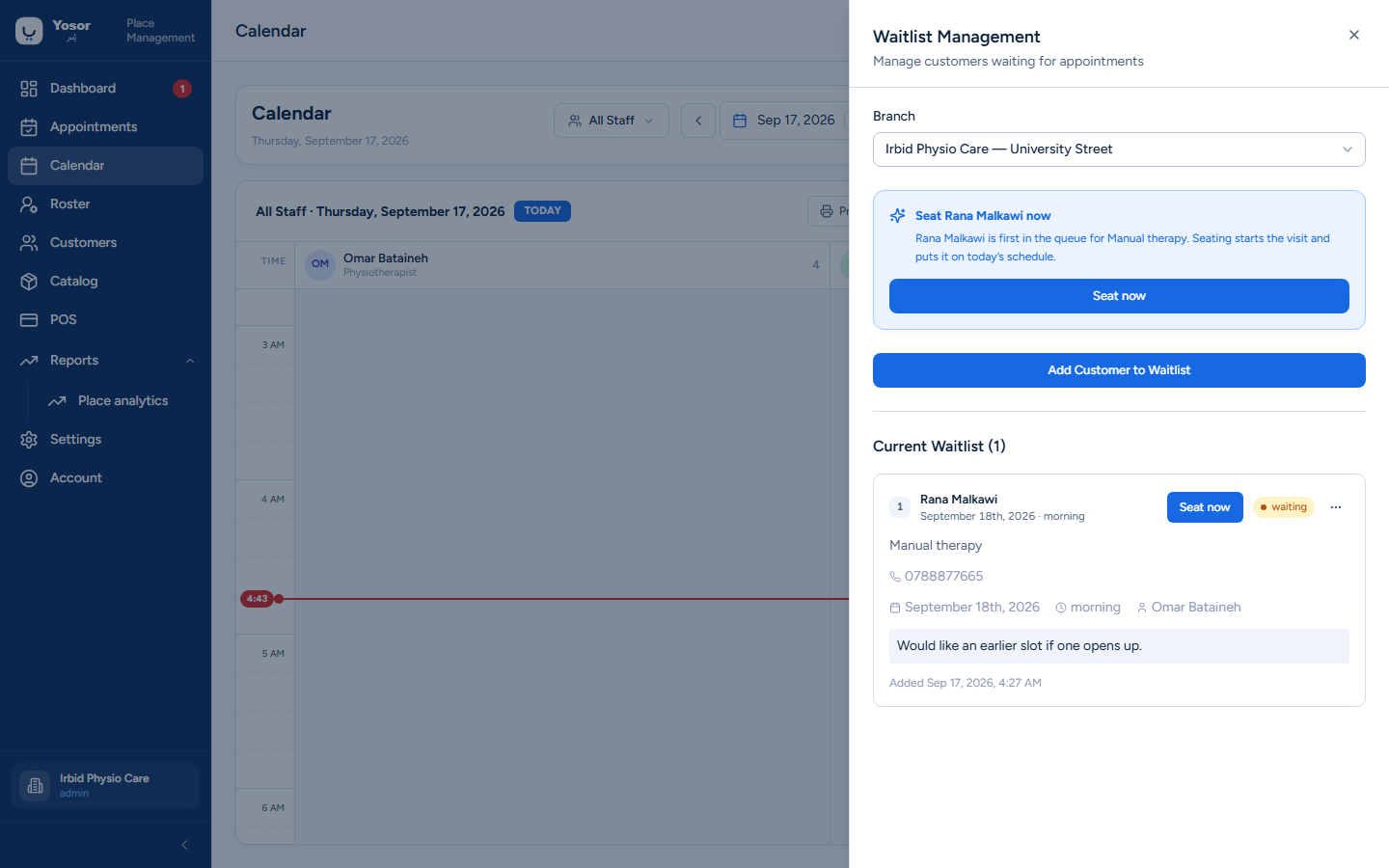
The waiting list is for customers who could not be given a slot. Yosor does not contact them or offer slots automatically; the list is a reminder for staff.
- Add Customer to Waitlist — customer, branch, service, preferred physiotherapist (optional),
preferred date and time, notes.
- Each entry has Seat now (starts a visit right away and puts it on today's schedule; refused if
the physiotherapist is busy), and a menu with Mark Contacted and Cancel.
- Only waiting and contacted entries can be seated.
The list can be switched off, and its order chosen, under Settings › Scheduling › Waitlist. The Reports › Waitlist tab shows the same entries as a report.
4.5 Walk-ins
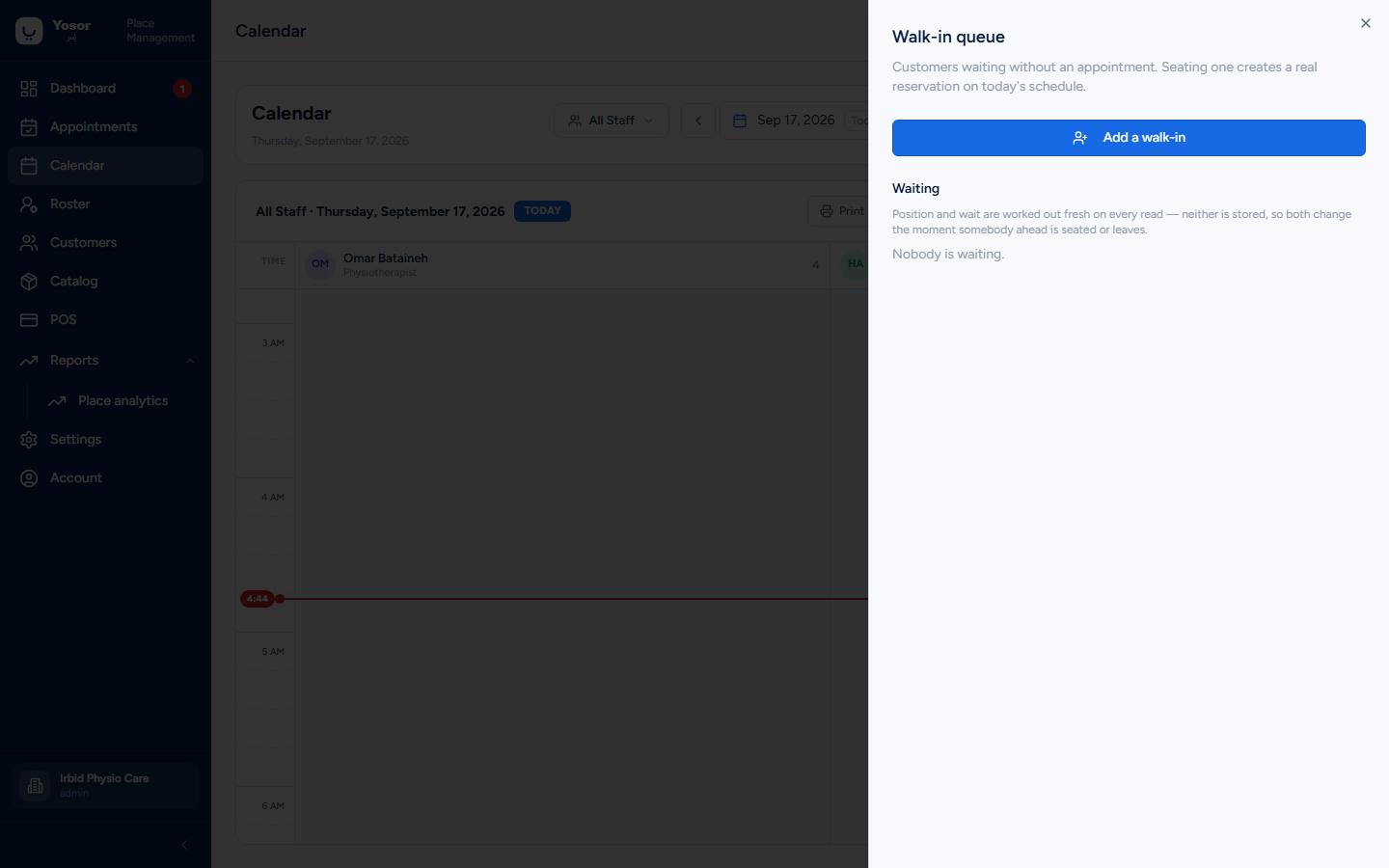
For customers standing at reception without an appointment. Add a walk-in asks for a name, phone, service (Not decided yet is allowed), preferred physiotherapist and a note. The queue shows each person's position and an estimated wait, both recalculated on every read. Call next moves the first person to Called; Seat now creates the real appointment and starts the visit. No-show, Left and Cancelled remove someone from the queue. A strip above the day grid shows the queue positions while anyone is waiting.
4.6 Checkout — the full till
Opened from the reservation sheet's Checkout. This is the complete till; the appointment page's inline panel is the quick version.
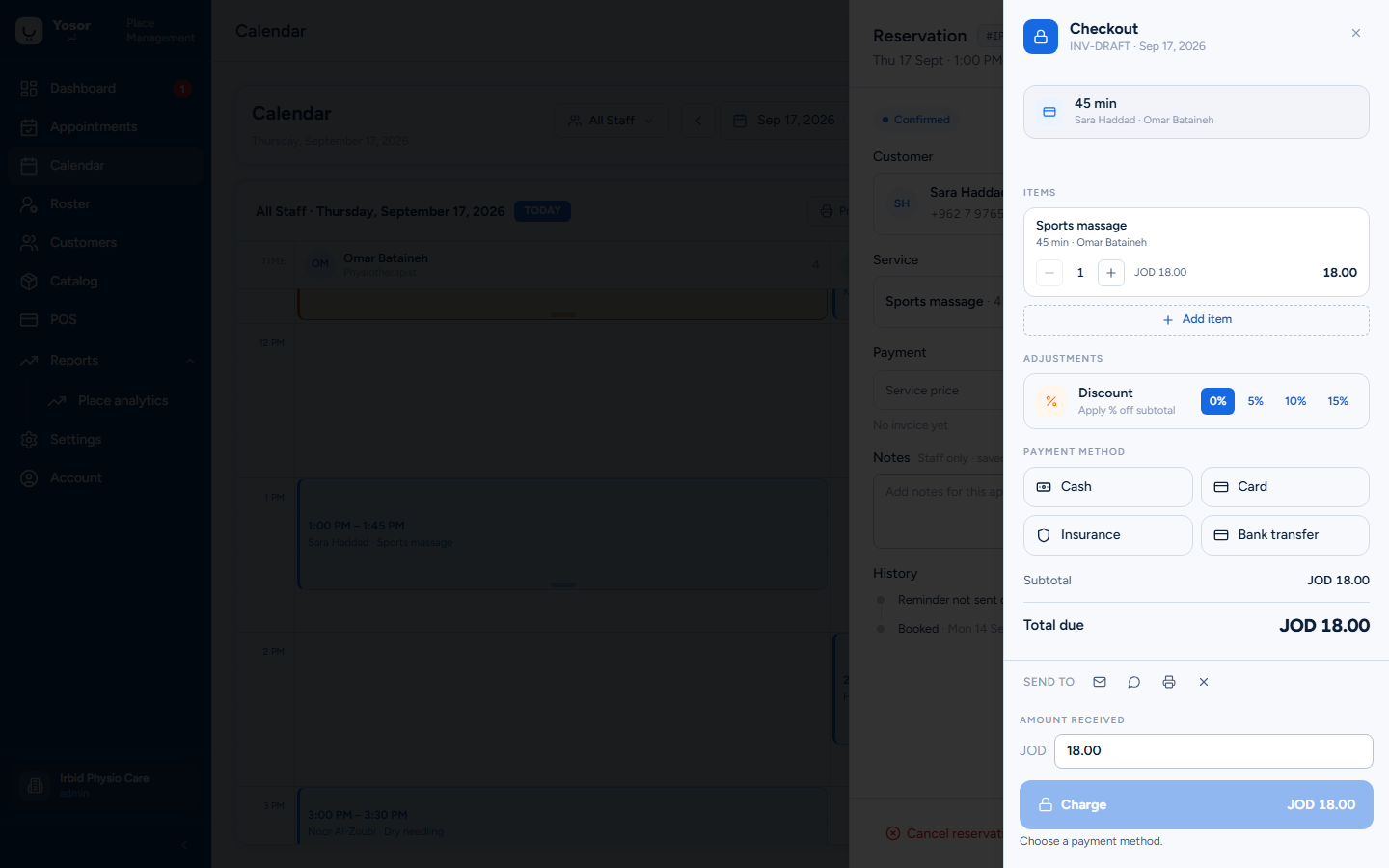
From top to bottom:
- Outstanding balance — if the customer already owes money, each open invoice is listed with
Manage (Billing permission): void a payment, void the invoice, or write off a remainder.
- Insurance — apply, decline or remove the customer's policy (Insurance module). With a policy
applied the server's line split is authoritative and the Items list is hidden.
- Items — the service line plus anything added with Add item, each with a quantity and
Remove.
- Adjustments — discount presets (0 / 5 / 10 / 15 %); on an insured visit the discount applies to
the customer's share only, and going below the insurer's minimum asks for a written reason. A Tip card appears only if tipping is enabled under Settings › Sales & payments.
- Payment method — shown only when something is owed.
- Totals — subtotal (or customer share), discount, Covered by a pack, tip and Total due.
There is deliberately no "insurance minus X" row: the insurer's share is money owed to the clinic, not a discount.
- Amount received — pre-filled with the total. Enter less to record a partial payment; the
remainder stays on the customer's balance. Full resets it.
- Charge {method} completes the sale, or Complete visit when nothing is owed.
The success screen offers to send or print the receipt.
4.7 Roster
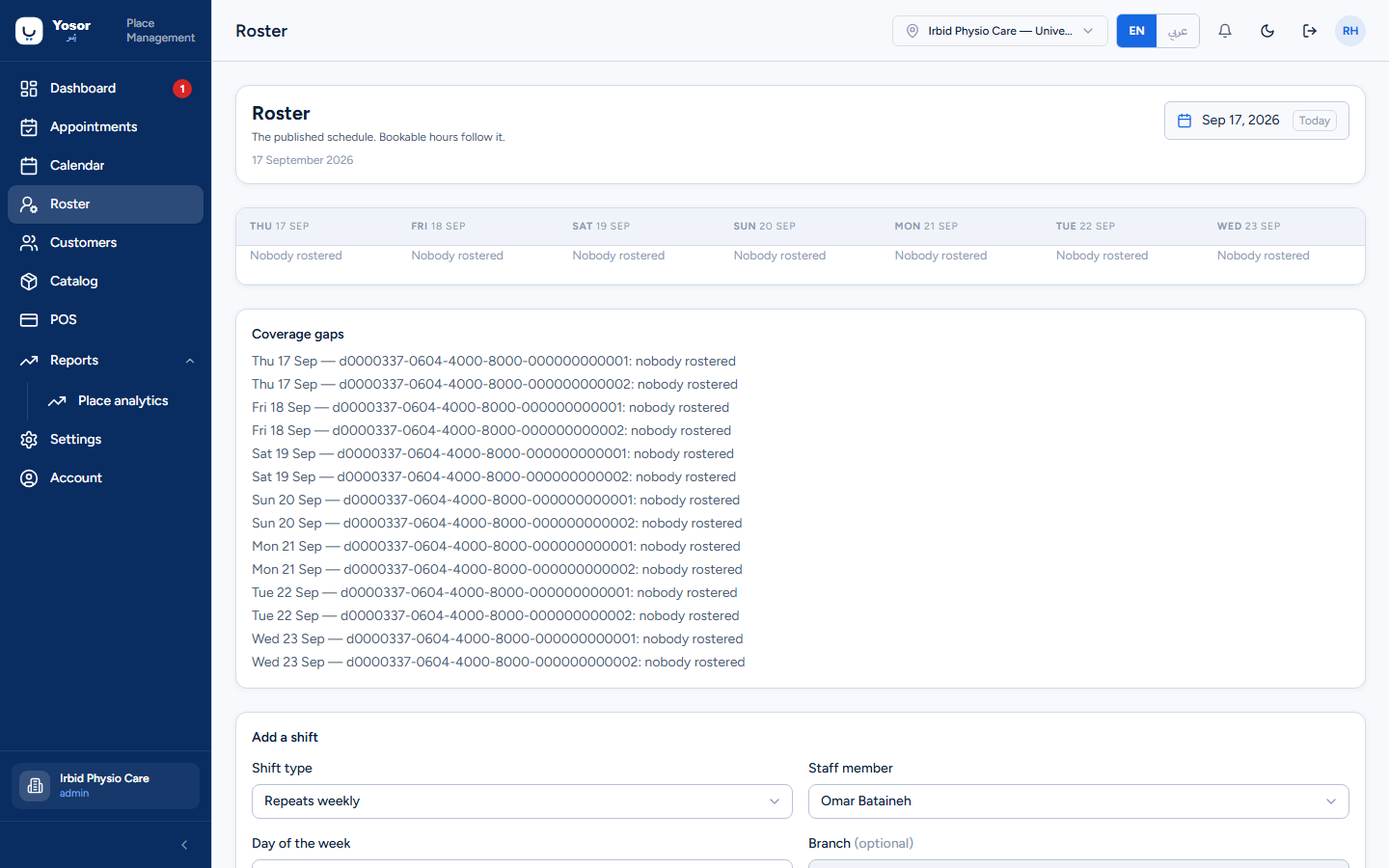
Roster is the published week: who is on shift each day, with breaks. It is the source the calendar draws bookable hours from once a team member has been rostered; a member who has never been rostered keeps the weekly pattern on their staff record.
- Pick the week start with the date picker. Each cell lists the shifts; Off marks a cancelled
occurrence; one-off or exception shifts are tinted and can be removed.
- Coverage gaps names days and branches with nobody rostered.
- Add a shift (Staff permission) creates a recurring pattern or a one-off.
- Swap one shift replaces who covers one day without touching the pattern.
- If somebody edited working hours outside the roster, a banner offers Re-apply the roster.
A dated clinic-wide exception (holiday, Ramadan hours) is not a fault and has nothing to re-apply.
The roster shows scheduled hours only; it never shows hours worked.