1. Getting started
1.1 Signing in
Open the dashboard address your clinic was given and sign in with your work email and password. Your account is created by your clinic manager (see Settings › Team); there is no self-registration on the dashboard.
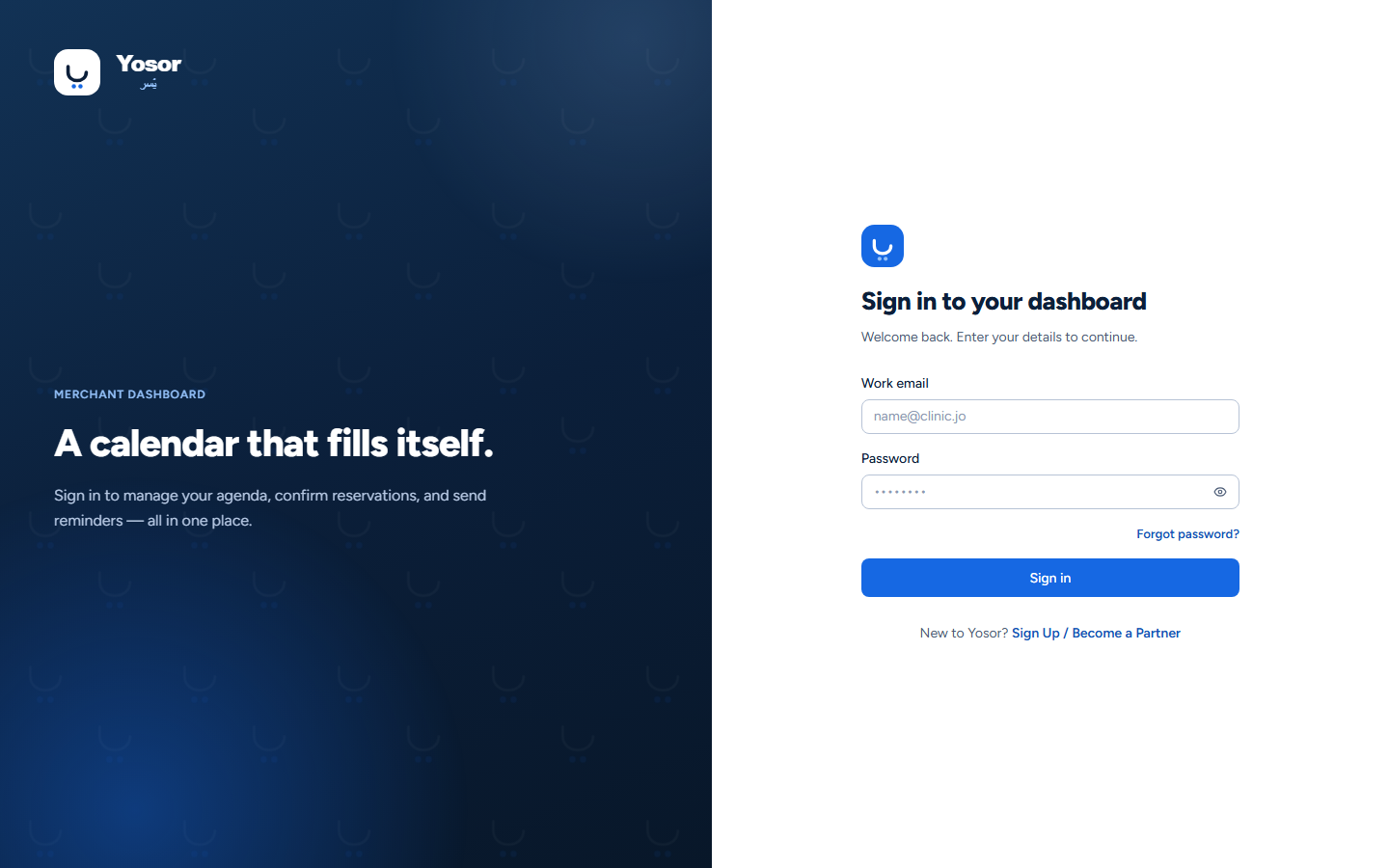
- The eye icon shows or hides the password you are typing.
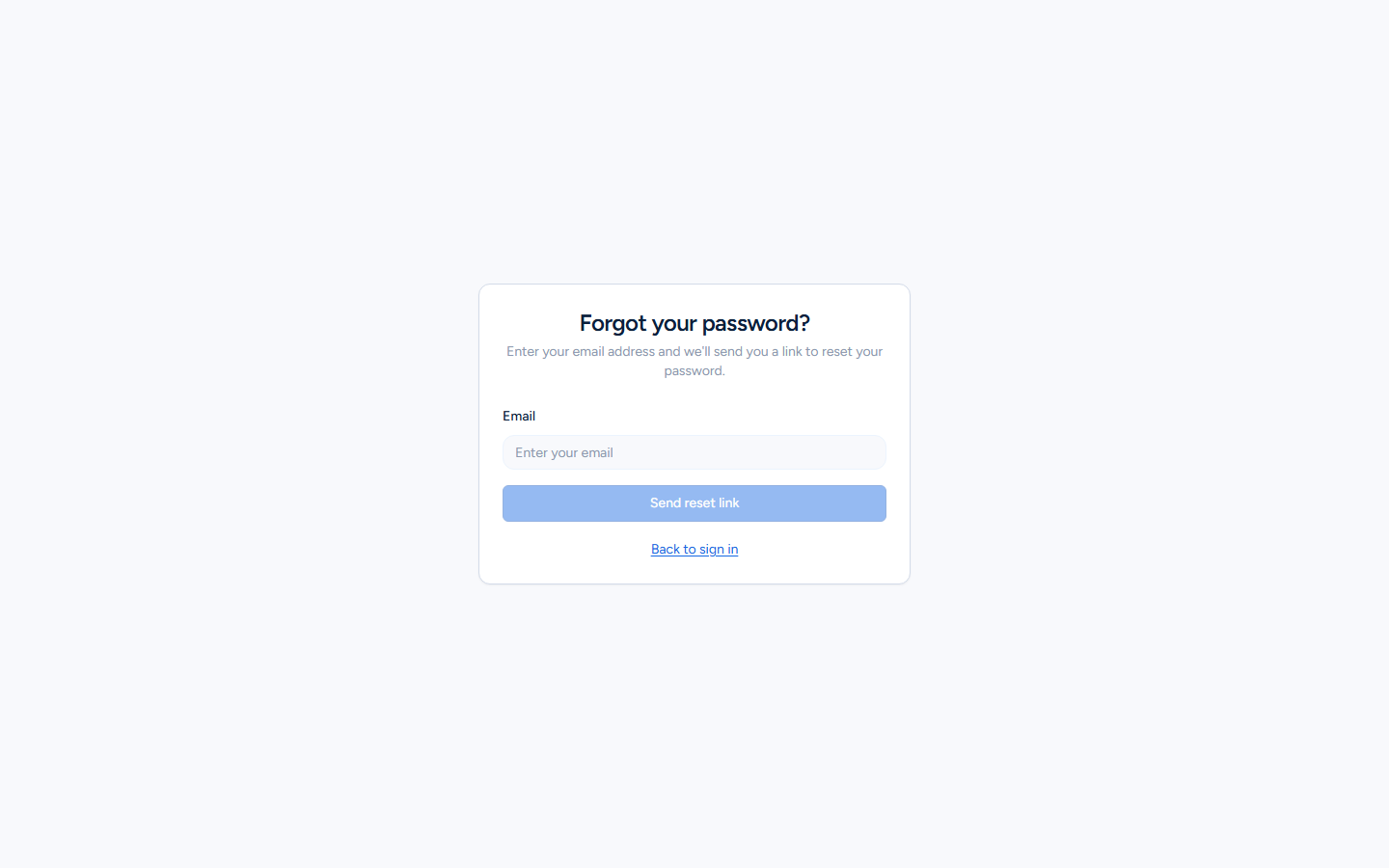
- Forgot password? opens a page that emails you a reset link. For safety the page always says
"if an account with that email exists, a link has been sent", whether or not the address is known.
- If you belong to more than one clinic, you land on Choose a place after signing in and pick
the clinic to work in. You can switch later from the header.
Your session stays open on this device until you log out, change your password, or use Account › Sign out everywhere.
1.2 The layout
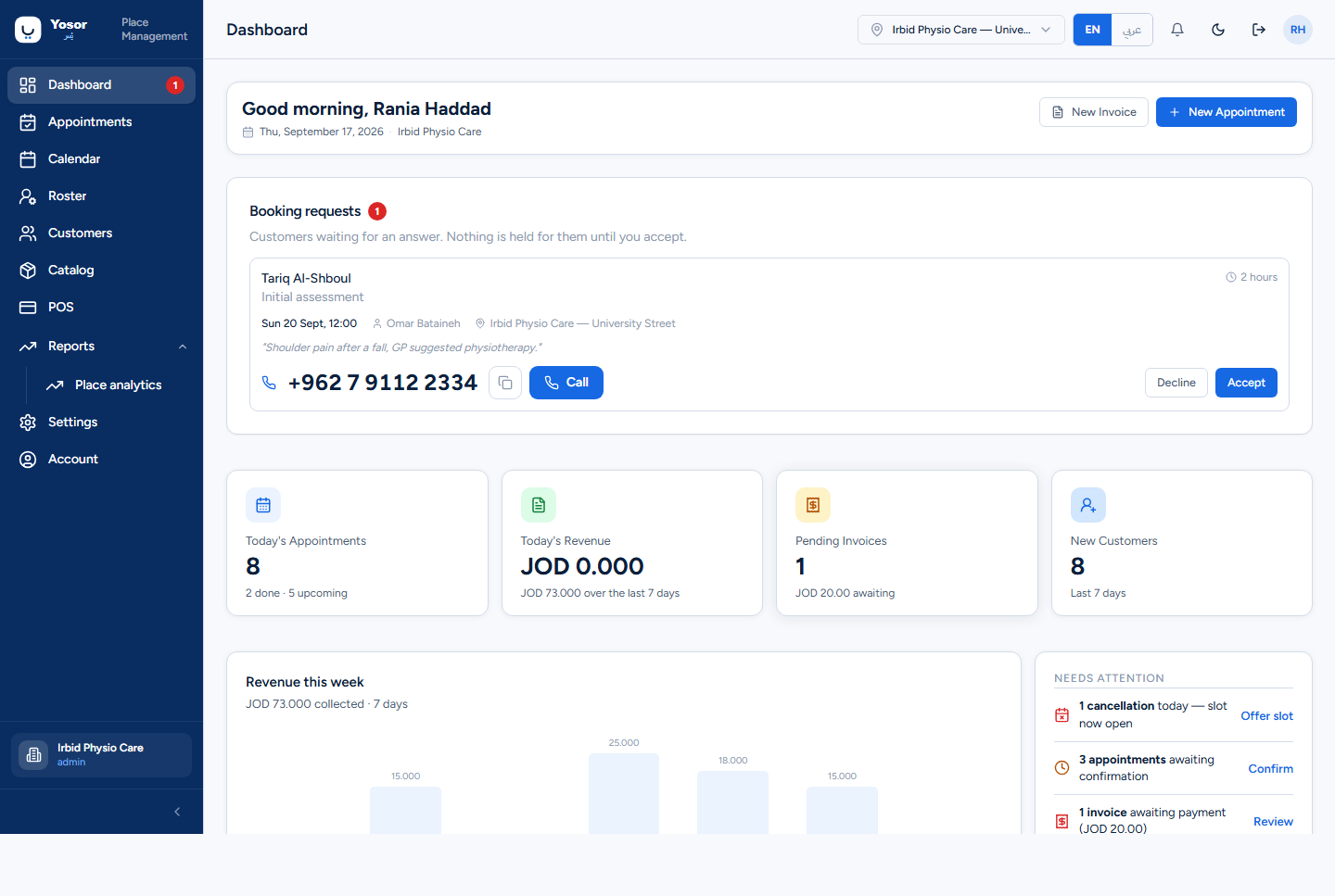
| Area | What it holds |
|---|---|
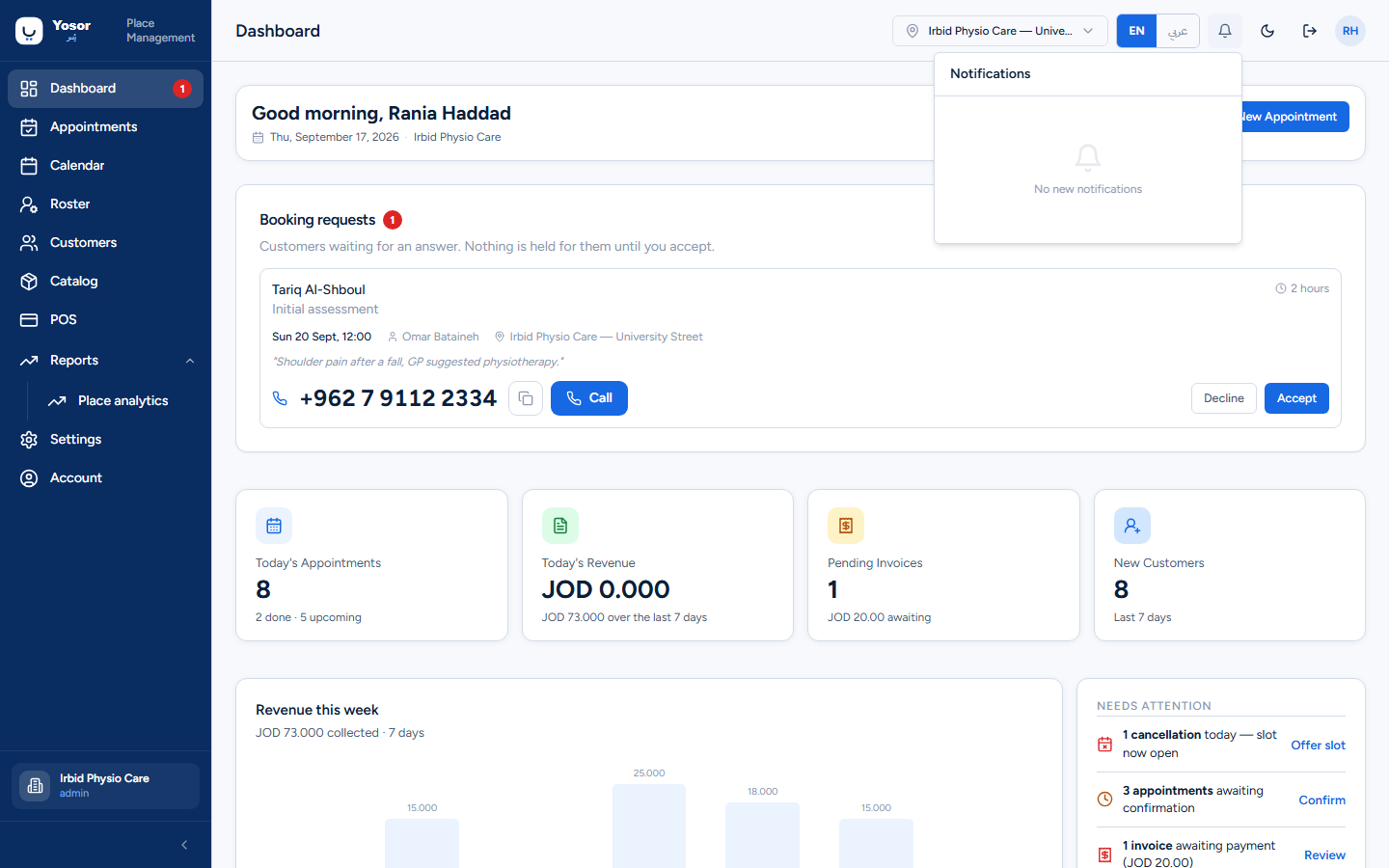
| Sidebar (left) | The main screens: Dashboard, Appointments, Calendar, Roster, Customers, Catalog, POS, Reports, Settings, Account. Rows you are not allowed to open are not shown. The card at the bottom names the clinic you are working in and your role. The arrow collapses the sidebar to icons. |
| Header (top) | The page name, the branch chip, the language switch (EN / عربي), the notifications bell, the dark-mode toggle, log out, and your account initials (a link to Account). |
| Content | The page itself. Long pages scroll; dialogs and side sheets open over the page. |
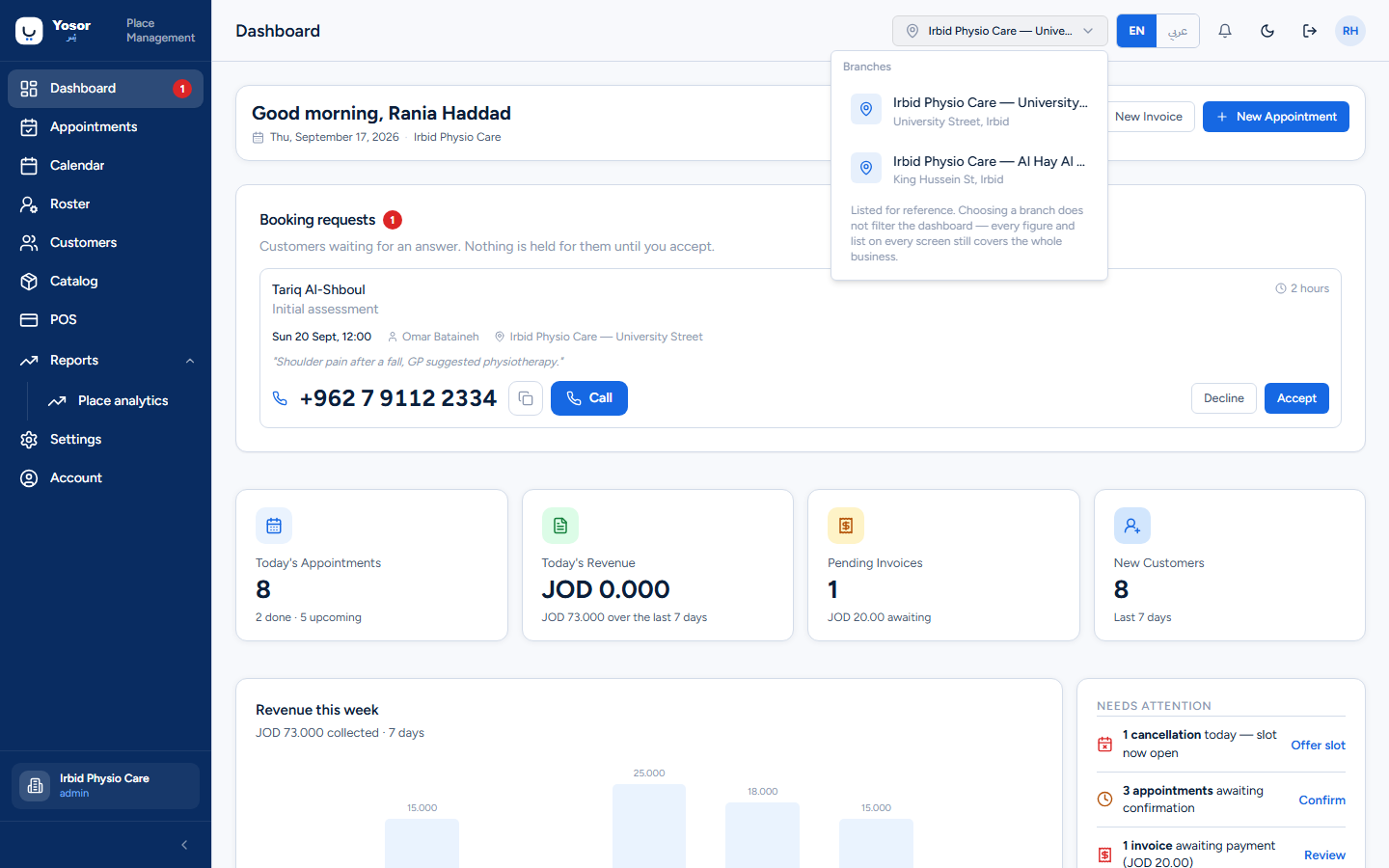
The branch chip
The clinic's branches (locations) are listed for reference. Choosing a branch here does not filter anything: every list and figure on every screen covers the whole clinic. Branch-specific views live where the data is (the booking sheet asks which branch, Reports has a branch filter on its Sales tab, and the calendar draws each branch's opening hours). Managers get a link to each branch's settings.
The language switch
EN and عربي switch the interface language for your account on this device. The navigation, header and settings hub are translated; most screen contents are still English in the current release, so choosing Arabic gives you Arabic menus around largely English pages. The Arabic guide in this folder documents exactly that view.
The notifications bell
New bookings made by customers online appear here as they arrive, with the customer's name, the service and the phone number. Opening the bell marks them seen; Clear all empties the list. This is an in-app tray only; it is not the WhatsApp message log (see Messaging).
1.3 Roles and permissions
What you can do is decided by your role in this clinic. Yosor seeds five roles and a manager can add more or change what each grants (Settings › Team › Permissions):
| Role | Typical holder | What it usually grants |
|---|---|---|
| admin | clinic manager | everything |
| doctor | supervising clinician | clinical records, plans, plus restricted notes |
| therapist | physiotherapist | clinical notes on their sessions |
| receptionist | front desk | bookings, customers, billing |
| assistant | helper | a minimal set |
Permissions are checked by the server on every action. The dashboard simply hides the buttons and pages your role cannot use. The full list of permissions and what each one unlocks is in Quick reference.
1.4 What "therapist-only" means for a physiotherapy clinic
Yosor has two workflow modes (Settings › Appearance & workflow › Workflow). Physiotherapy clinics run in Therapist-only mode, and this guide assumes it:
- A customer books directly with a physiotherapist. No doctor consultation is required first.
- Every appointment is self-contained. Nobody has to pick a treatment plan when booking; the
system keeps the bookkeeping plan in the background.
- The physiotherapist records session notes and a session-progress percentage on each
appointment (the Session Notes card on the appointment page, available when the Clinical notes module is on).
- The treatment plan a clinic tracks a course of sessions against lives on the **customer's
record* (Customers › customer › Plan* tab), together with any prepaid session pack.
In the other mode (Doctor-based) a doctor creates a plan first and therapy sessions are booked under it. The appointment page then shows clinical assessment, plan and session cards that a therapist-only clinic never sees. If your clinic ever changes mode, the booking sheet starts asking for a plan.
1.5 Modules
Modules switch whole capabilities on or off for the clinic (Settings › Appearance & workflow › Modules). For a physiotherapy clinic the defaults are:
| Module | Default | What it adds when on |
|---|---|---|
| Insurance | on | insurance companies and their price lists, policies on customer records, insured checkout, the National ID field |
| Clinical notes | on | the Session Notes card on the appointment page (needs the Clinical Records permission) |
| Classes | off | group classes, courses, a timetable |
| Retail | off | products sold over the counter |
| Commission | off | (placeholder only) |
| Walk-in queue | off | (placeholder only; the walk-in list on the calendar works regardless) |
1.6 Your account
Account (bottom of the sidebar, or your initials in the header) is where you edit your own name, phone and photo, change your sign-in email and password, and sign out of every device. Nobody else's permission is needed. Details in Settings › Account.