3. Appointments
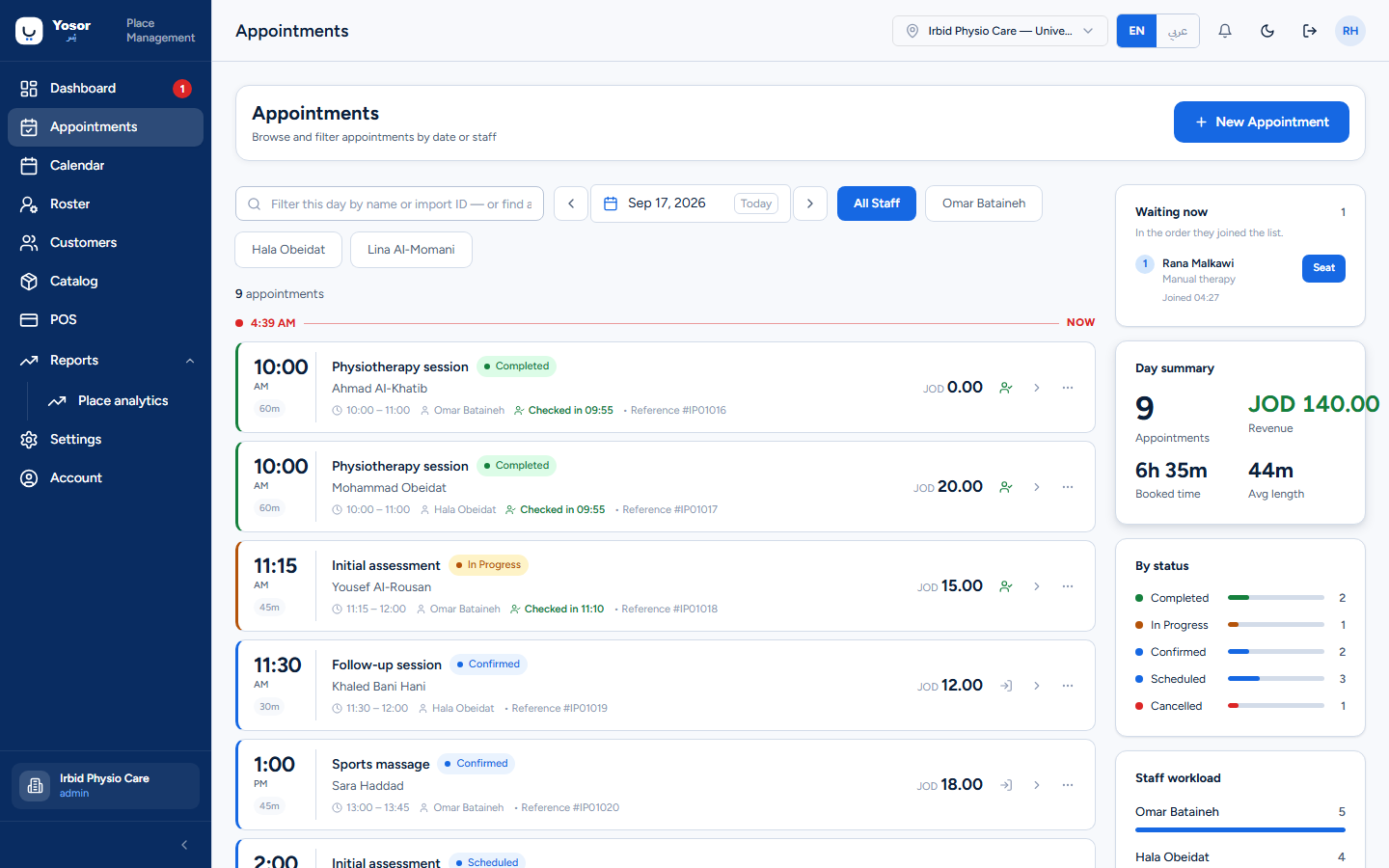
Appointments is the day list: every booking on one date, the walk-ins waiting, and a summary of the day. It is also where the booking sheet opens from, and each row leads to the appointment page.
3.1 The day list
Filter row
- The search box does two things. Typing filters the day shown by customer name, import ID or
reference. Typing a booking reference (the code from a confirmation message, with or without #, in any case, Arabic-Indic digits accepted) finds that booking anywhere in the clinic on any date and shows it in a Reference match panel above the list. The match is kept out of the day list so it does not distort the day's revenue.
- ‹ date › moves a day at a time; Today returns. Changing the day clears the search box.
- All Staff and one pill per physiotherapist filter the list. The selected pill takes that
person's colour, matching their bar in Staff workload.
Each row shows the time and length, the service with its status pill, the customer, the start and end, the physiotherapist, Checked in hh:mm once the customer arrived, any import ID or reference, the price, and three buttons:
| Button | Does |
|---|---|
| Check in (tick) | records that the customer has arrived. Check-in is not a status: the booking stays Confirmed until someone starts the visit. Press again to undo. |
| Open (arrow) | opens the appointment page |
| Actions (⋯) | changes the status; the current status is not offered. View details also opens the page. |
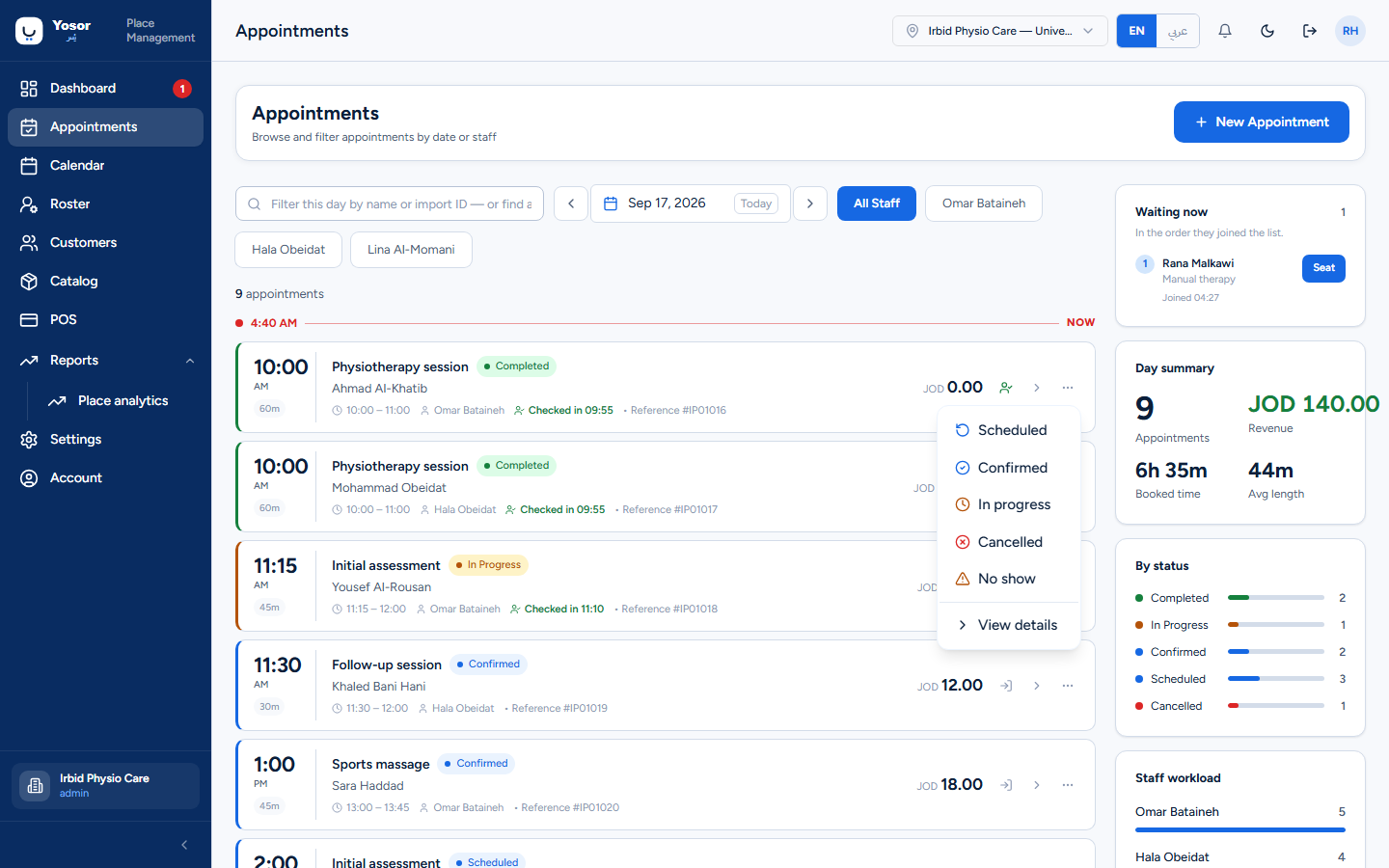
On today's date a red NOW line marks the current time in the list.
Right column
- Waiting now — walk-ins with no appointment, in the order the clinic chose (see
Scheduling › Waitlist). Seat starts their visit as a real appointment on today's list; if the physiotherapist is not free the seat is refused and the next open times are named. Walk-ins are added from the calendar's Walk-ins panel.
- Day summary — appointments, revenue, booked time and average length for the day shown.
- By status and Staff workload appear when there is something to chart.
3.2 Appointment statuses
| Status | Meaning |
|---|---|
| Scheduled | booked, not yet confirmed with the customer |
| Confirmed | the customer confirmed (or was confirmed by staff) |
| In progress | the visit has started |
| Completed | the visit is finished; checkout usually sets this |
| Cancelled | called off by the customer, staff or the system |
| No show | the customer did not arrive |
A clinic can add its own status names under Settings › Scheduling › Appointment statuses; each custom name maps onto one of the six above.
Cancelling or marking no-show when you hold the Billing permission opens the late change dialog instead of changing the status directly. It applies the clinic's late-cancellation or no-show policy (a fee, if one is configured) and then records the status. Without that permission the status simply changes.
3.3 Booking an appointment (the booking sheet)
Press New Appointment (here, on the Dashboard, or on the Calendar), or click an empty slot on the calendar. The same sheet is used to edit and reschedule an existing booking.
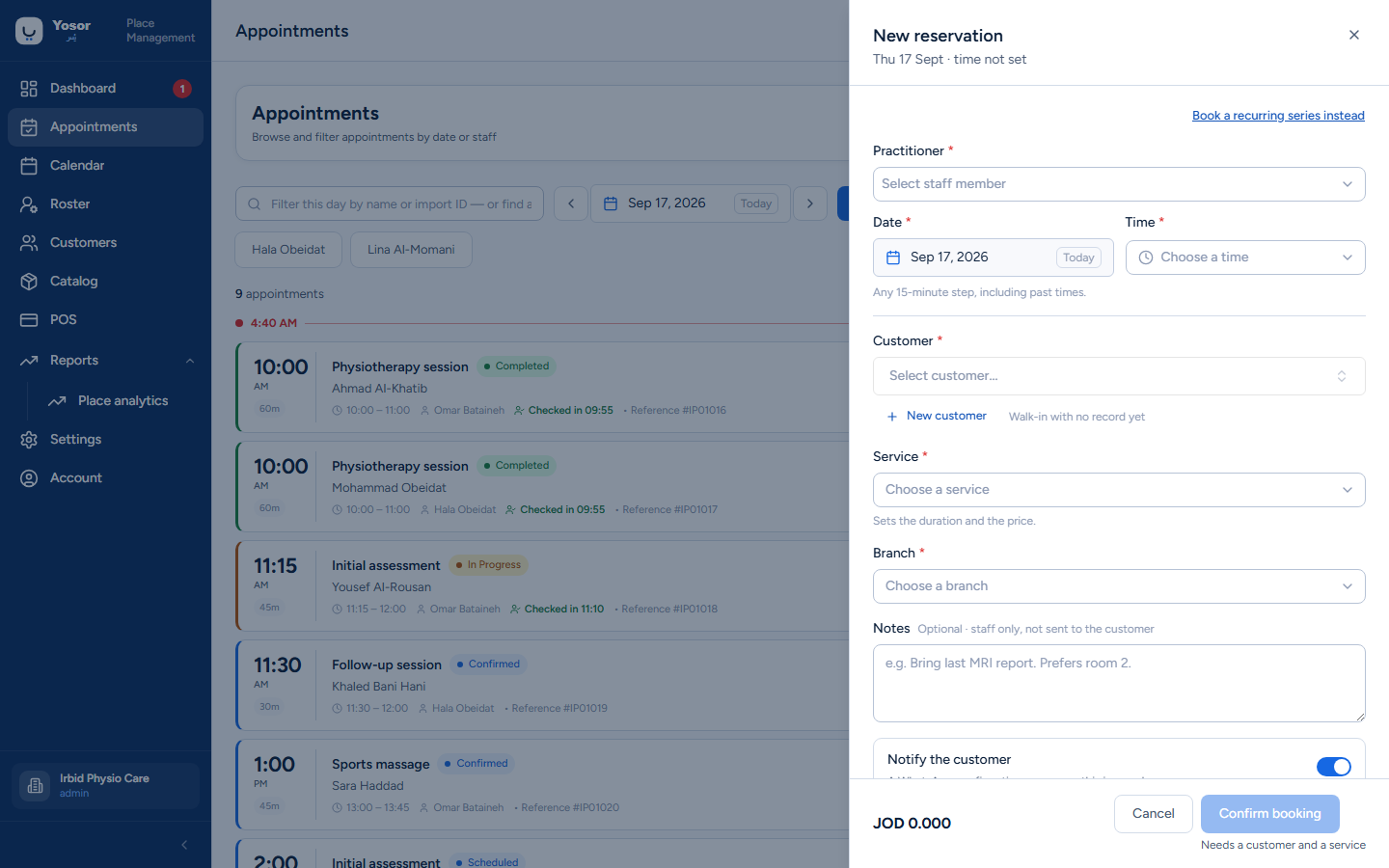
From top to bottom:
- When and who — the header line names the date, time and physiotherapist. Change opens the
date, time and practitioner pickers. If you came from a calendar slot, these are pre-filled and a From the calendar chip is shown.
- Book a recurring series instead — switches to the recurring-series sheet, carrying the
customer, service and physiotherapist across (not the date).
- Warnings that may appear:
- Outstanding balance — the customer owes money. Booking is not blocked; View record
opens their record to take payment. - Already booked at this time — the physiotherapist has a clash. It lists the conflicting booking. You can still save; it is a warning, not a block. - Why is this window unavailable? — expands to name what makes the time unavailable (no room, device busy, turnaround time, nobody qualified…).
- Customer — search by name or phone. New customer adds one inline with just a name and
mobile (other details can wait). Allergies and contraindications recorded on the customer show here as an alert.
- Service — one of the catalogue services. A service since removed from the catalogue is kept
on an existing booking until you change it.
- Branch — asked only when the clinic has more than one branch. A one-branch clinic is stamped
automatically.
- Duration (min) — pre-filled from the service; editable.
- Coverage — if the customer holds a session pack that covers this service, it says so and how
many sessions remain. Pay with a plan lets you choose which pack or membership to draw on. The session is redeemed at checkout, not now.
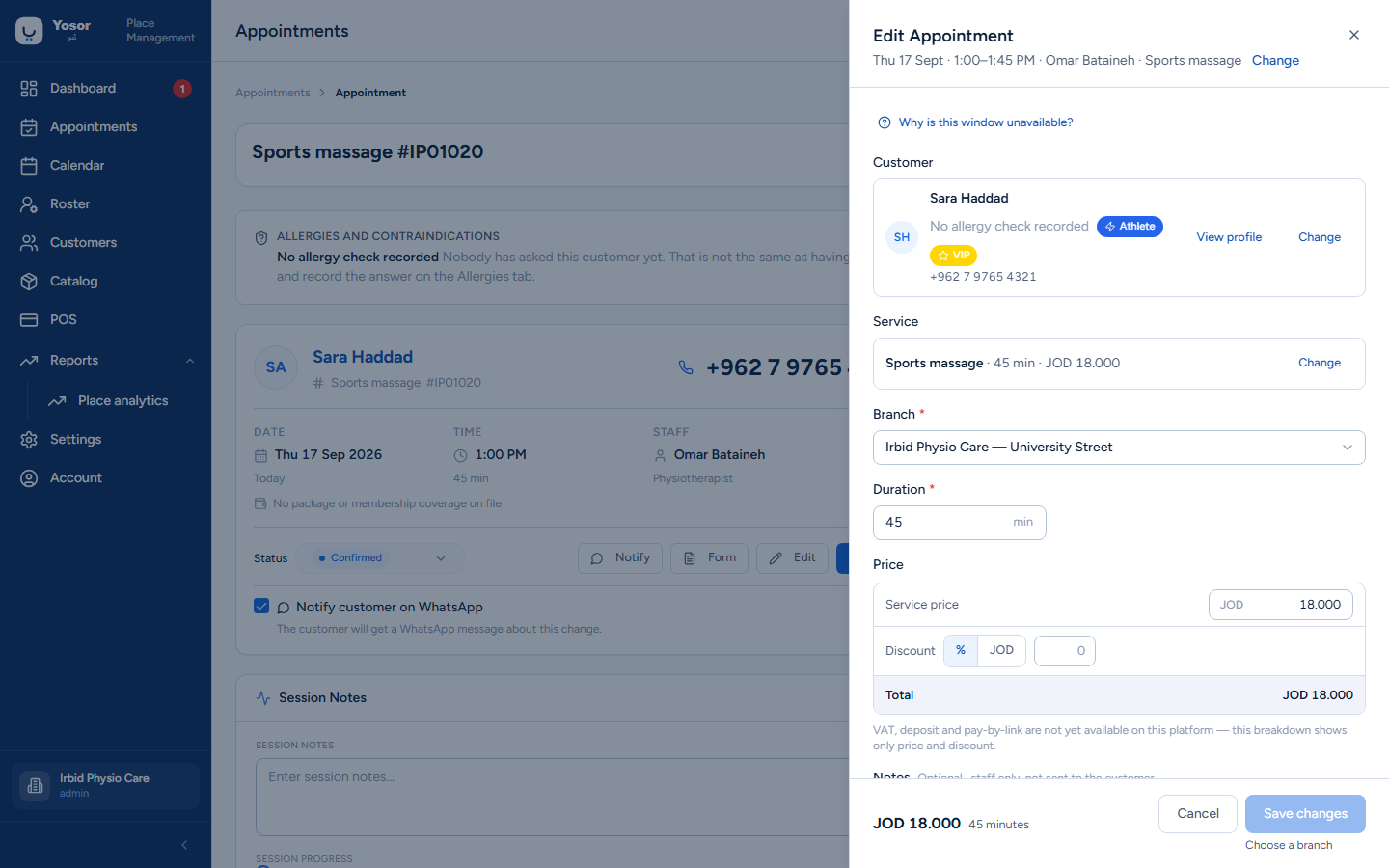
- Price — the list price, an optional discount (percent or amount) with a reason,
subtotal and total. Discounting below list price needs the Price Overrides permission.
- Notes — staff only, never sent to the customer.
- Notify the customer — on by default. Sends a WhatsApp confirmation (or "changed" message
when editing). Switch it off to book silently; the decision is recorded on the appointment.
Confirm booking (or Save changes) is at the bottom with the total and duration. If the sheet was left half-filled earlier, a We kept what you had typed banner offers to restore or start fresh.
3.4 The appointment page
Open a row, or an appointment from the calendar, the customer record or a report.
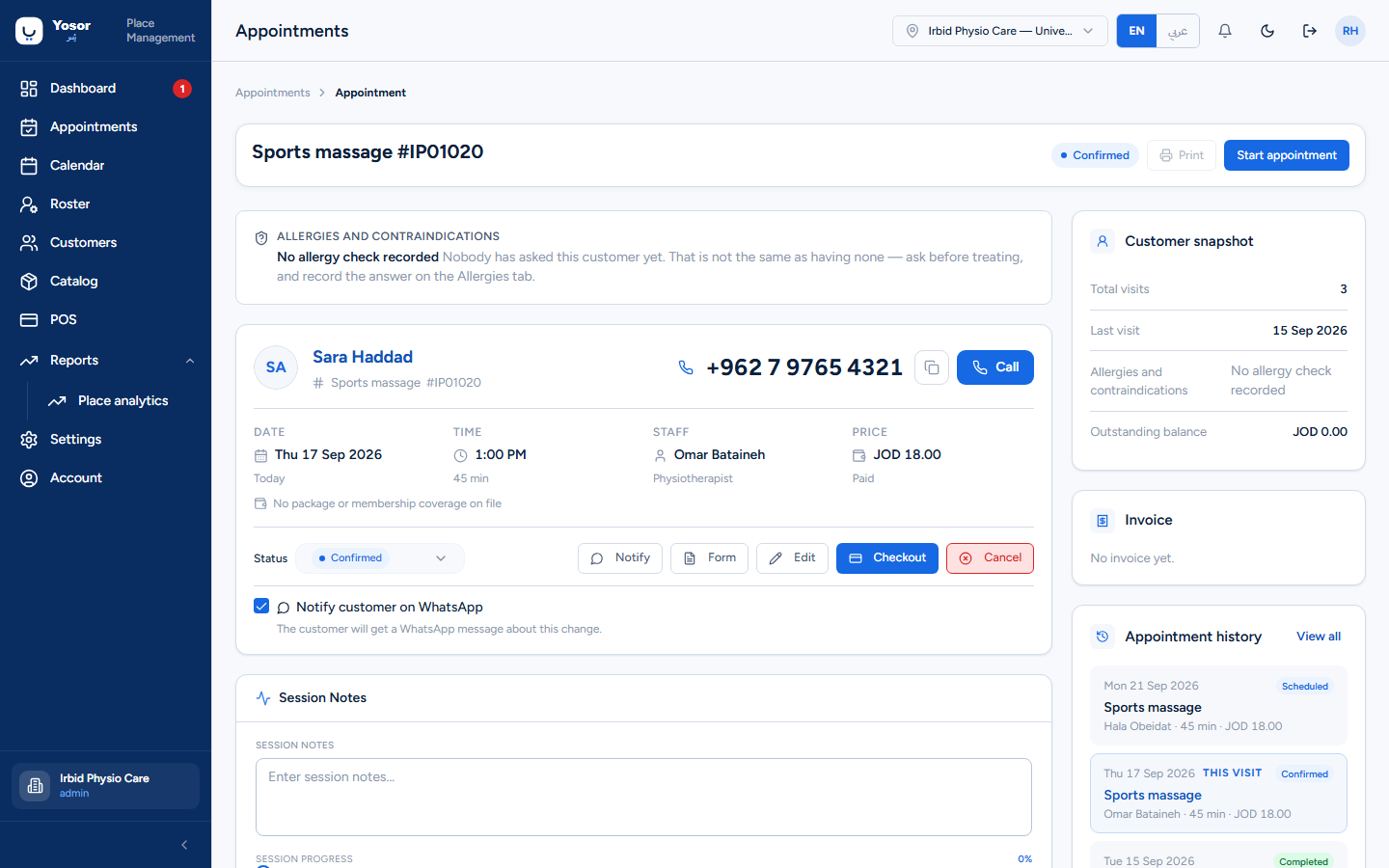
Top bar
| Control | Does |
|---|---|
| status pill | the current status |
| prints the invoice document. Disabled with the reason "This appointment has no invoice yet" until checkout. | |
| Share | sends the invoice by WhatsApp or link (after checkout) |
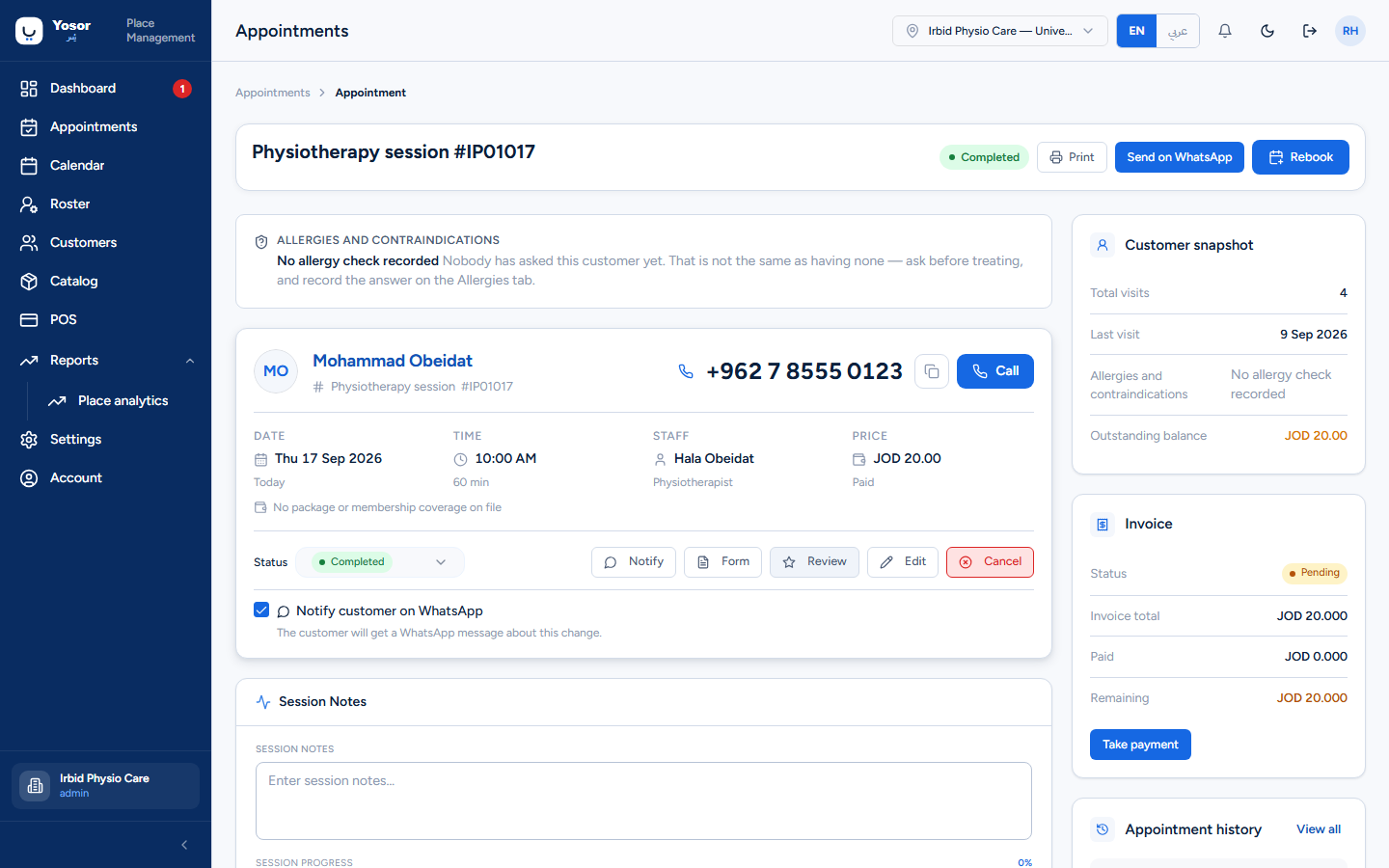
| Rebook | on a completed appointment: opens the calendar to book the same customer, physiotherapist and service again |
| Start appointment | on Scheduled / Confirmed bookings, for admin and doctor roles: confirms and sets In progress in one press |
Customer card
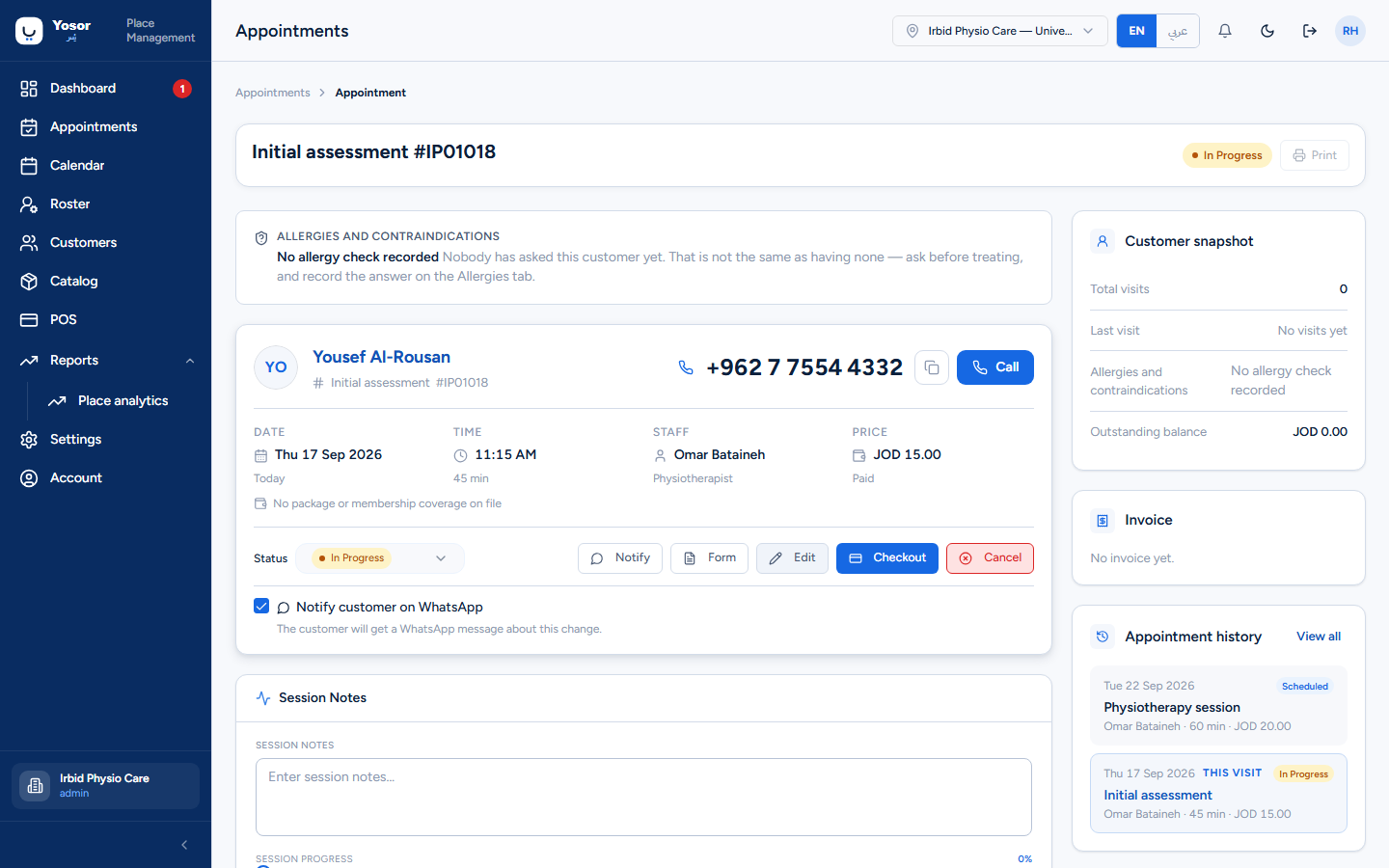
The customer's name is a button that opens their record in an overlay. Below it: the phone with Call and Copy, the allergy flag, and the date, time, physiotherapist, price and branch (branch only when the clinic has several). A coverage line states whether a session pack covers the visit.
The control row under it:
| Control | Does |
|---|---|
| Status | choose a new status. Cancelled / No show route through the late-change dialog if you hold Billing. |
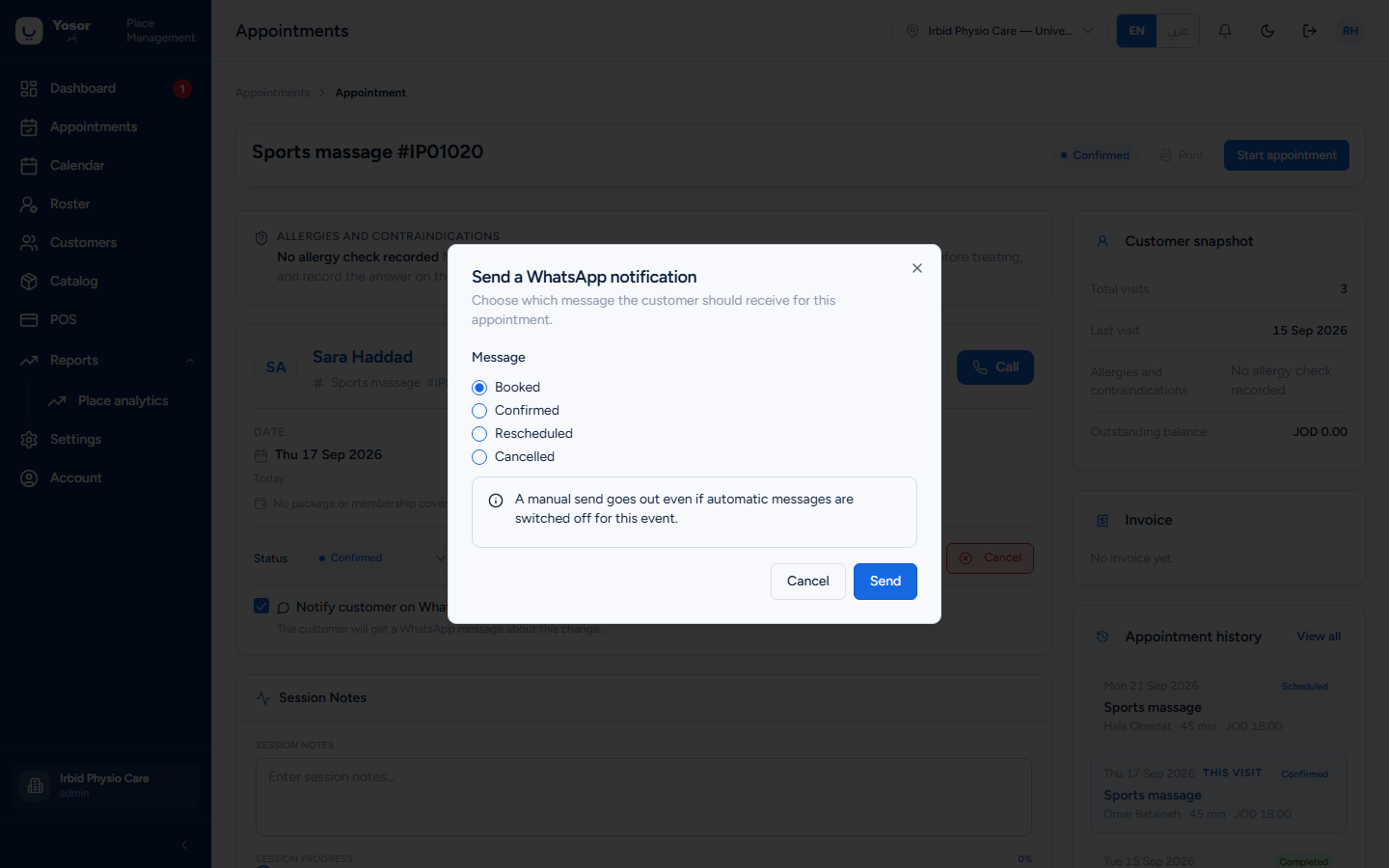
| Notify | push a WhatsApp message now (Booked / Confirmed / Rescheduled / Cancelled). A manual push goes out even if automatic messages are off for that event. |
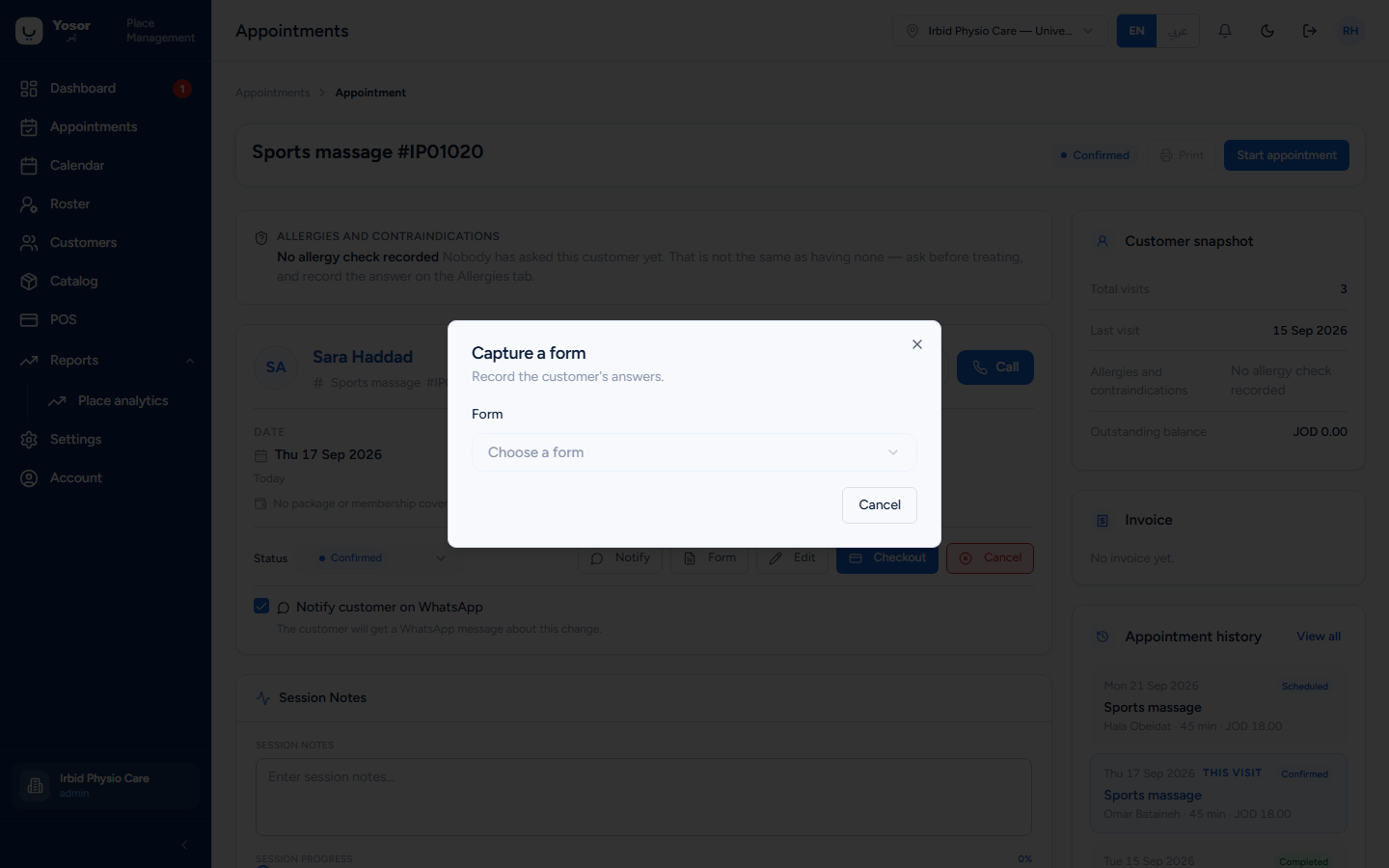
| Form | capture an intake, consent or questionnaire form against this visit (forms) |
| Review | on a completed visit: send the review request now, even if automatic requests are off. If the customer opted out you are asked to confirm. |
| Edit | opens the booking sheet to reschedule, change the service, the physiotherapist or the price |
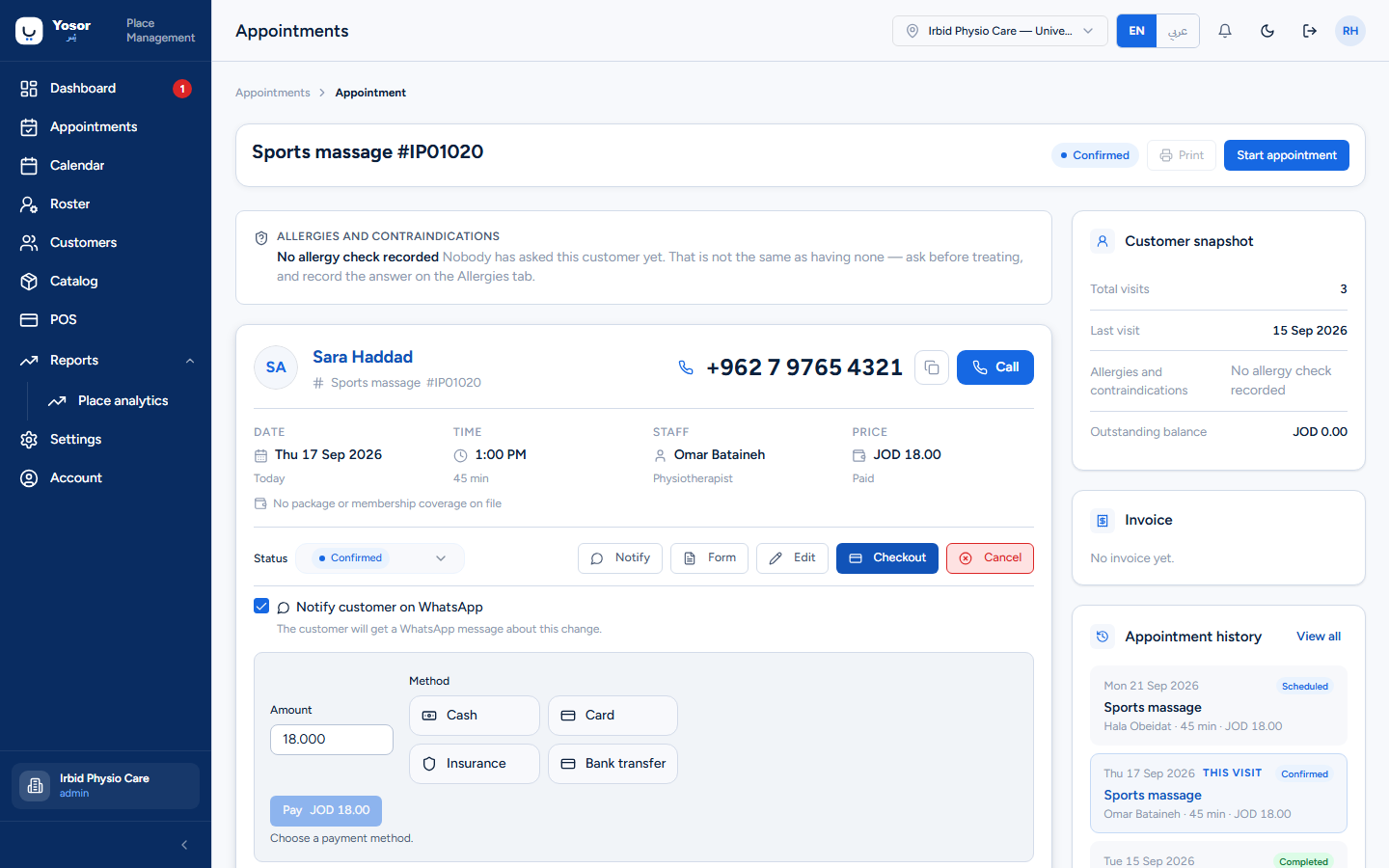
| Checkout | opens the inline payment panel (below). Hidden once the visit is completed or cancelled. |
| Cancel | cancels the appointment (no second confirmation on the plain path; the late-change dialog appears if you hold Billing) |
| Notify customer on WhatsApp | applies to the status change, save or cancel you make next. When off, no message is sent and the choice is recorded. |
Checkout (inline)
- With the Insurance module on, the insurance panel lets you apply the customer's policy. Once
applied, the amount becomes the customer's share and is read-only.
- Amount and Method (cash, card, …) are asked only when something is owed. A visit covered by
a session pack or free reads No charge and the button becomes Complete — no charge.
- Pay creates the invoice, records the payment and sets the appointment to Completed.
This inline panel is the quick till. The full till (line items, discount presets, tips, partial payments, voiding, write-offs) is the calendar's checkout sidebar, described in Calendar › Checkout.
Session Notes (Clinical notes module on, Clinical Records permission)
A textarea for what was done and how the customer responded, saved as you type, plus a Session Progress slider (0–100 %). This is the physiotherapist's record for a therapist-only clinic; the customer's overall course is followed on their record's Plan tab.
Right column
- Customer snapshot — total visits, last visit, allergies, and the customer's **outstanding
balance across all invoices* (this is not the same figure as the invoice card's Remaining*).
- Invoice — status, total, paid and remaining. No invoice yet before checkout. After the visit
is completed with money still owed, Take payment appears here and settles this invoice.
- Preferences — the customer's stated preferences, when recorded.
- Appointment history — the customer's last eight visits.
- Quick actions — Send WhatsApp follow-up (opens WhatsApp), Book next appointment (booking
sheet pre-filled with this customer), Download visit summary (browser print), View invoice.
3.5 Completed reservations
Reports › Appointments › Completed reservations lists finished visits over a date range with what was charged, paid and outstanding, and lets you rebook any of them in one action. See Reports.