10. Settings
Settings (Settings permission) is a hub of cards in seven groups. Each card opens one screen; the breadcrumb at the top of that screen is the way back.
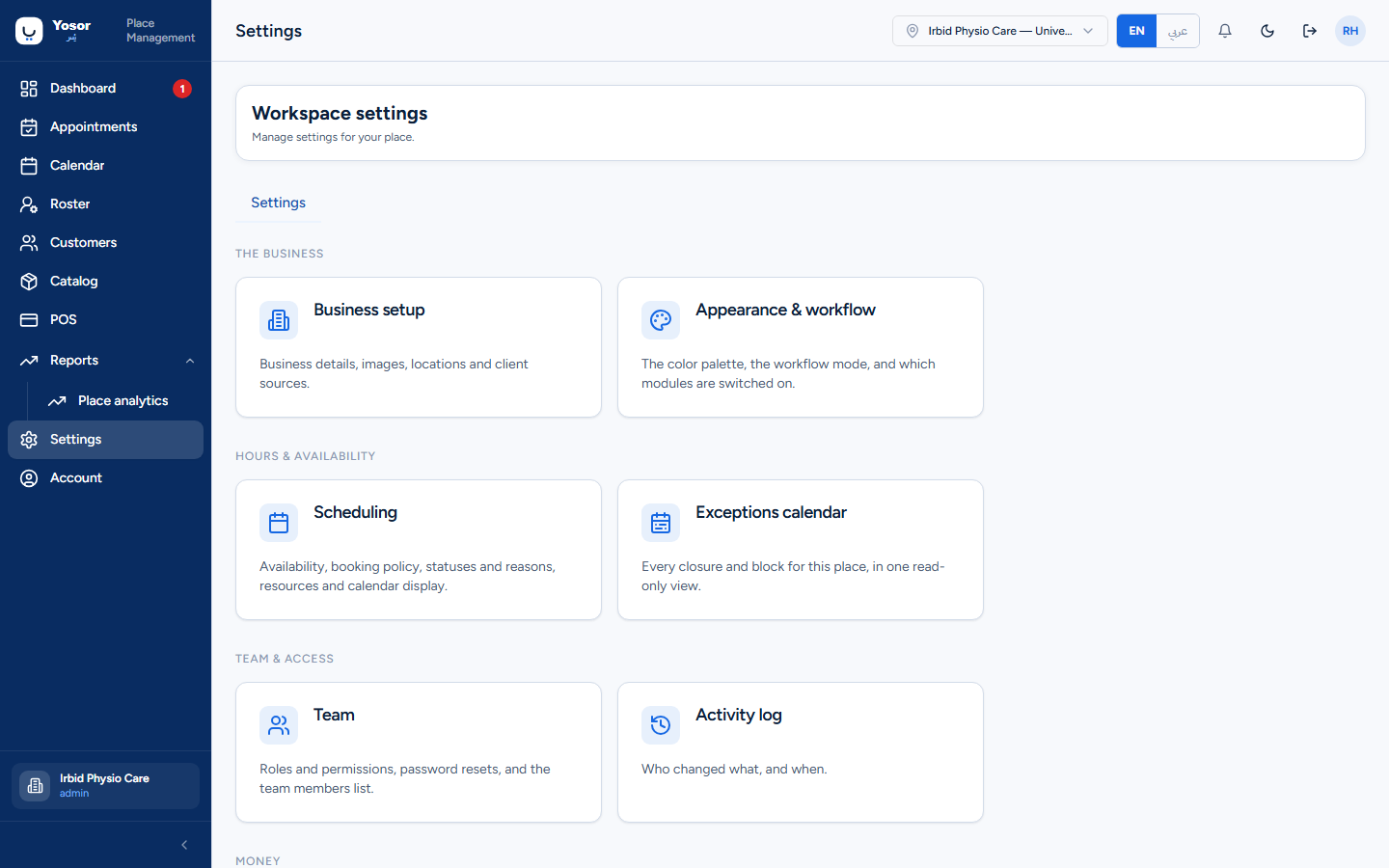
| Group | Cards |
|---|---|
| The business | Business setup · Appearance & workflow |
| Hours & availability | Scheduling · Exceptions calendar |
| Team & access | Team · Activity log |
| Money | Sales & payments · Insurance companies (Insurance module) · Products (Retail module) |
| Messaging | Notifications · SMS · Reviews |
| Customers | Customer attributes · Forms · Levels |
| Platform | Integrations · Places (Yosor staff only) |
10.1 Business setup
Five sections in the left rail, plus shortcuts to the service menu, staff list and customer list.
Business details
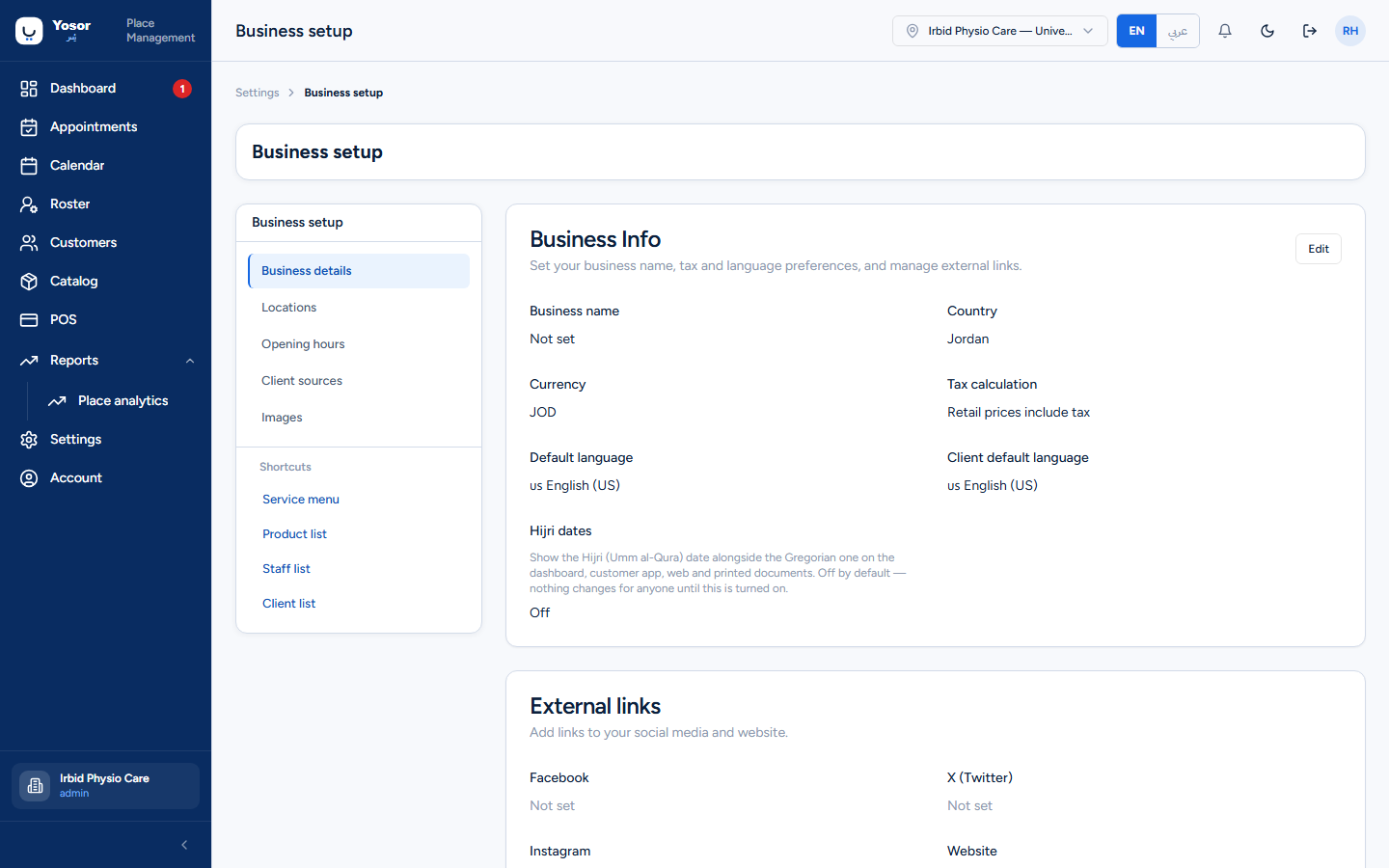
- Business Info (Edit → Save): business name, country, currency, whether prices include
tax, default language, customers' default language, and Hijri dates (shows the Umm al-Qura date beside the Gregorian one across the dashboard, app and documents).
- External links: Facebook, X, Instagram, website.
- Who you serve: Everyone, Women only or Men only, saved on click. Customers see it before
booking. It is optional for a physiotherapy clinic.
- Fiscal identity and VAT: the tax registration and VAT posture printed on invoices. For a
merchant these are held by Yosor and shown read-only with "Contact Yosor"; that is the normal state, not a missing setting.
Locations (branches)
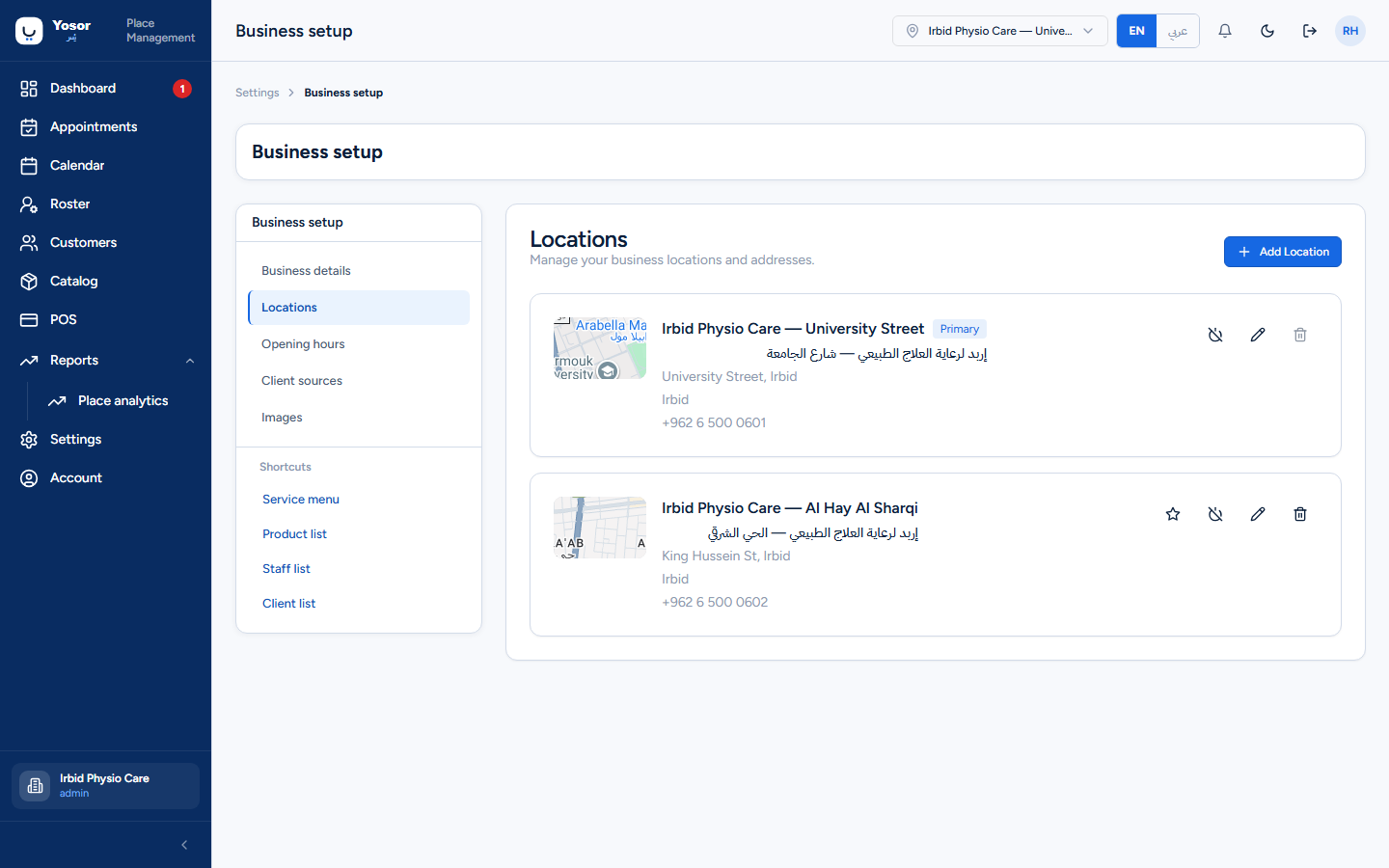
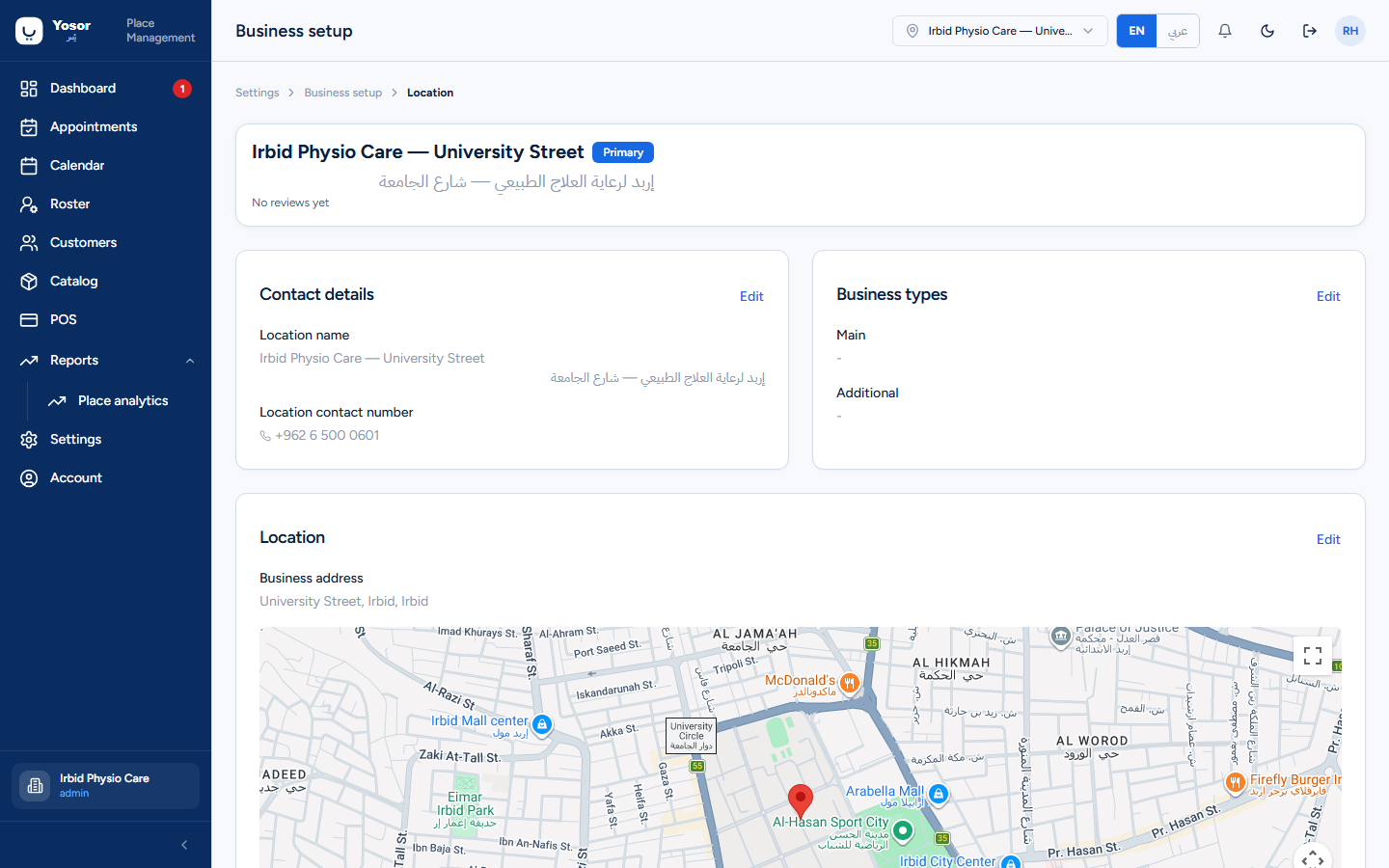
One card per branch with its address, phone and Primary badge. Actions per branch: make it the main location, deactivate or reactivate, edit, delete (refused while reservations name it; deactivate instead). Clicking a card opens the branch page.
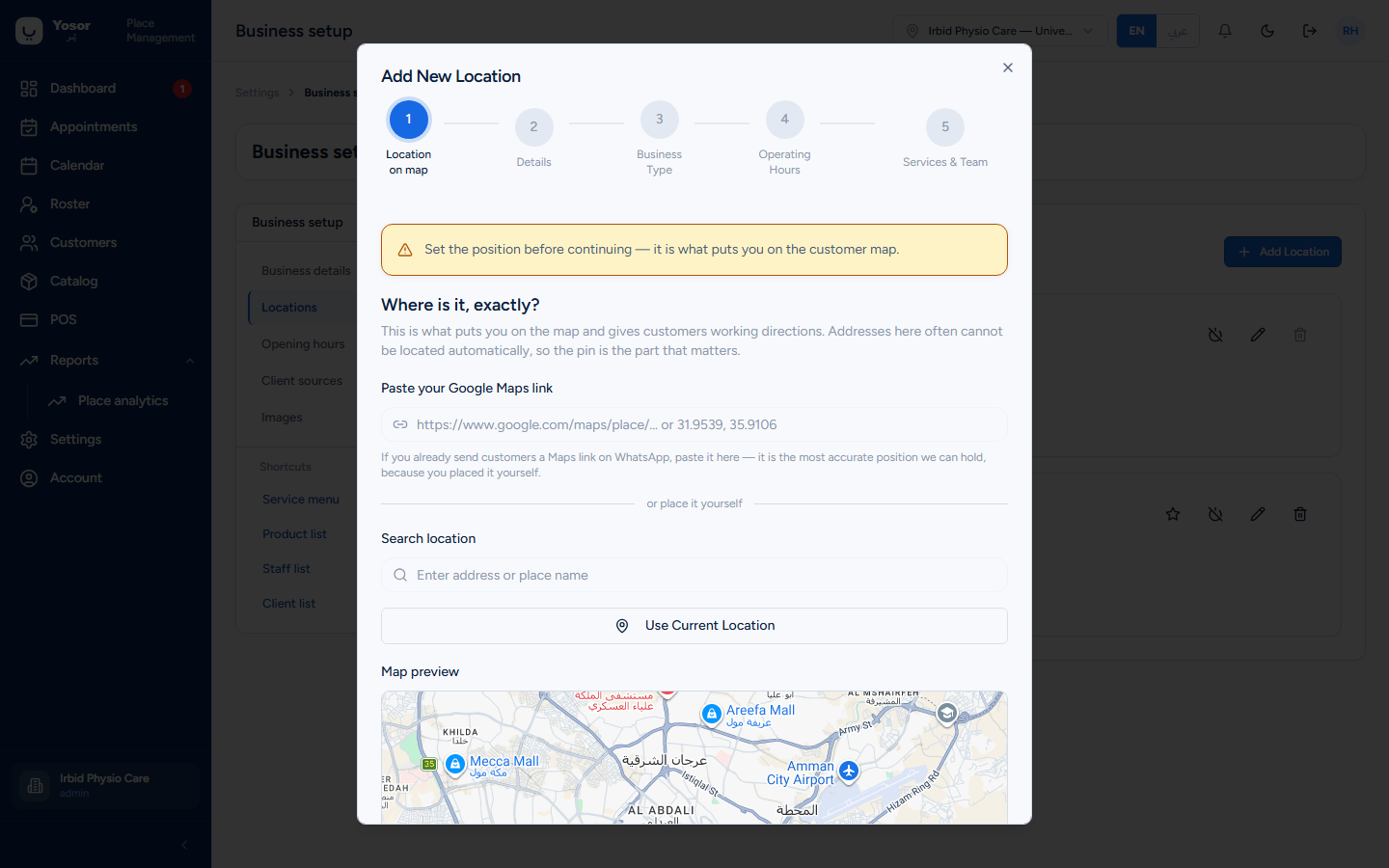
Add Location starts a five-step wizard: Location on map (the pin is required for a new branch; it is what places you on the customer map), Details (name, phone, address, city, how to find you, neighbourhood, with Arabic versions), Business type (choose Physical Therapy), Operating hours, and Services & Team (which services and which physiotherapists work at this branch).
A branch with no assigned team members takes no online bookings. Assign at least one physiotherapist to every branch you want bookable.
The branch page edits the same things card by card (contact details, business type, map position, opening hours) and lists the assigned services and team.
Opening hours
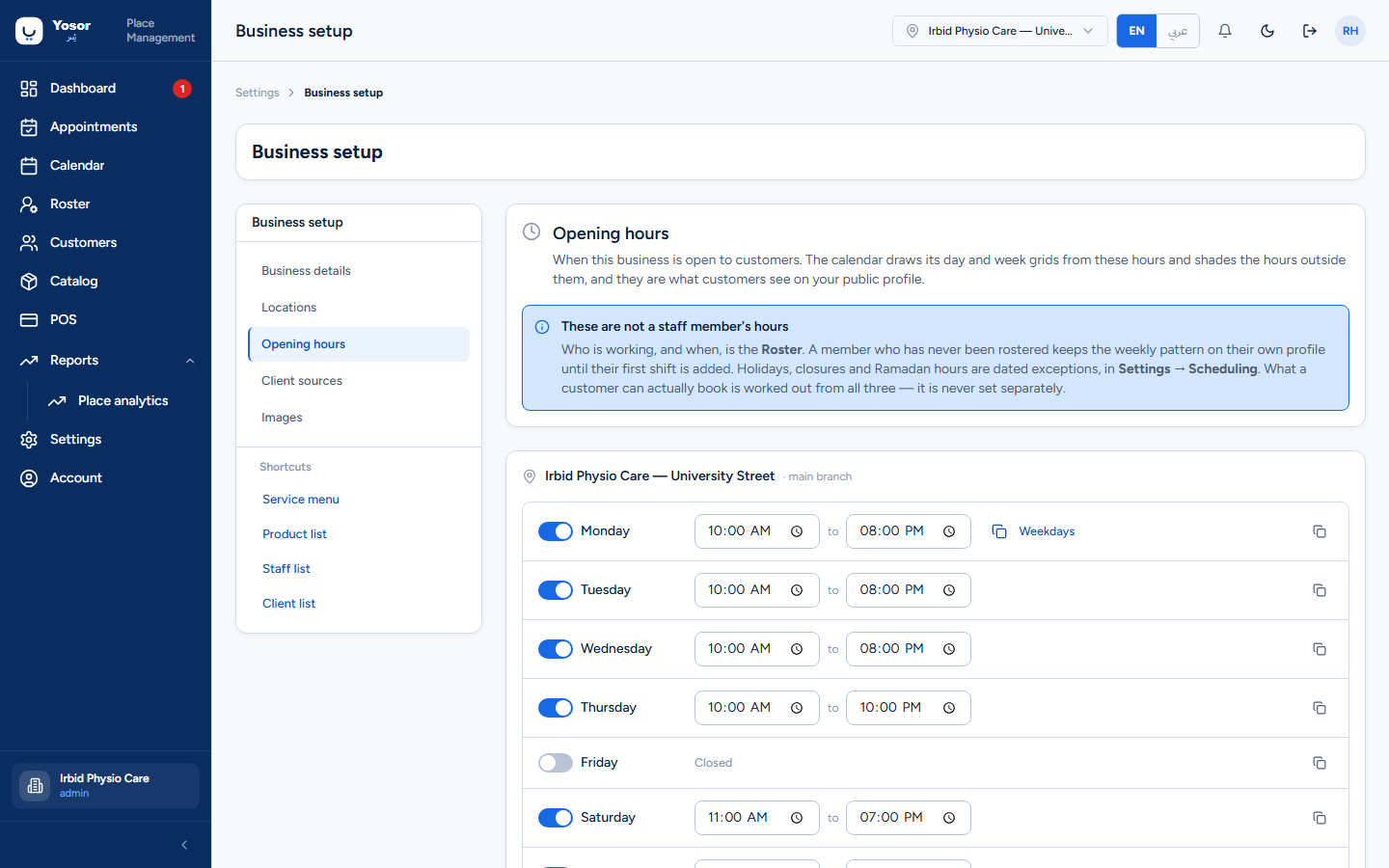
Per branch, the days and hours the clinic is open to customers. The calendar shades the hours outside them, and customers see them on the public profile. Set a day's times and use the copy control to apply them to other days; Save hours appears when a branch's hours changed.
These are not a team member's hours. Who works when is the Roster (or the weekly pattern on the staff record until the member is rostered). Holidays and closures are exceptions under Scheduling.
Client sources
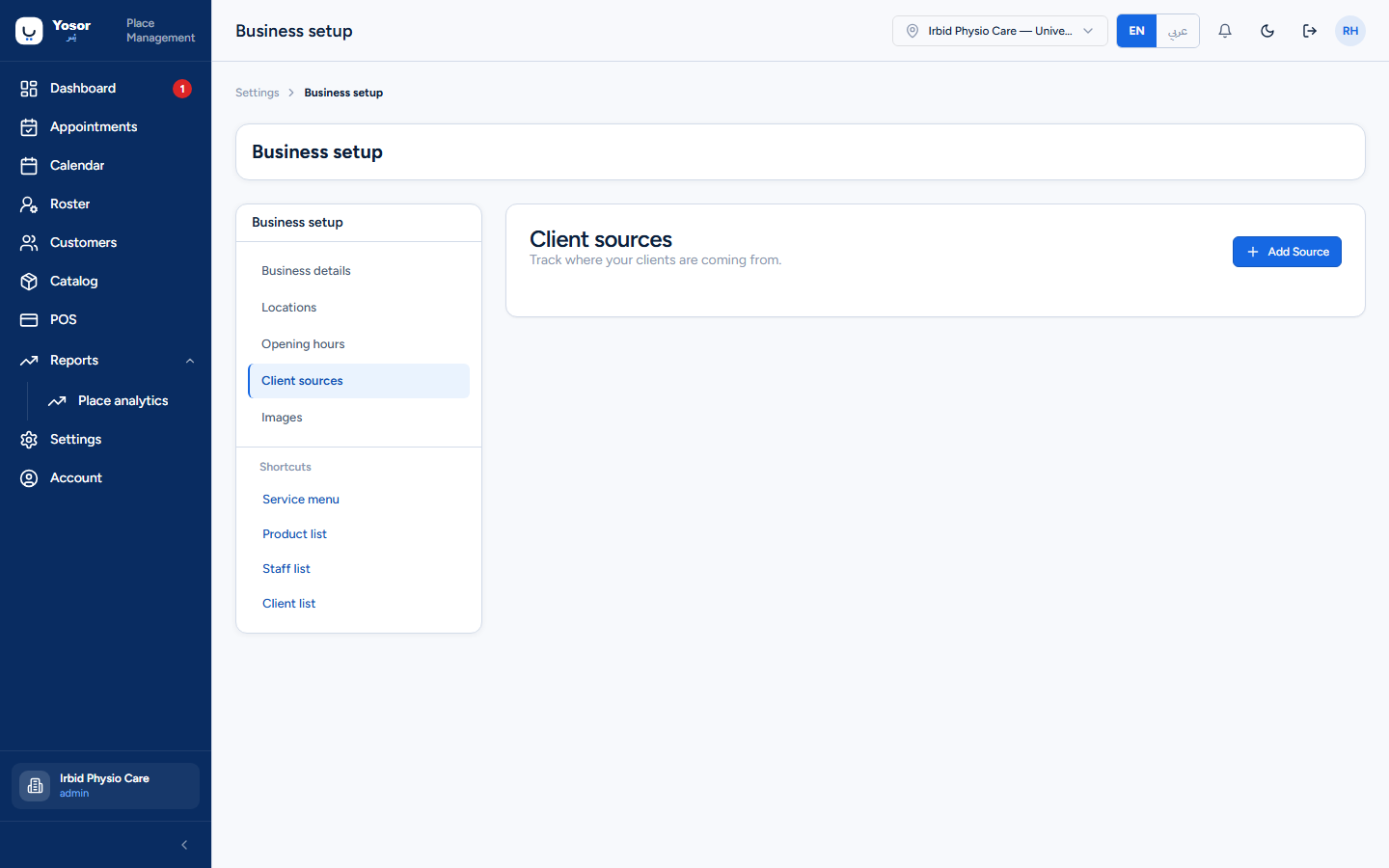
Where customers come from (Google, referral, walk-by…), for the customer record.
Images
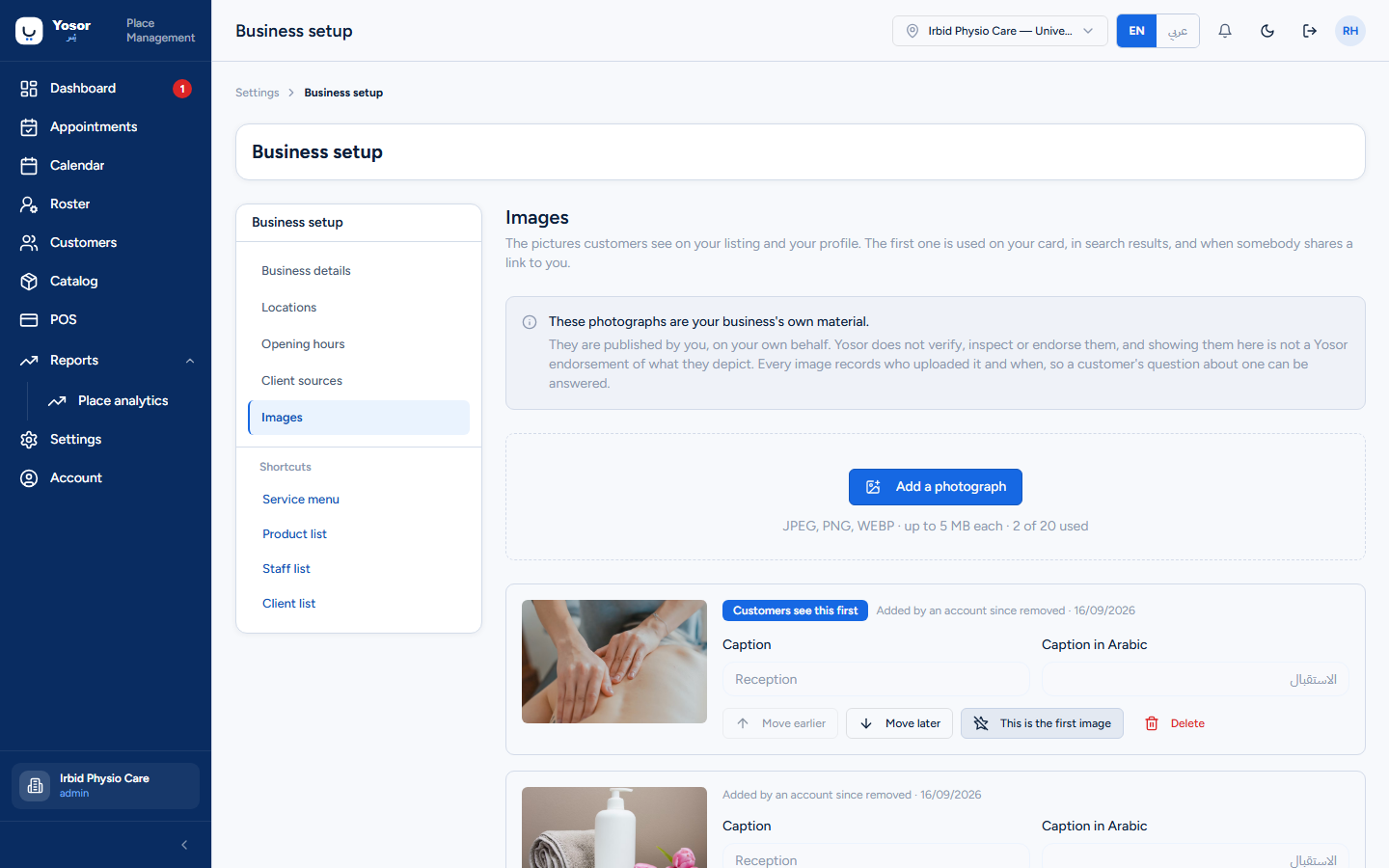
The photographs on the clinic's public listing (the first is used on the card, in search results and in link previews) and the logo printed on invoices and receipts (PNG or WebP up to 5 MB). Images are the clinic's own material; every one shows who uploaded it and when.
10.2 Appearance & workflow
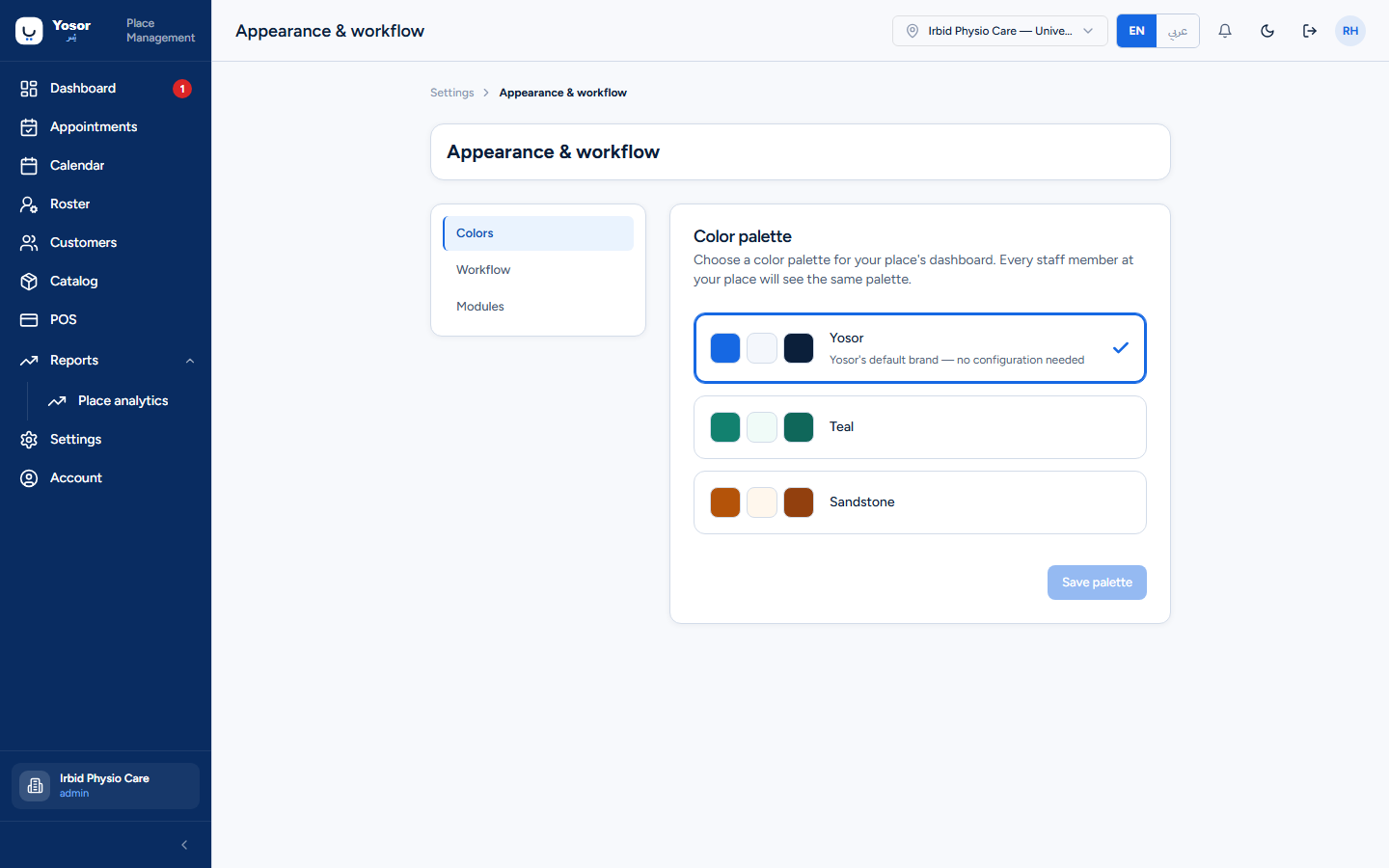
Three sections: Colors (the dashboard palette, shared by every staff member of the clinic), Workflow and Modules.
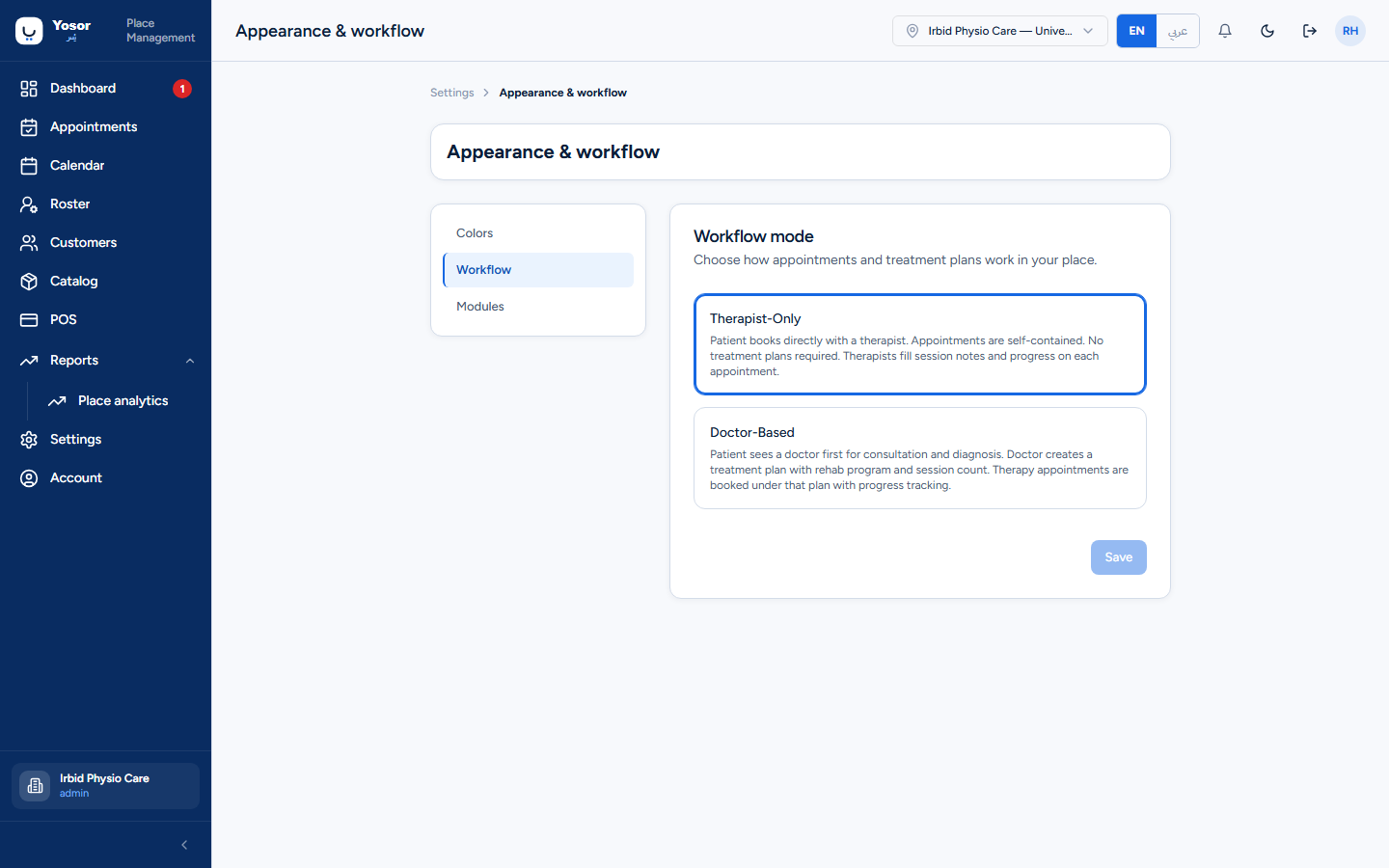
Workflow is the Therapist-only / Doctor-based choice described in Getting started. Keep a physiotherapy clinic on Therapist-only unless a doctor consultation genuinely precedes every course of treatment.
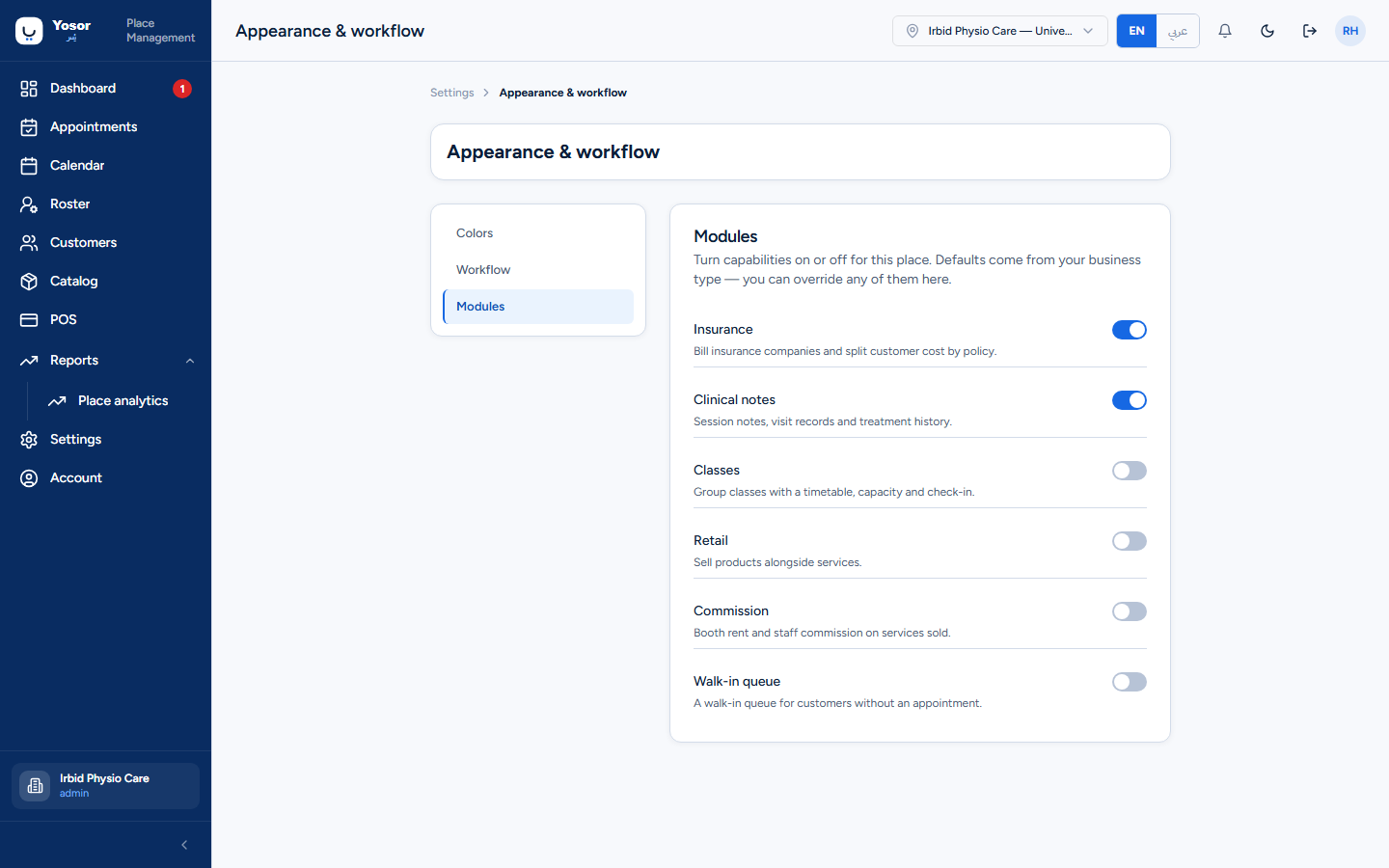
Modules switches each capability on or off; the defaults come from the business type and an override is marked Manually set. Insurance and Clinical notes should be on.
10.3 Scheduling
The availability rules, booking policy and the lists the calendar uses. Sections in the left rail:
| Section | What it sets |
|---|---|
| Time and calendar | time zone, 12/24-hour format, first day of the week; the calendar's colour source (category / staff / status) and whether processing and blocked time are drawn |
| Online bookings | whether customers may book online and in which windows; minimum notice, how far ahead customers may book, a same-day cutoff; the gap after each reservation (turnaround, also for staff-made bookings) and how many reservations a staff member can hold at once |
| Waitlist | enable the waiting list and choose its order (first in line, or by preferred time) |
| Appointment statuses | custom status names, each mapped onto a standard status with a colour |
| Cancellation reasons | the list offered when cancelling |
| Blocked time types | lunch, training, admin… with a default duration and whether the time is paid |
| Closed periods | holidays and closures, whole clinic or one branch, with an Arabic name customers see as the reason a day has no times |
| Dated hours | different opening hours on specific dates (replace the weekly hours for that day) |
| Ramadan hours | a dated Ramadan profile |
| Resources | treatment rooms (interchangeable by type) and devices (individual, with qualified operators); retired rather than deleted |
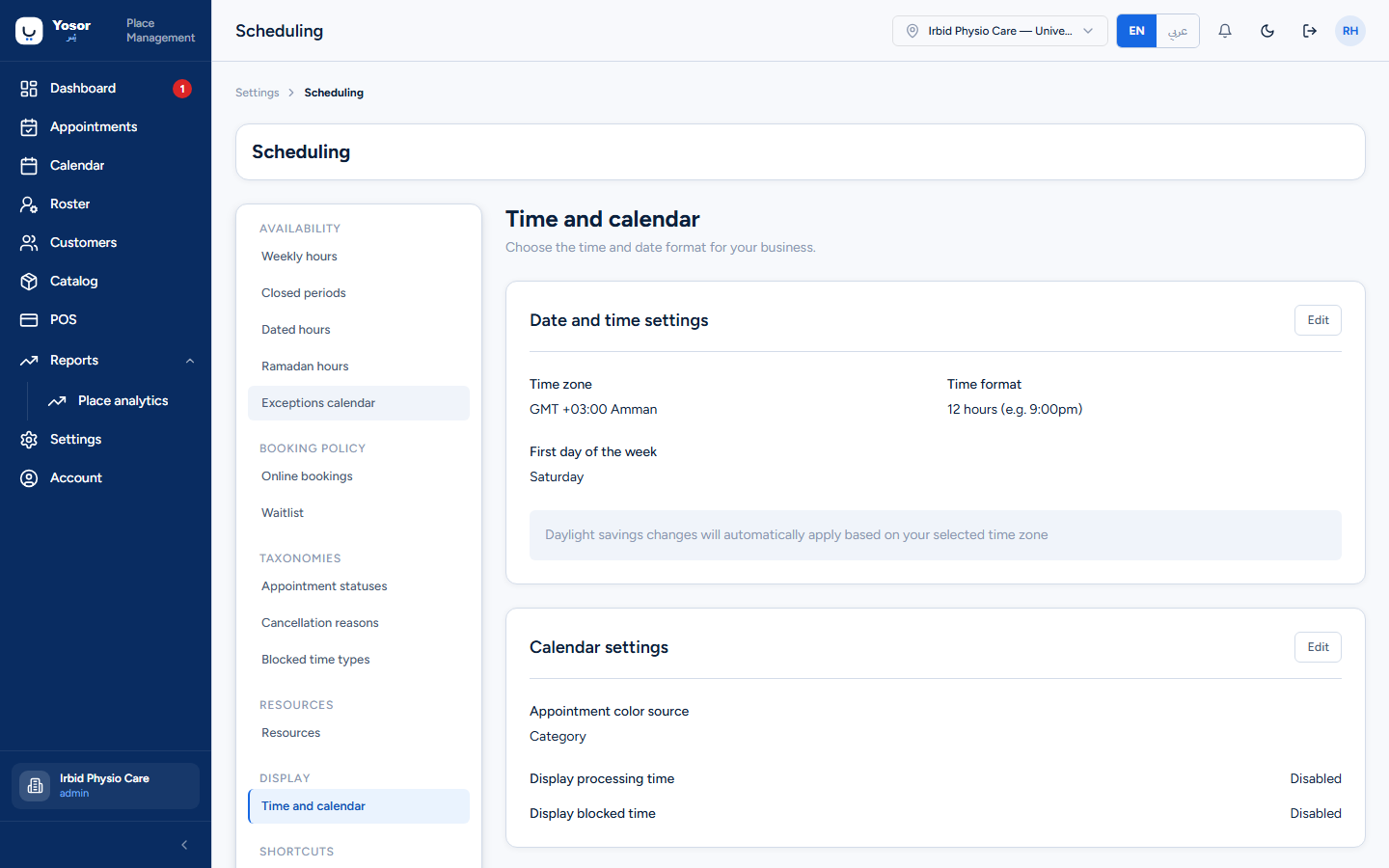
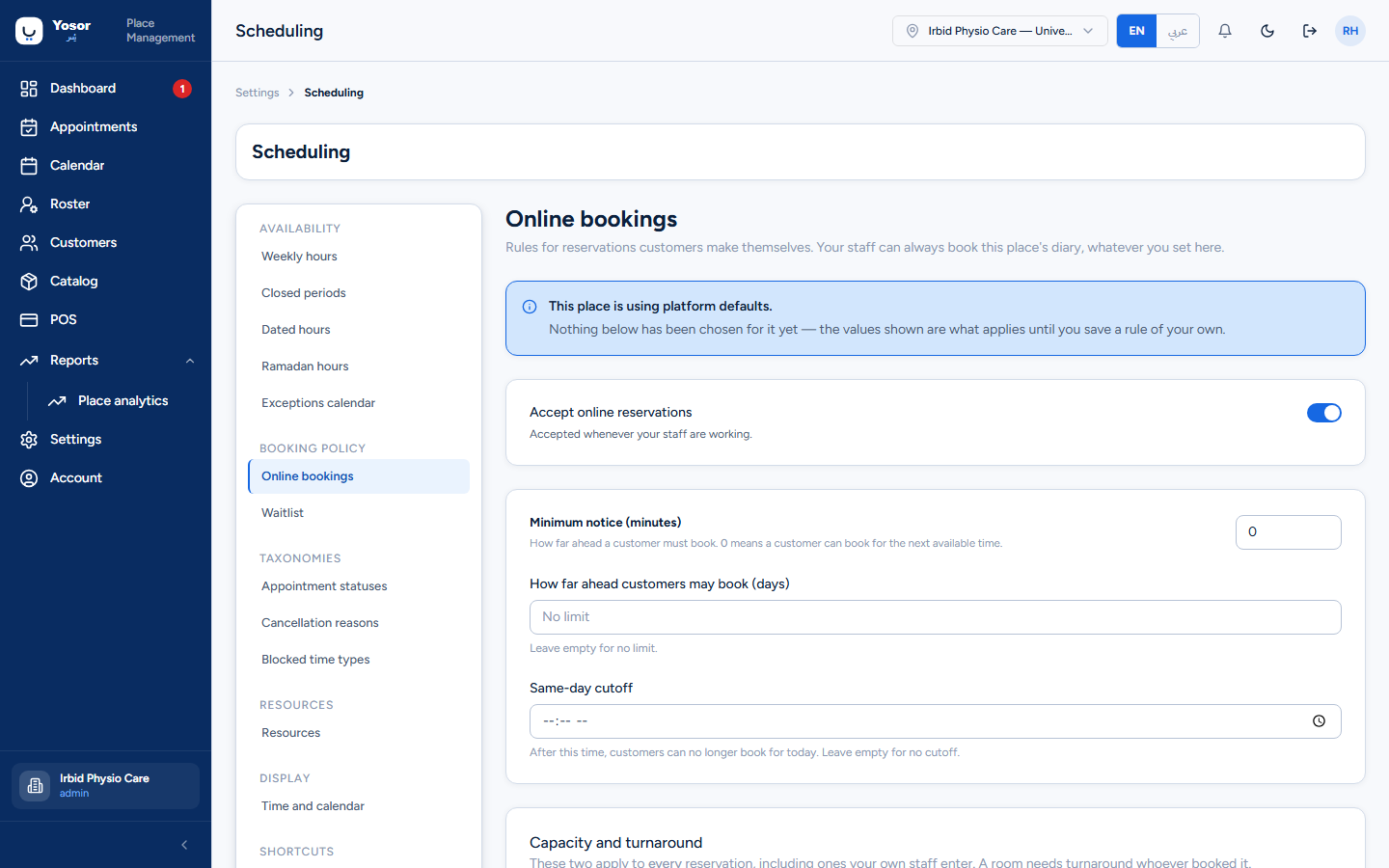
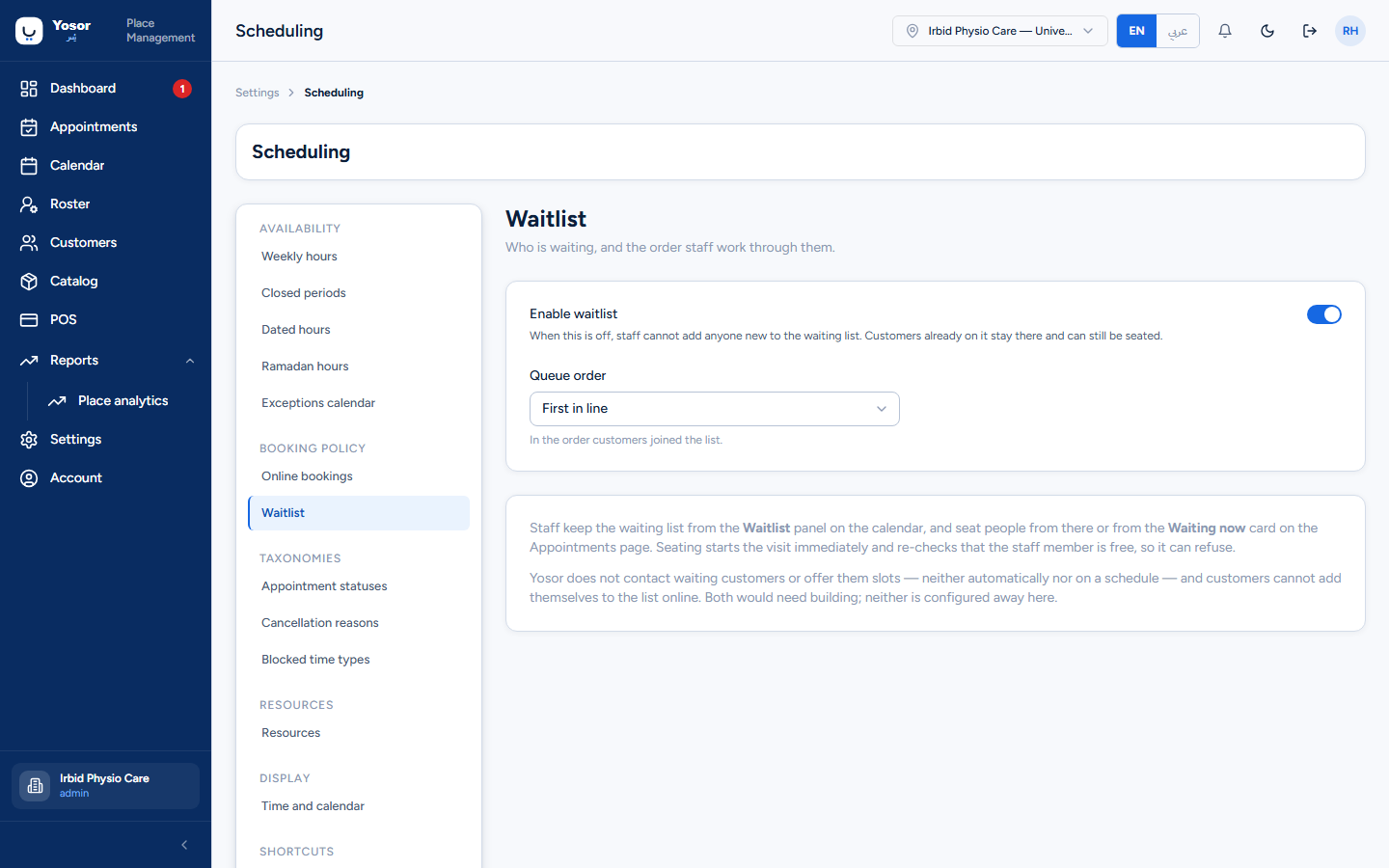
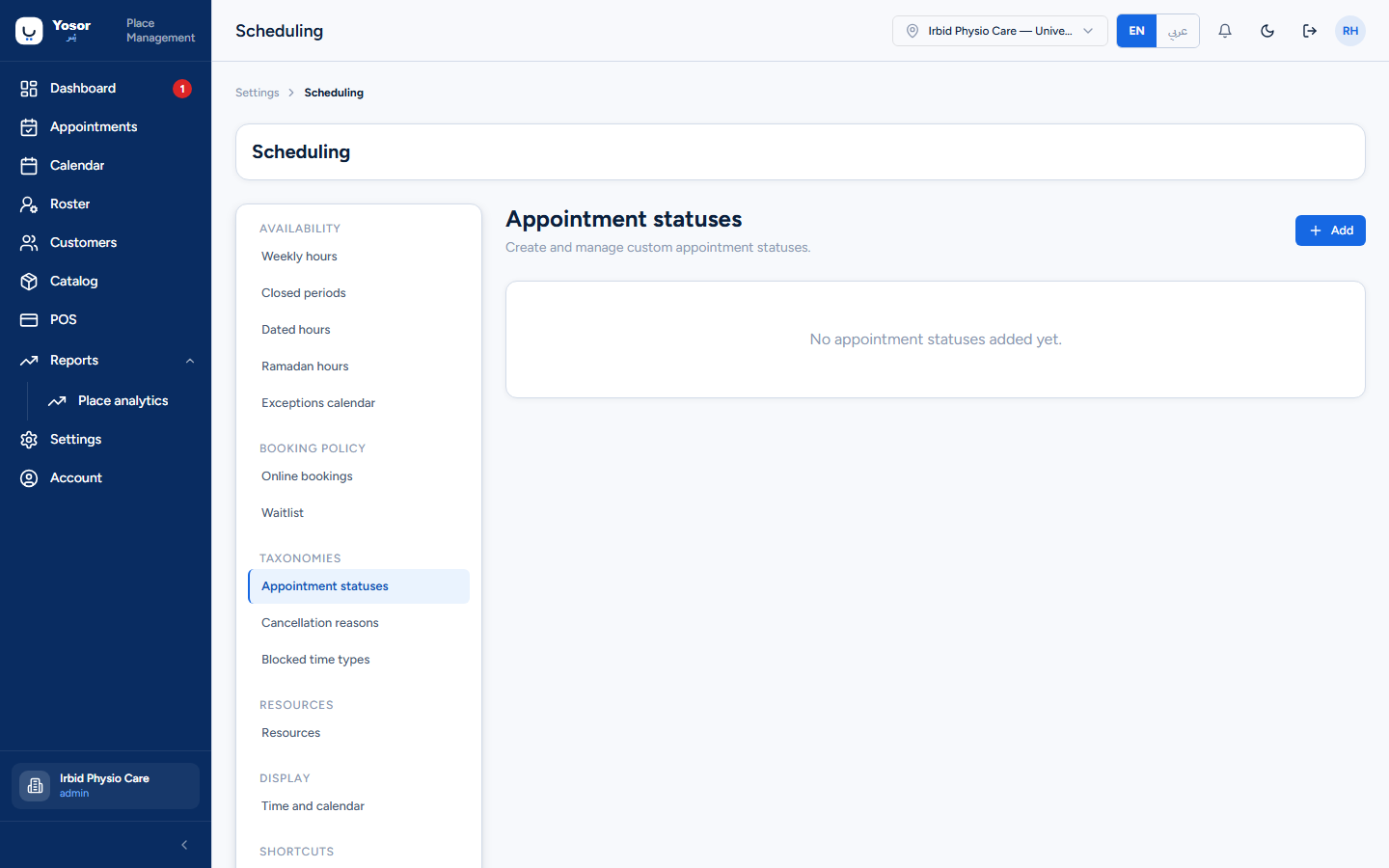
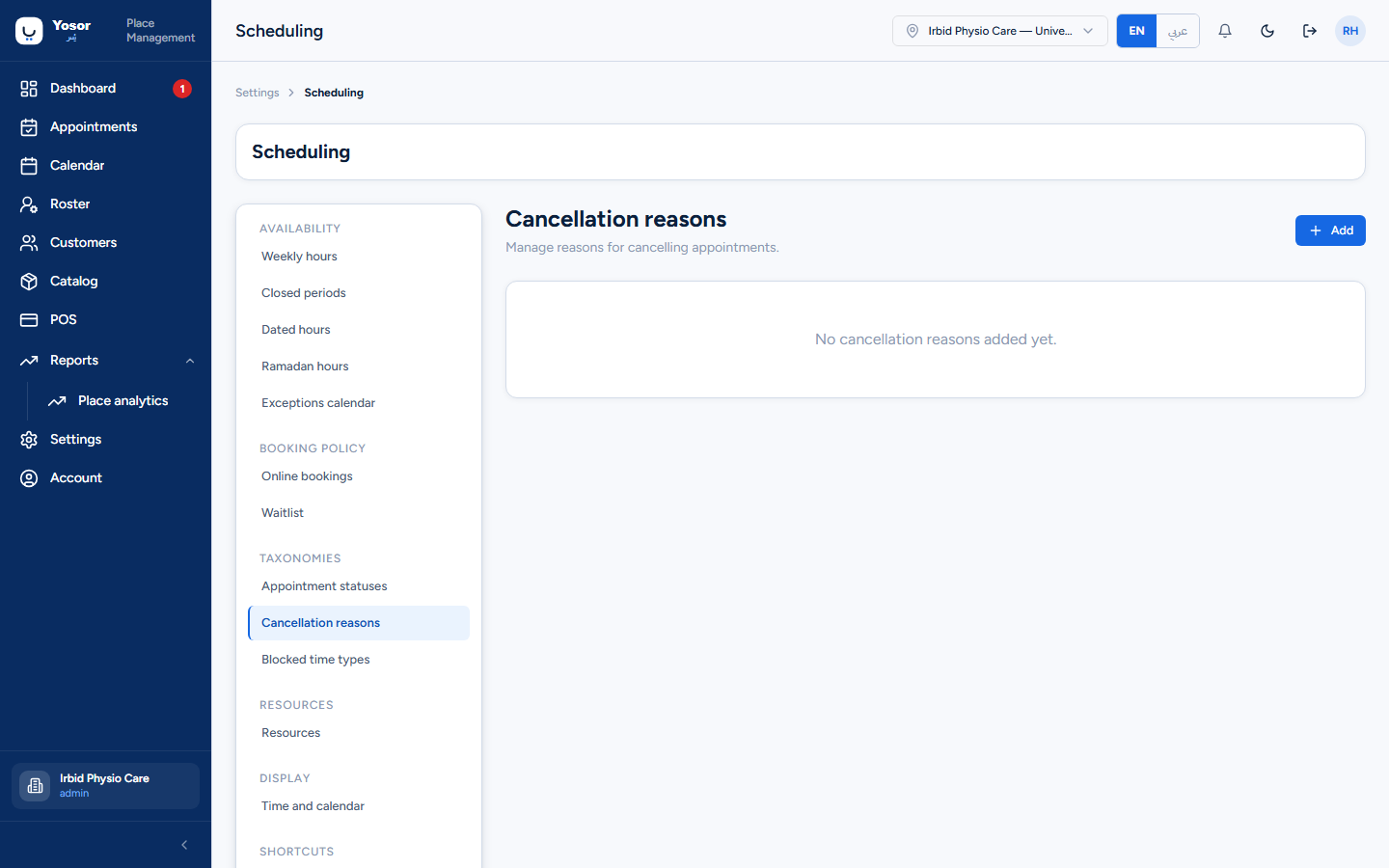
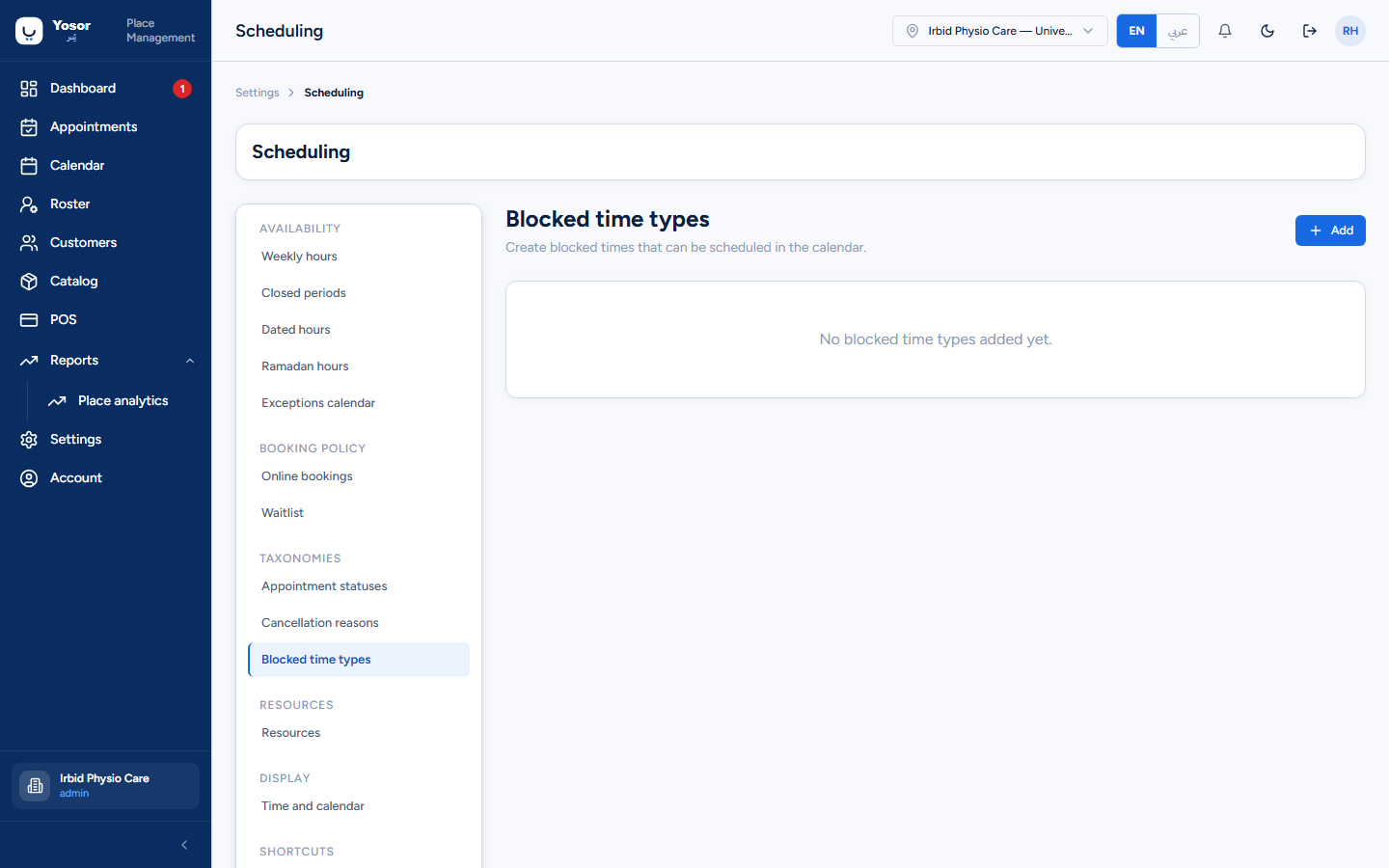
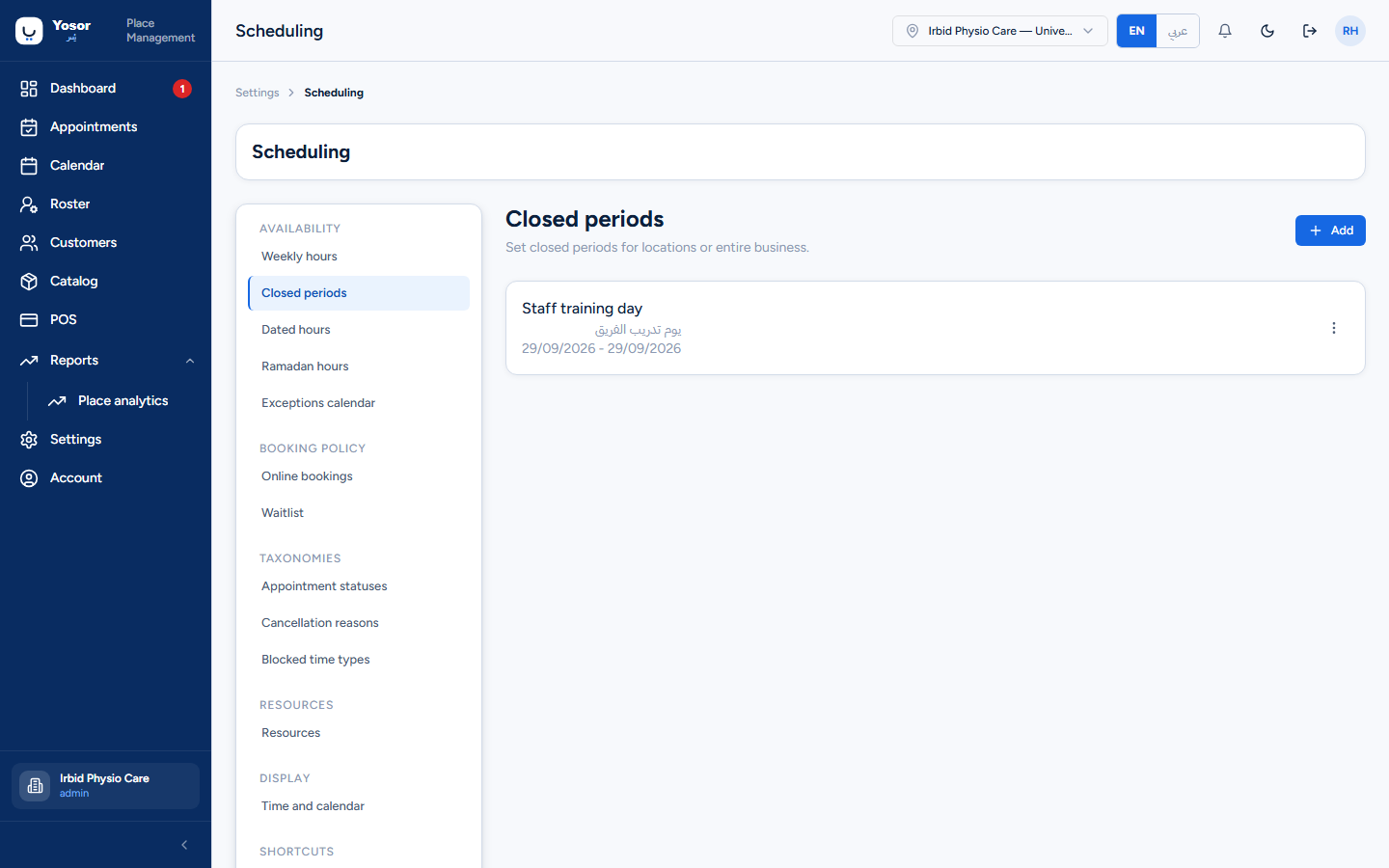
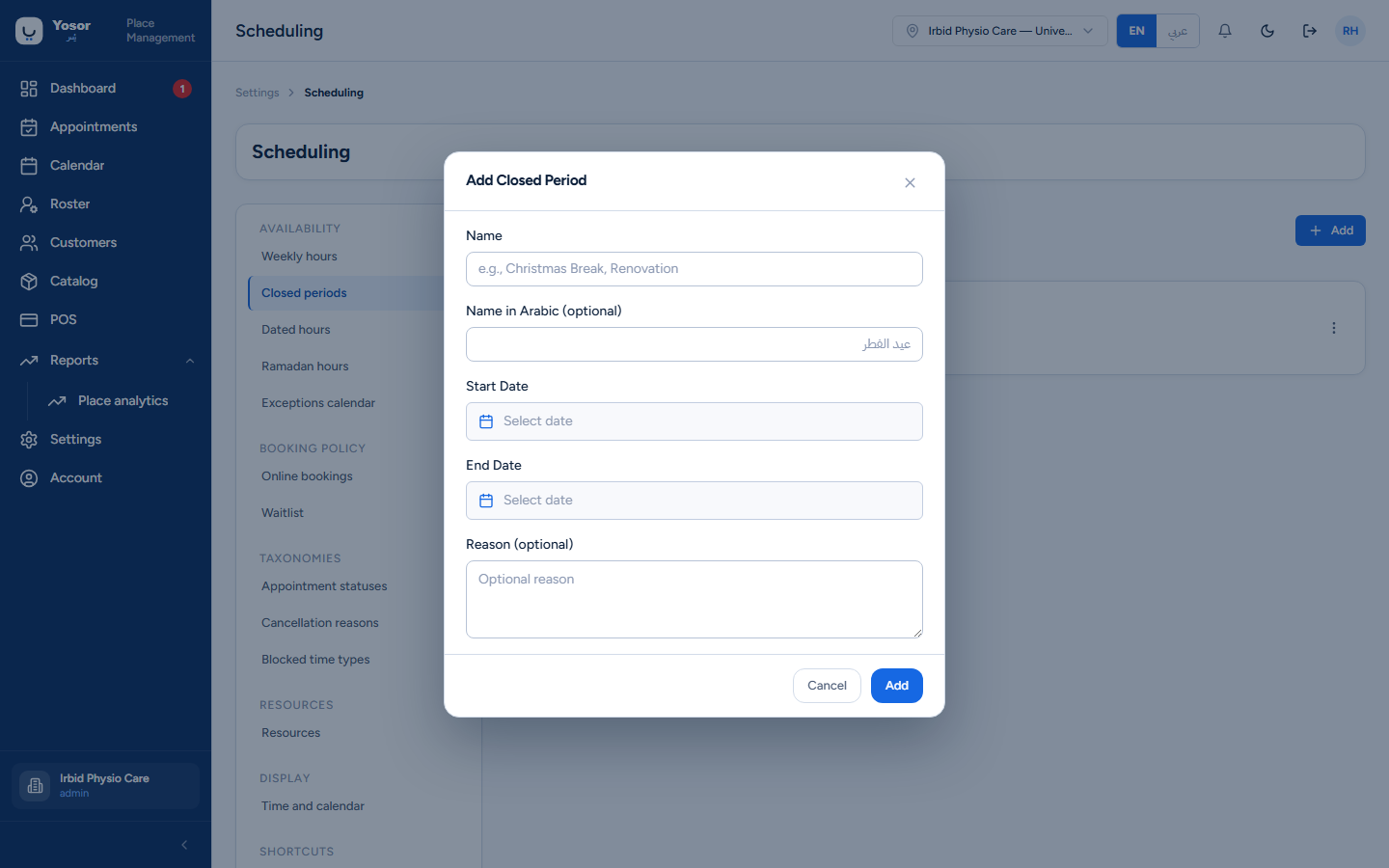
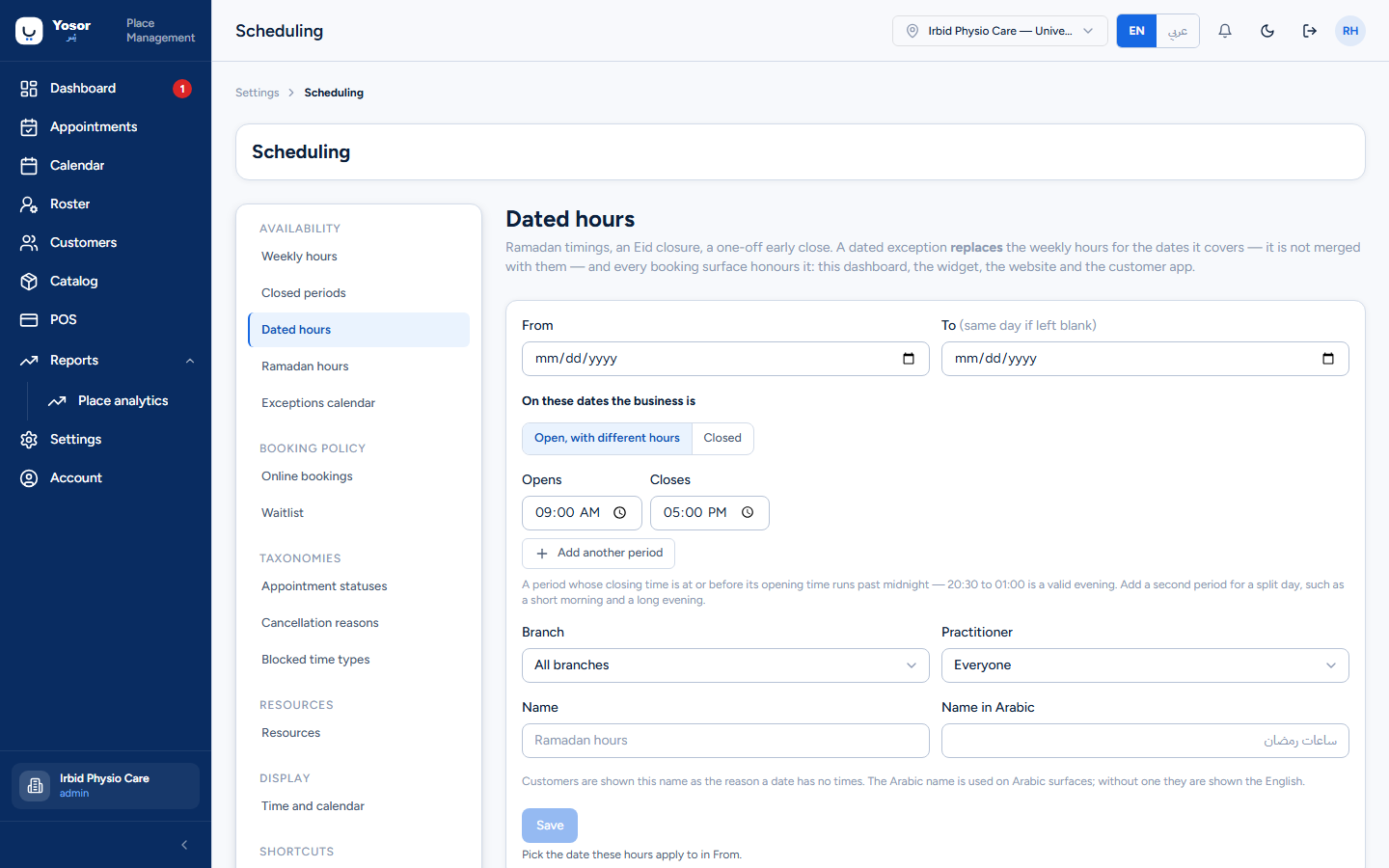
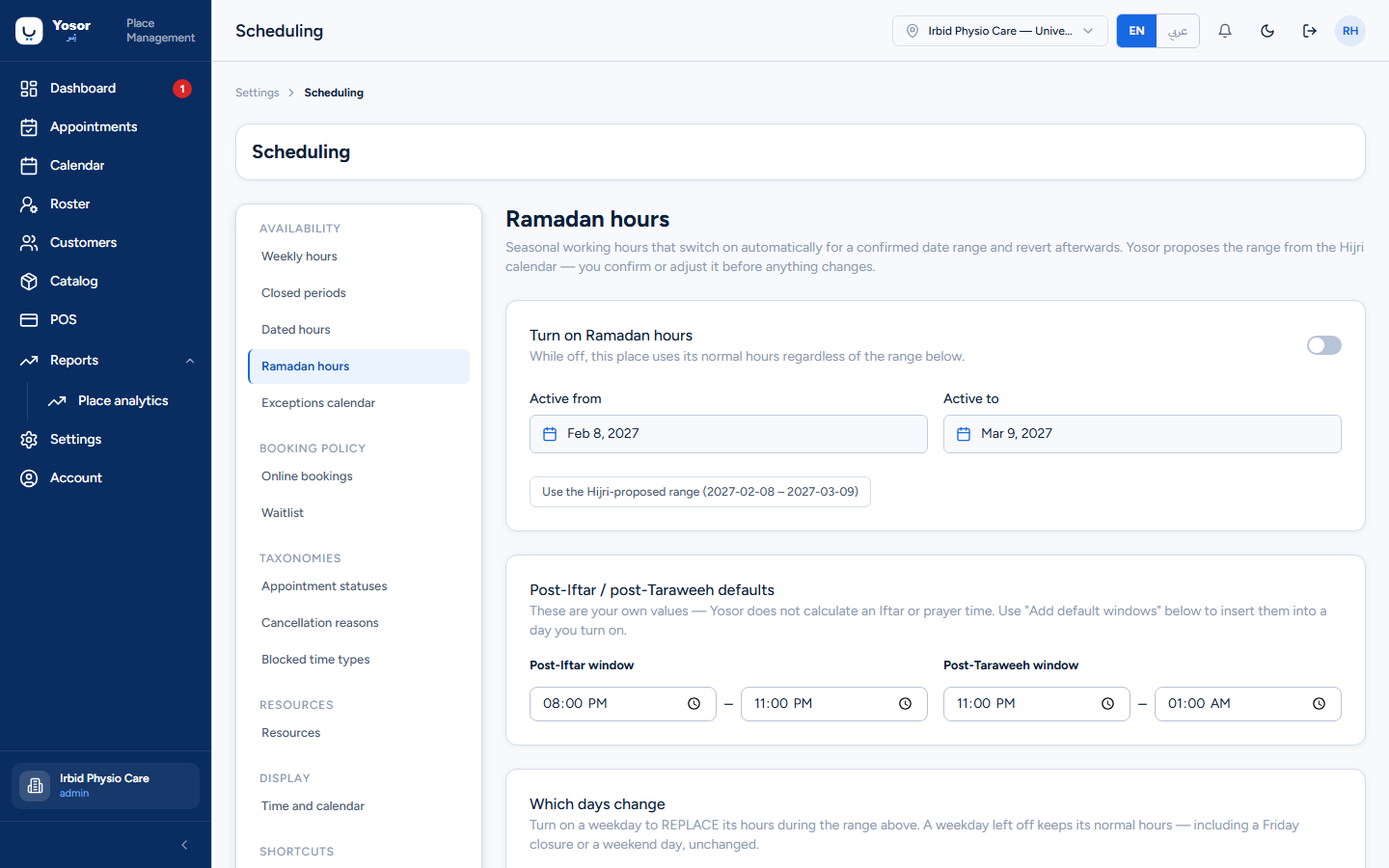
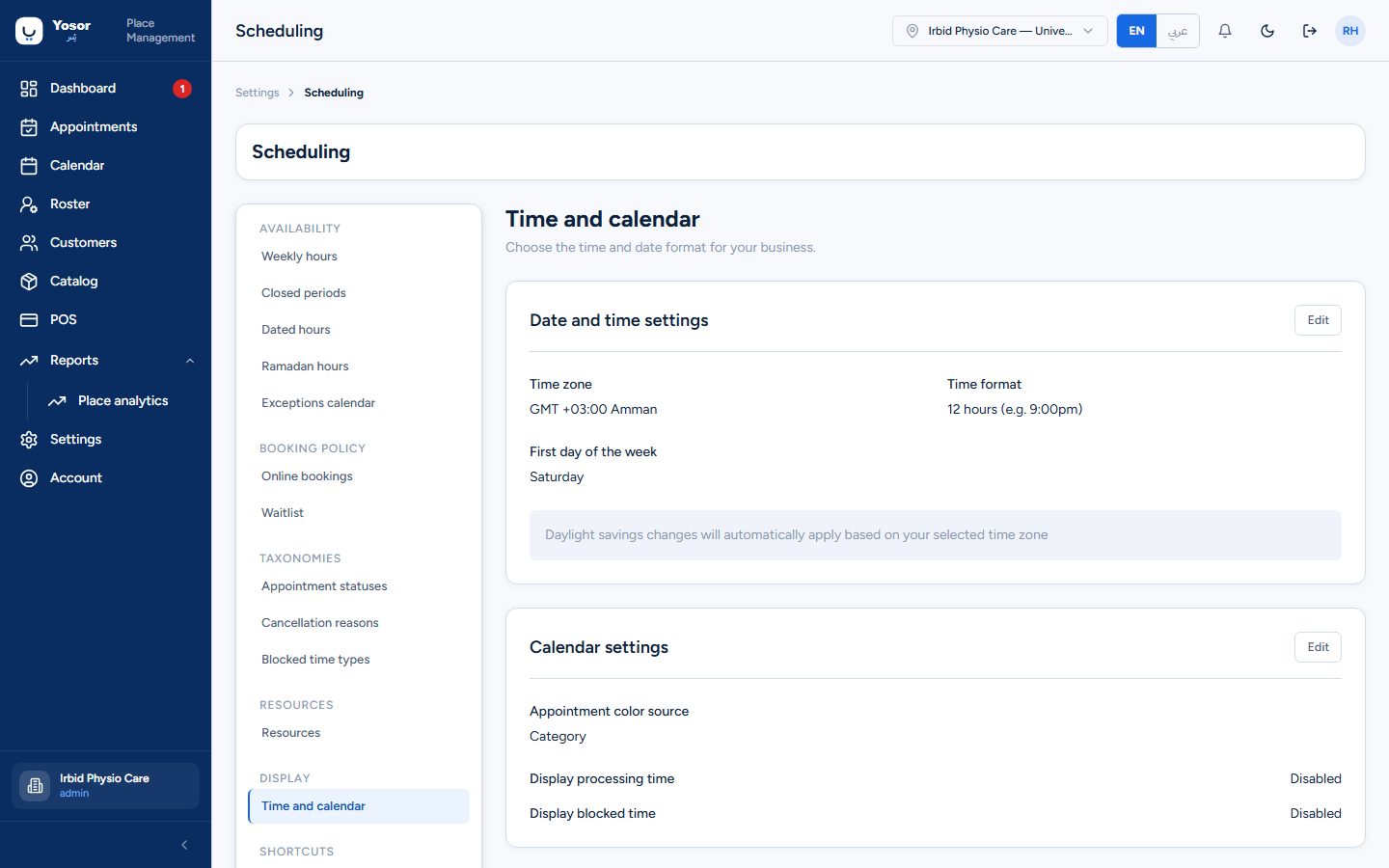
Four kinds of hours exist and each screen edits one: opening hours (Business setup), a member's weekly pattern (staff record), the roster (published shifts), and dated exceptions (Scheduling). What a customer can book is worked out from all of them.
10.4 Exceptions calendar
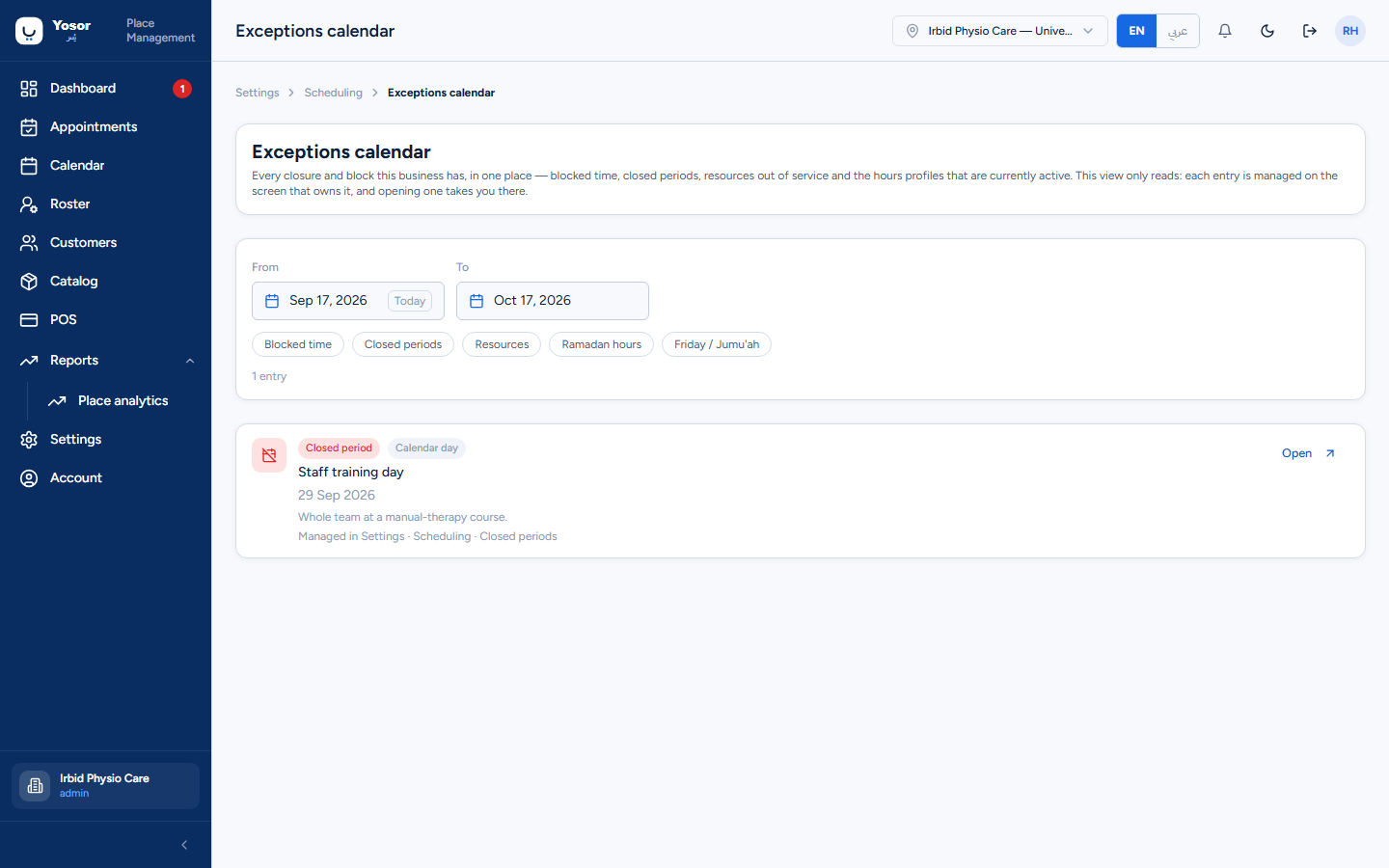
A read-only view of every closure, blocked time, resource outage, Ramadan profile and Friday (Jumu'ah) profile in a date range, filterable by kind. Clicking an entry opens the screen that owns it.
10.5 Team and permissions
Settings › Team (Settings or Staff permission). Three sections.
Team members
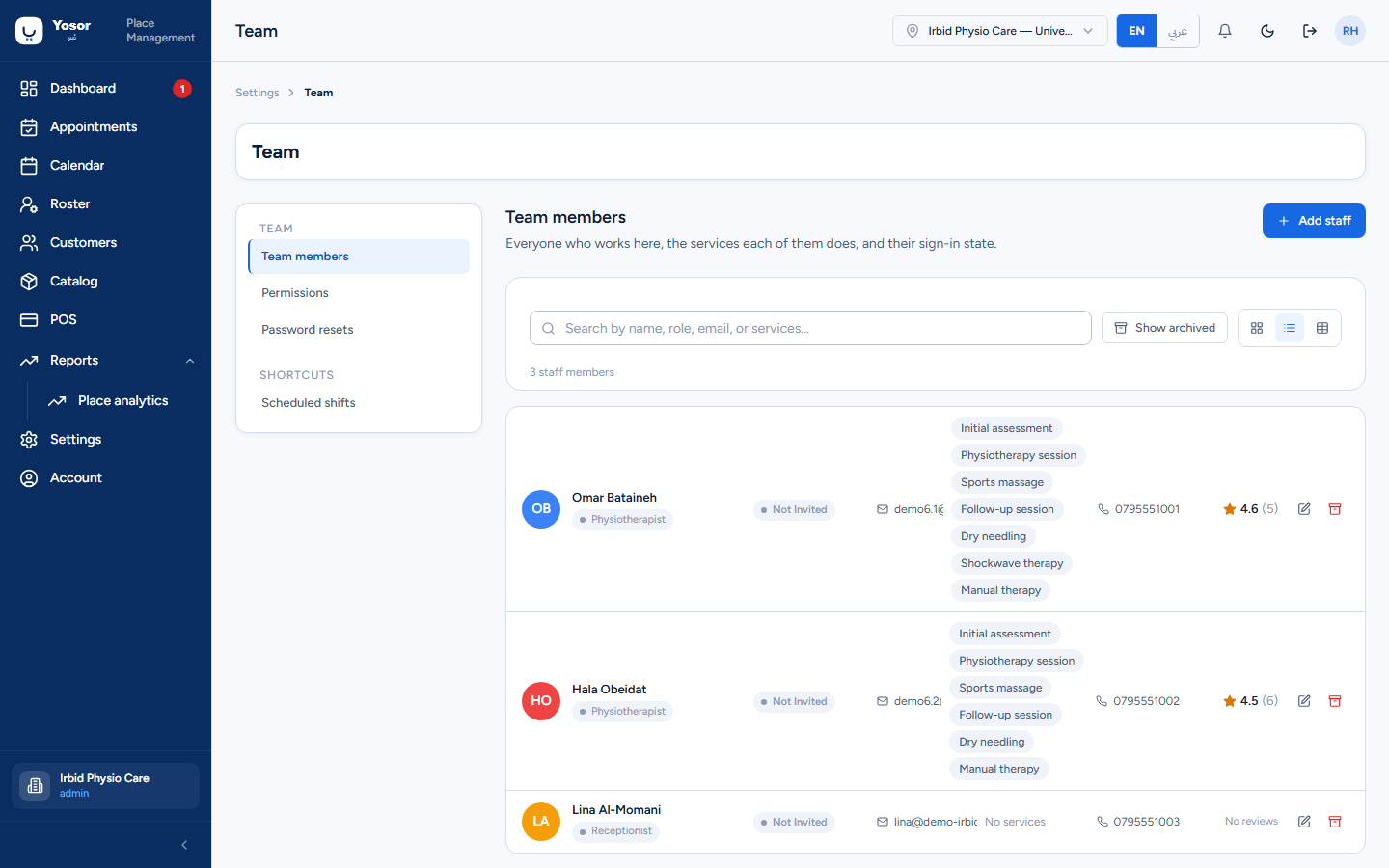
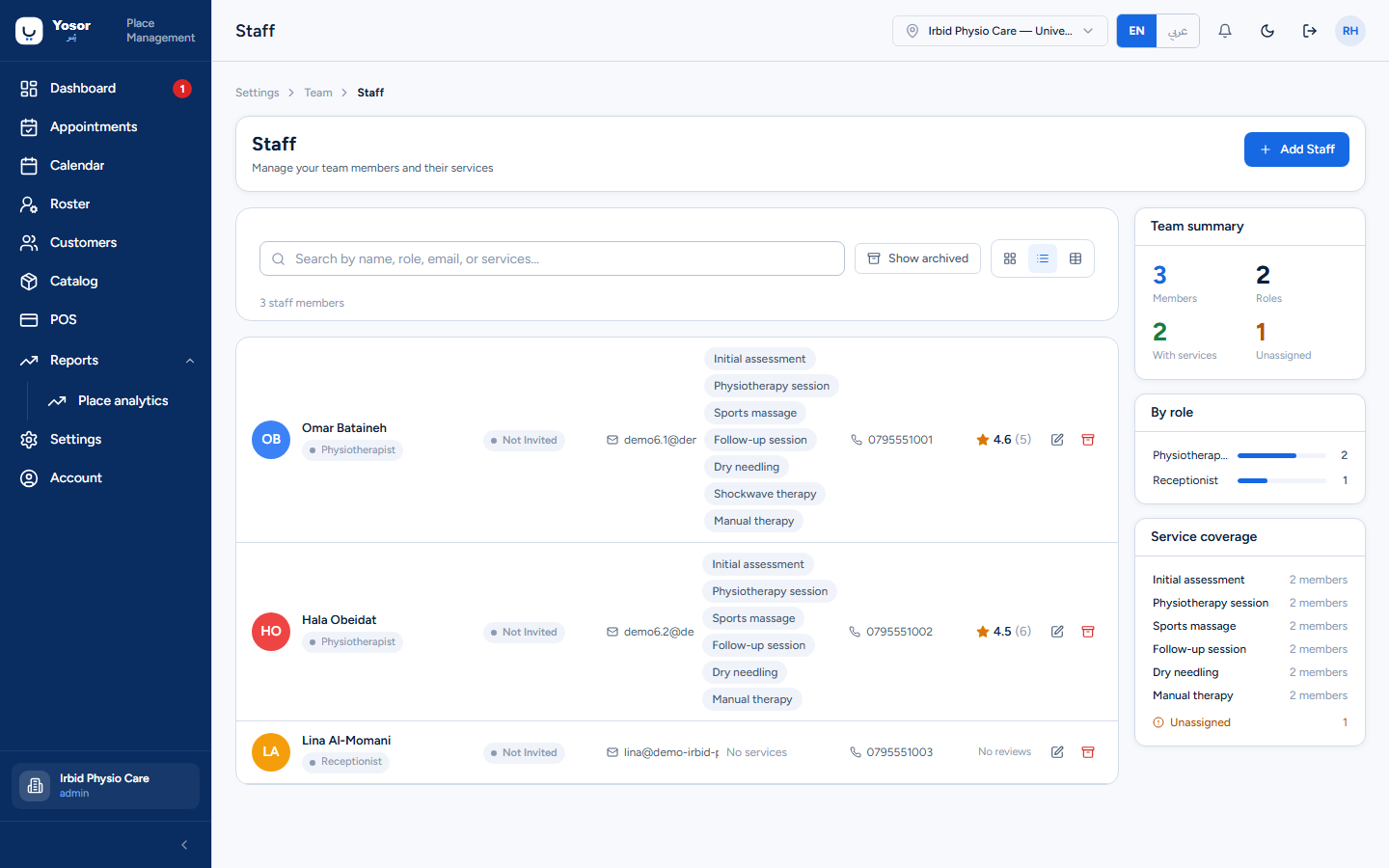
Everyone who works at the clinic, with their services, sign-in state and rating. Add staff (Staff permission) opens the staff record:
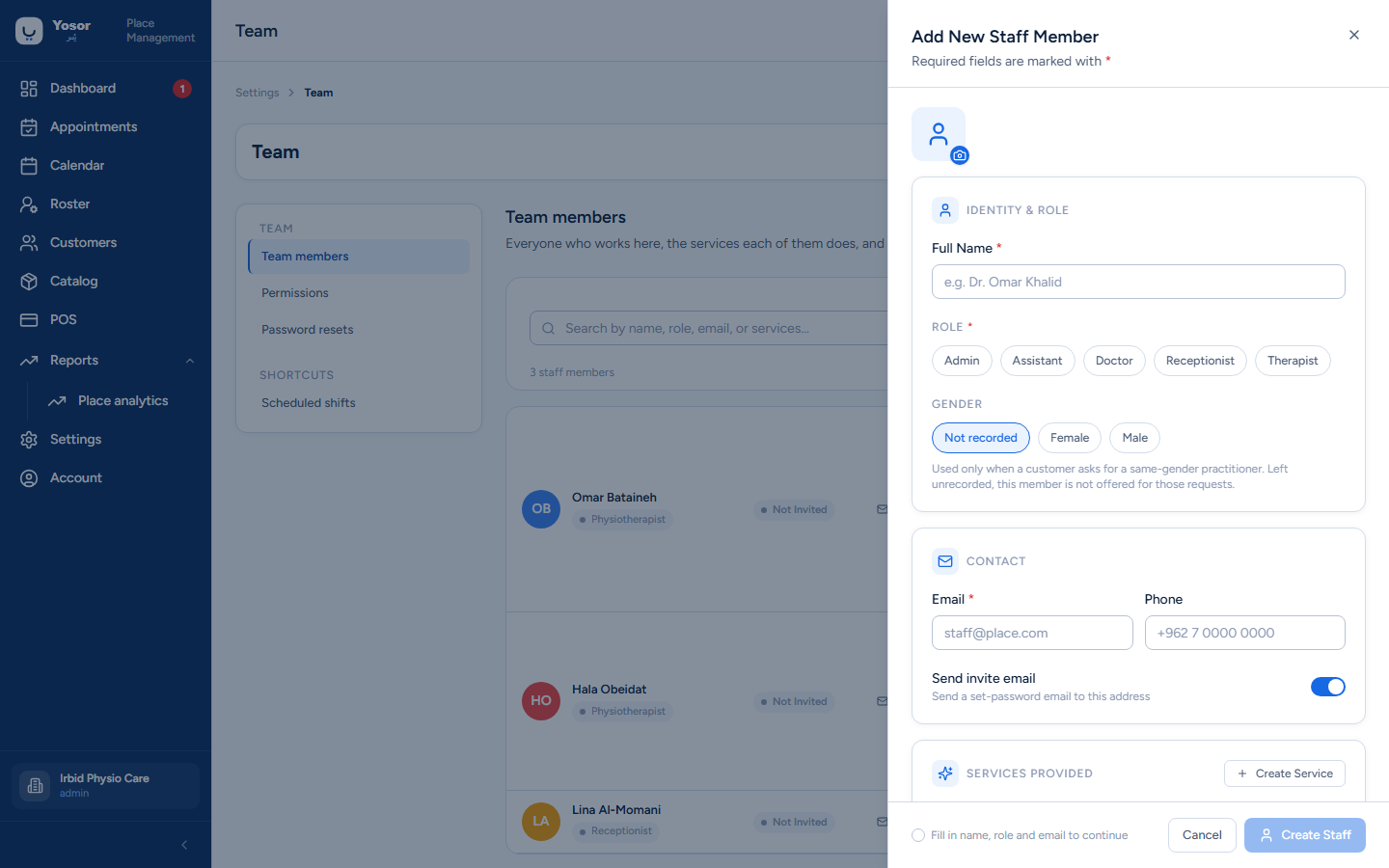
| Section | Fields |
|---|---|
| Identity & role | full name, role (one of the clinic's roles), gender (used only when a customer asks for a same-gender practitioner) |
| Contact | email (the sign-in address), phone, Send invite email (emails a link to set a password) |
| Services provided | tick every service this person is qualified for. A physiotherapist is offered for a service only when ticked here. Create Service adds a catalogue service inline. |
| Working hours | the weekly pattern, day by day, used until the member is rostered |
| Permissions | a read-only preview of what the chosen role grants |
| Calendar & display | Show in calendar (staff see a column for this person), Bookable online (customers may choose them), reservations at once, calendar colour |
| Bio & notes | shown on the public profile |
Row actions: Edit, archive / unarchive (an archived member is hidden everywhere and cannot sign in; Show archived lists them), Reset password (signs the person out everywhere and emails a link; re-sends the invitation if they never set one).
The staff photo is uploaded by the person themselves under Account.
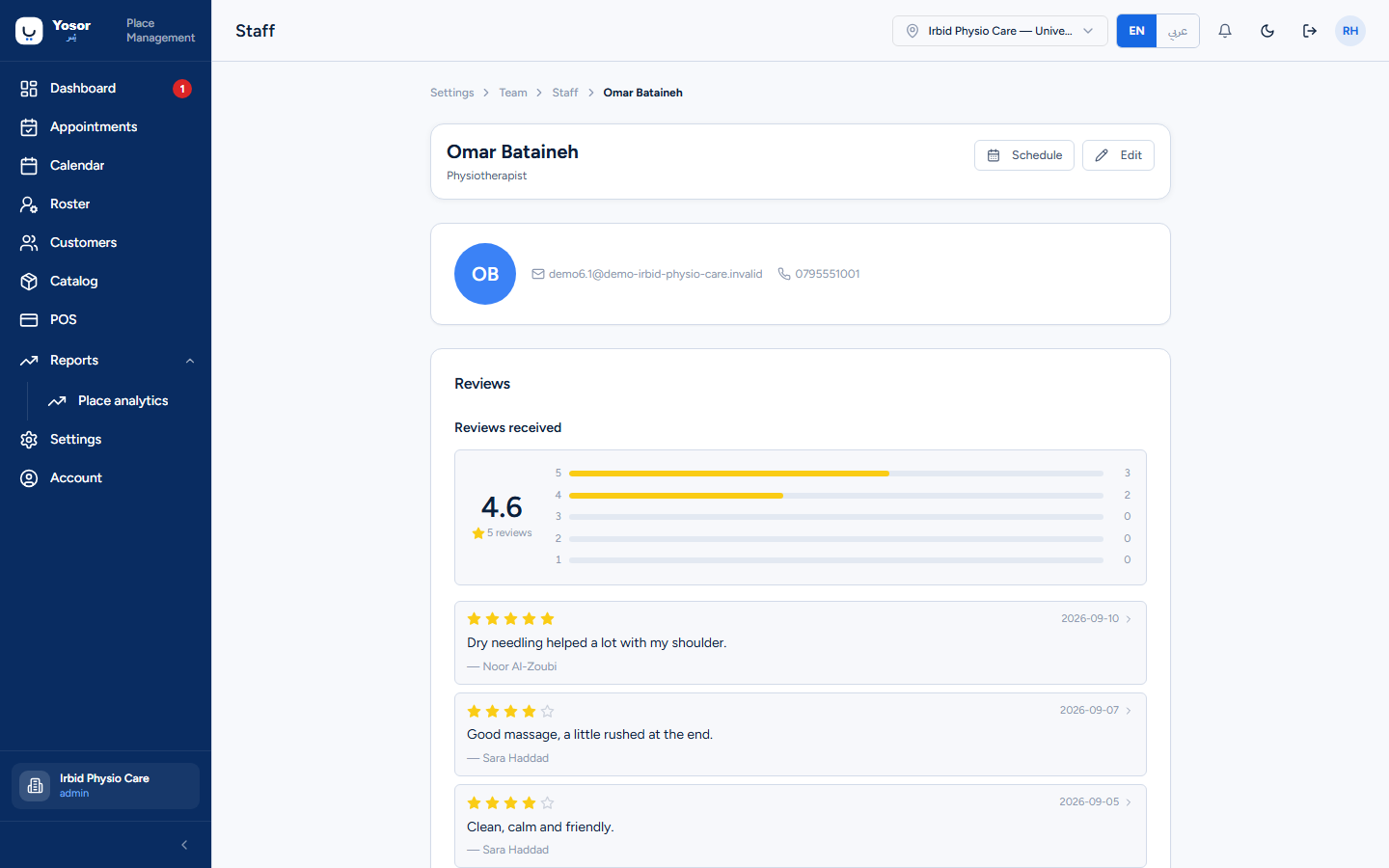
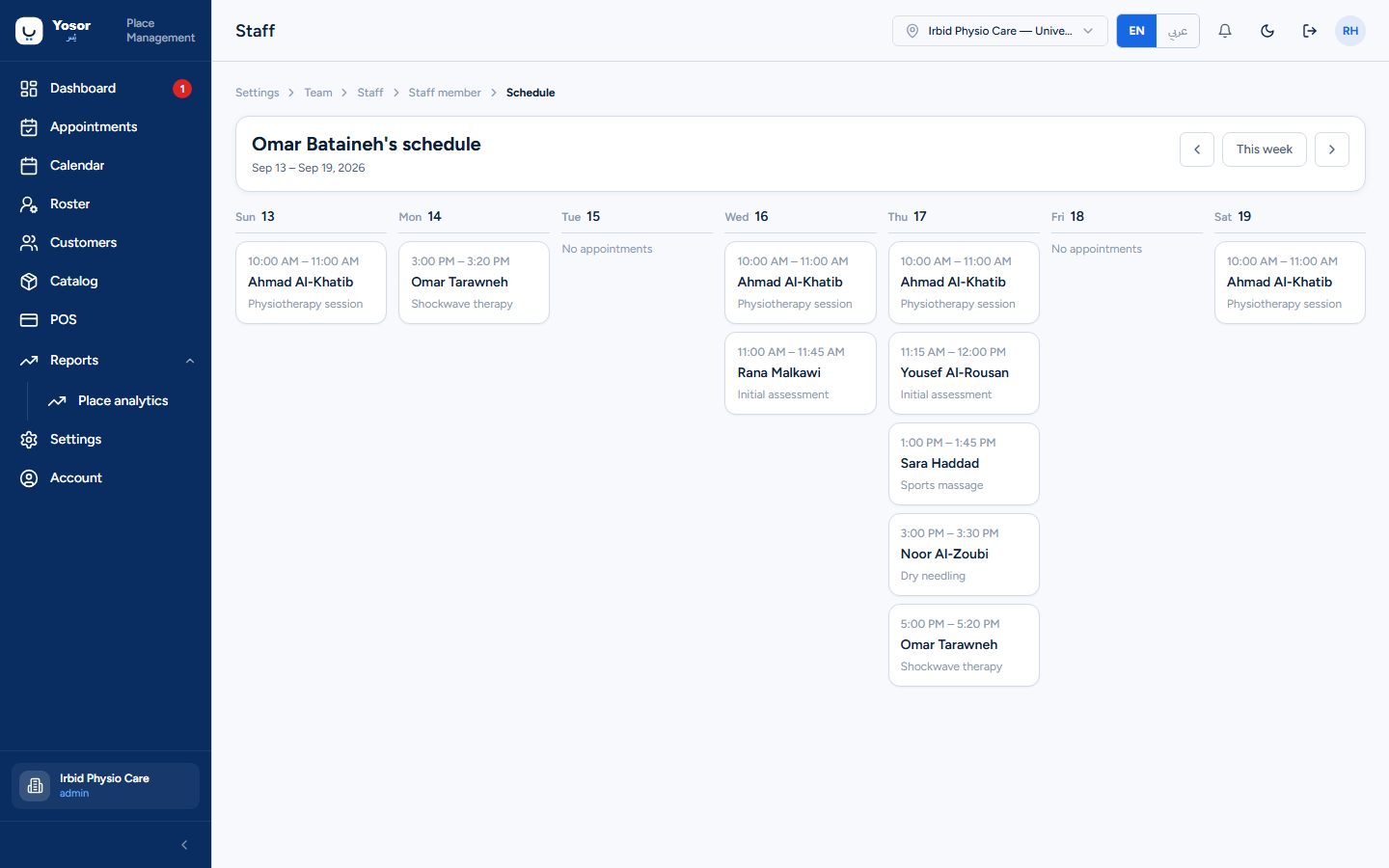
The same list is at Staff, and each member has a profile page (reviews received) and a read-only Schedule page (their appointments by week).
Permissions
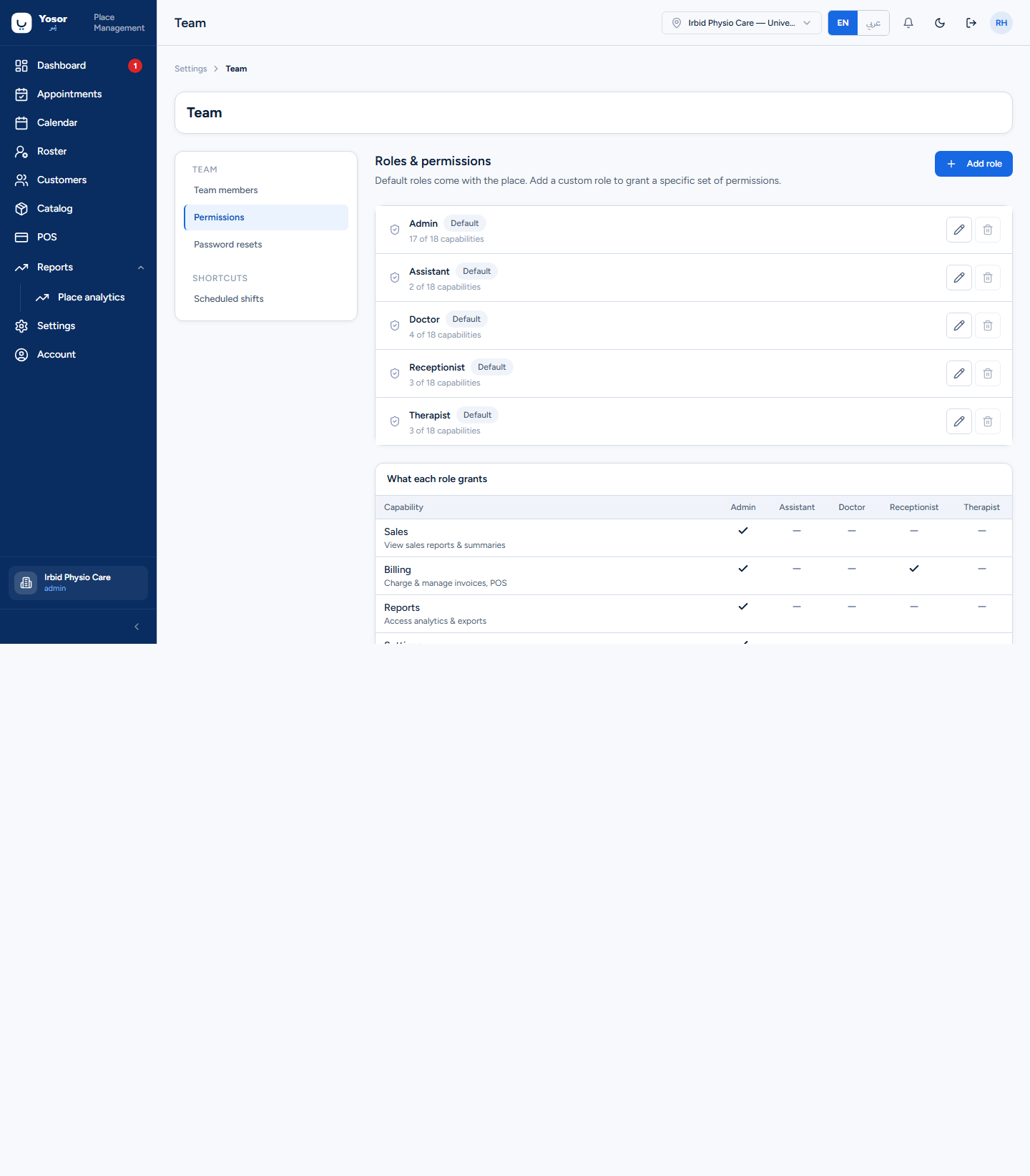
Needs the Roles permission. Lists the clinic's roles (five defaults plus any custom ones) with how many of the 18 capabilities each grants, and a matrix of what each role grants. Add role or Edit opens the role dialog: a name (default roles cannot be renamed) and a checkbox per capability. Changes apply immediately to signed-in staff.
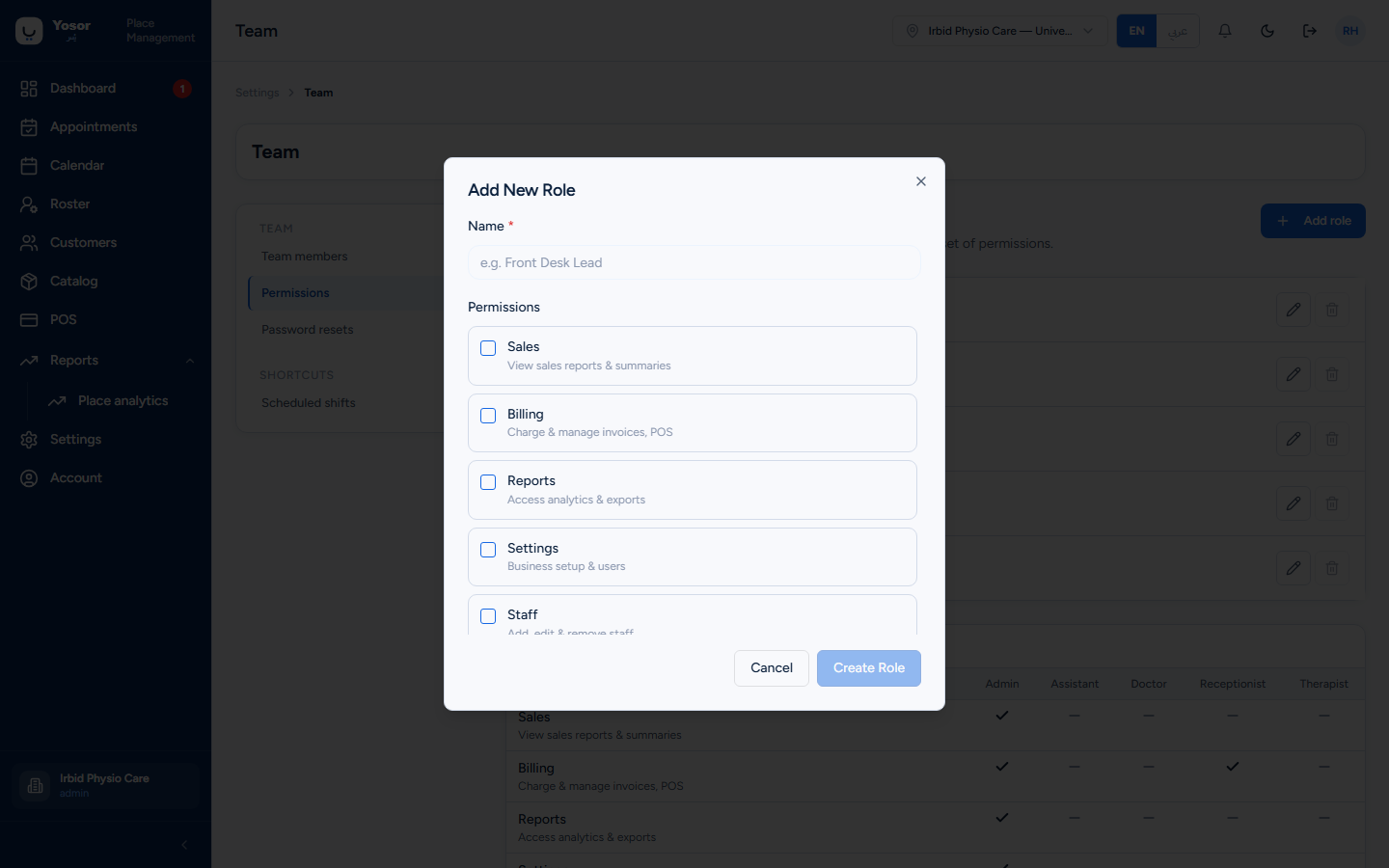
Capabilities a physiotherapy clinic should think about: Clinical Records — View / Edit (the session notes), Restricted Clinical Notes (seeded to the doctor role only; tick it on the therapist role if therapists must read restricted notes), Billing, Sales, Reports, Staff, Settings.
Password resets
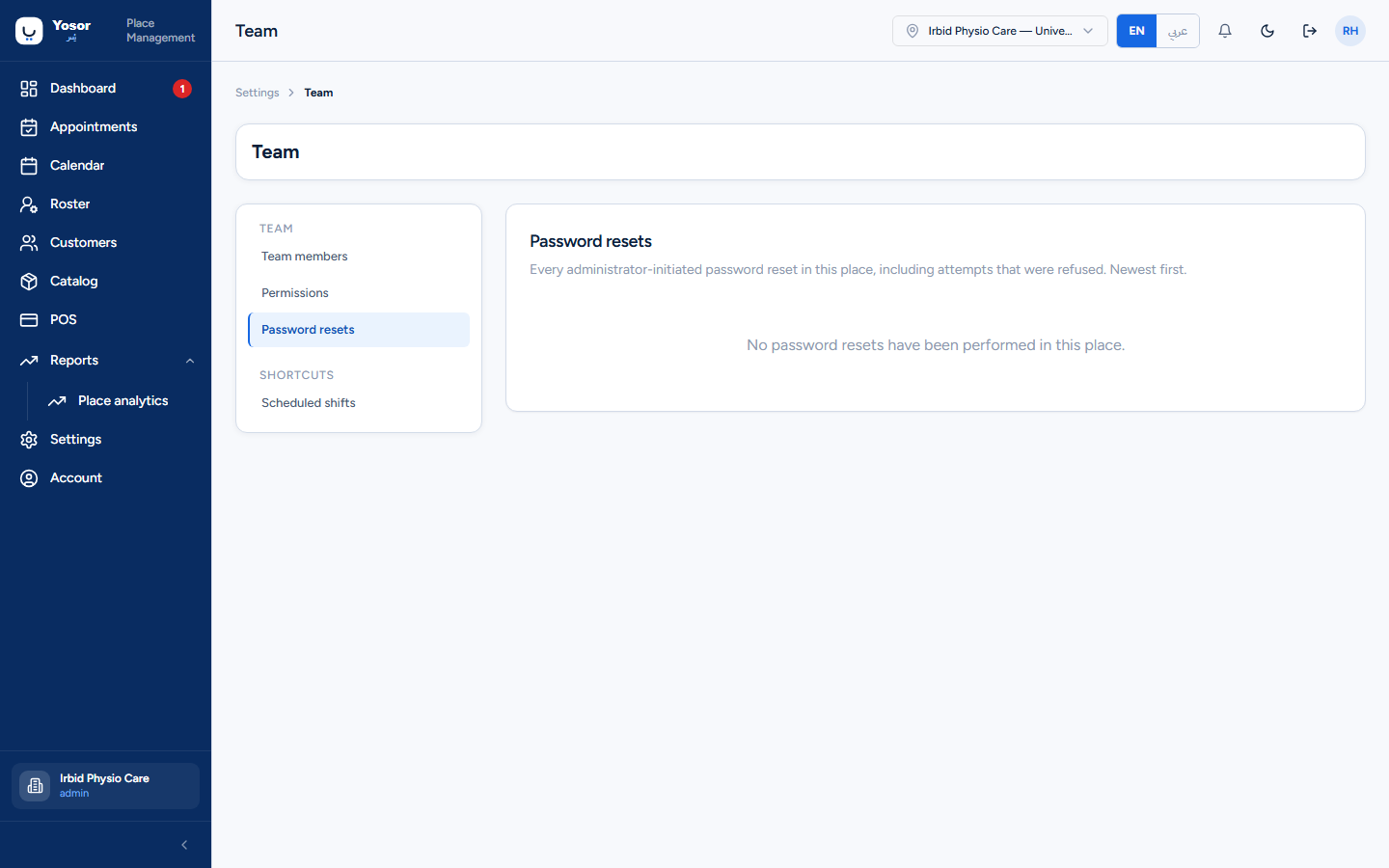
Every administrator-initiated reset in this clinic, newest first, including refused attempts.
10.6 Customer attributes
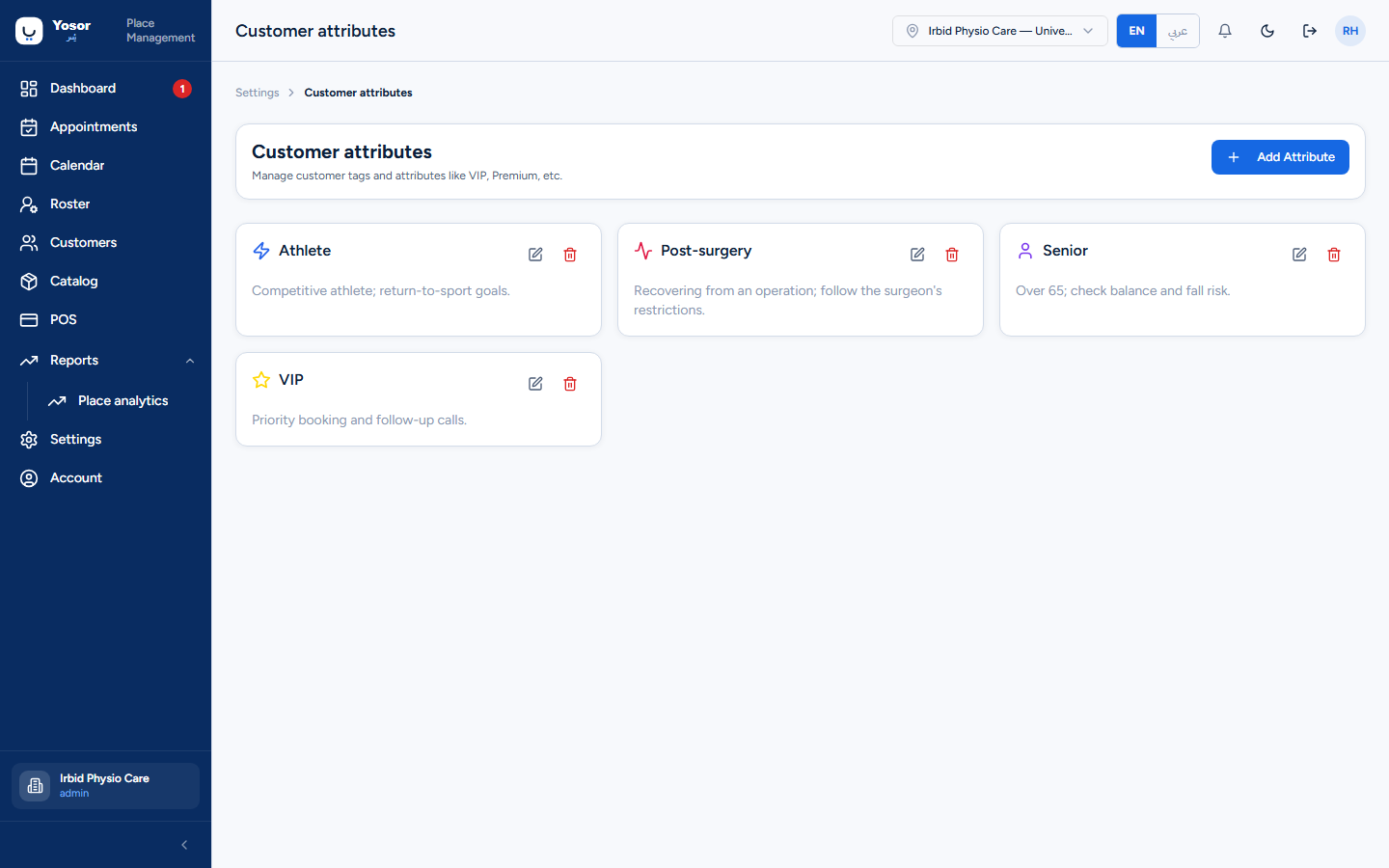
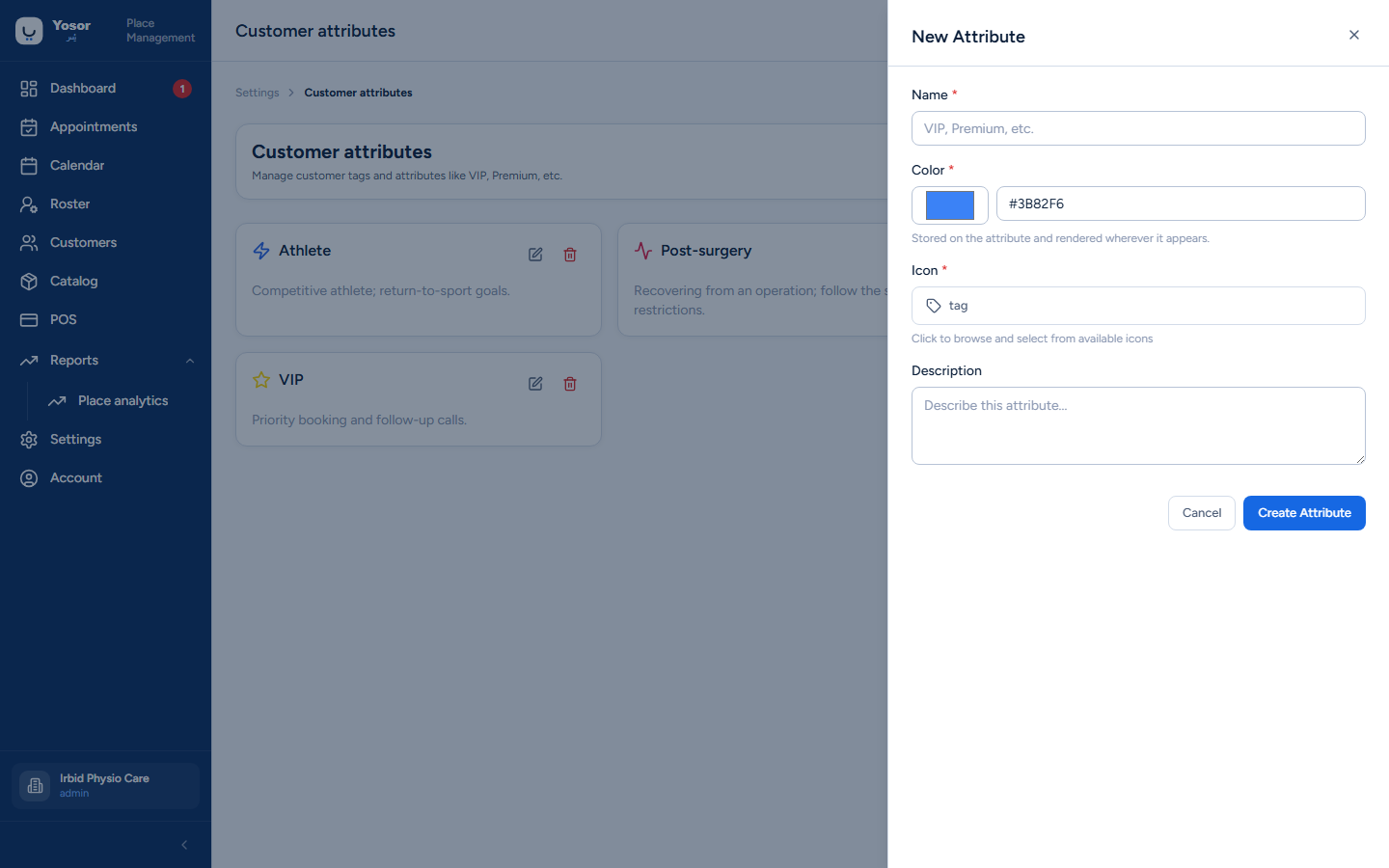
The tags shown on customer records and usable as filters: a name, a colour, an icon and a description. VIP is counted on the Customers page's chips. A default attribute cannot be deleted.
10.7 Sales & payments
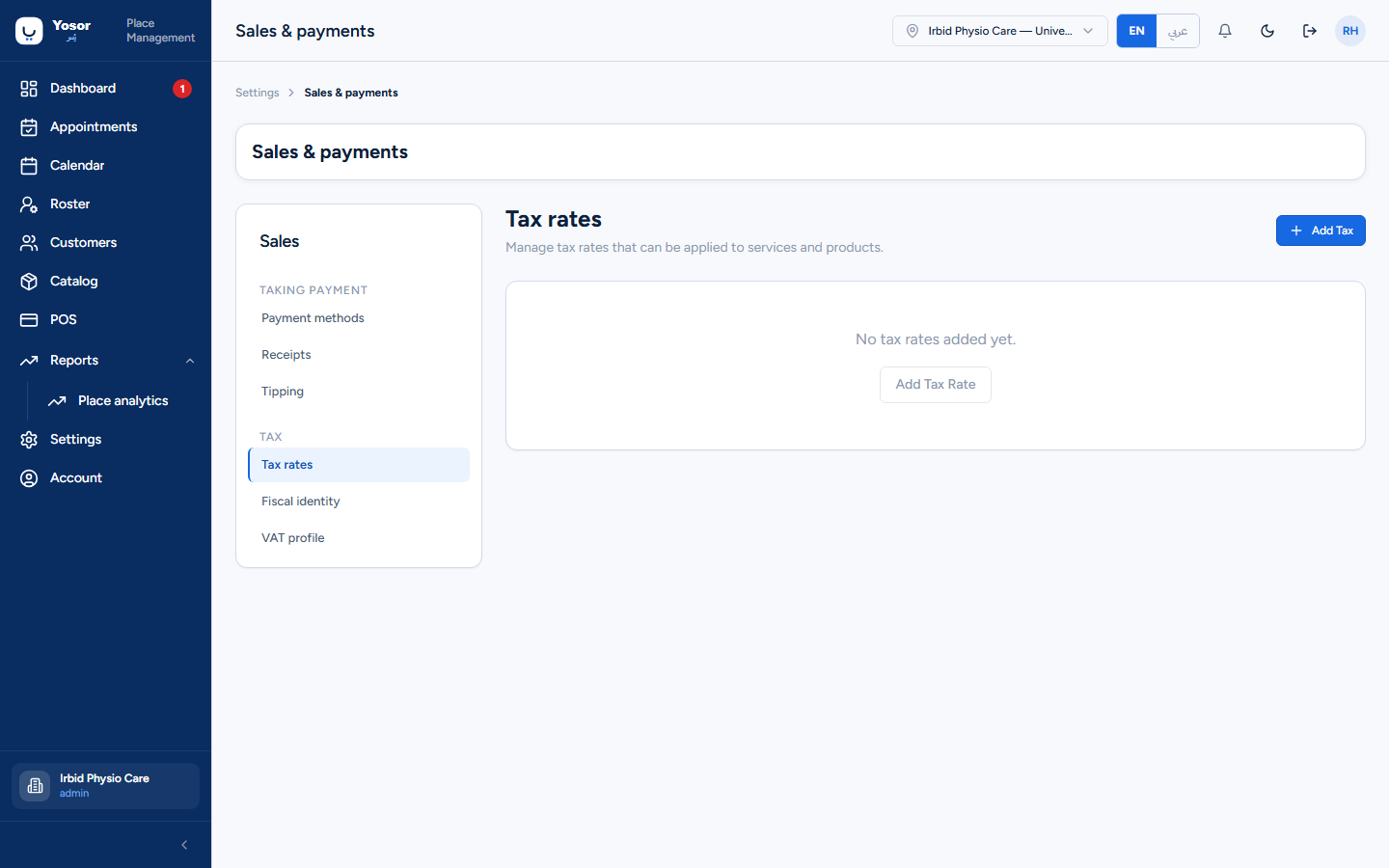
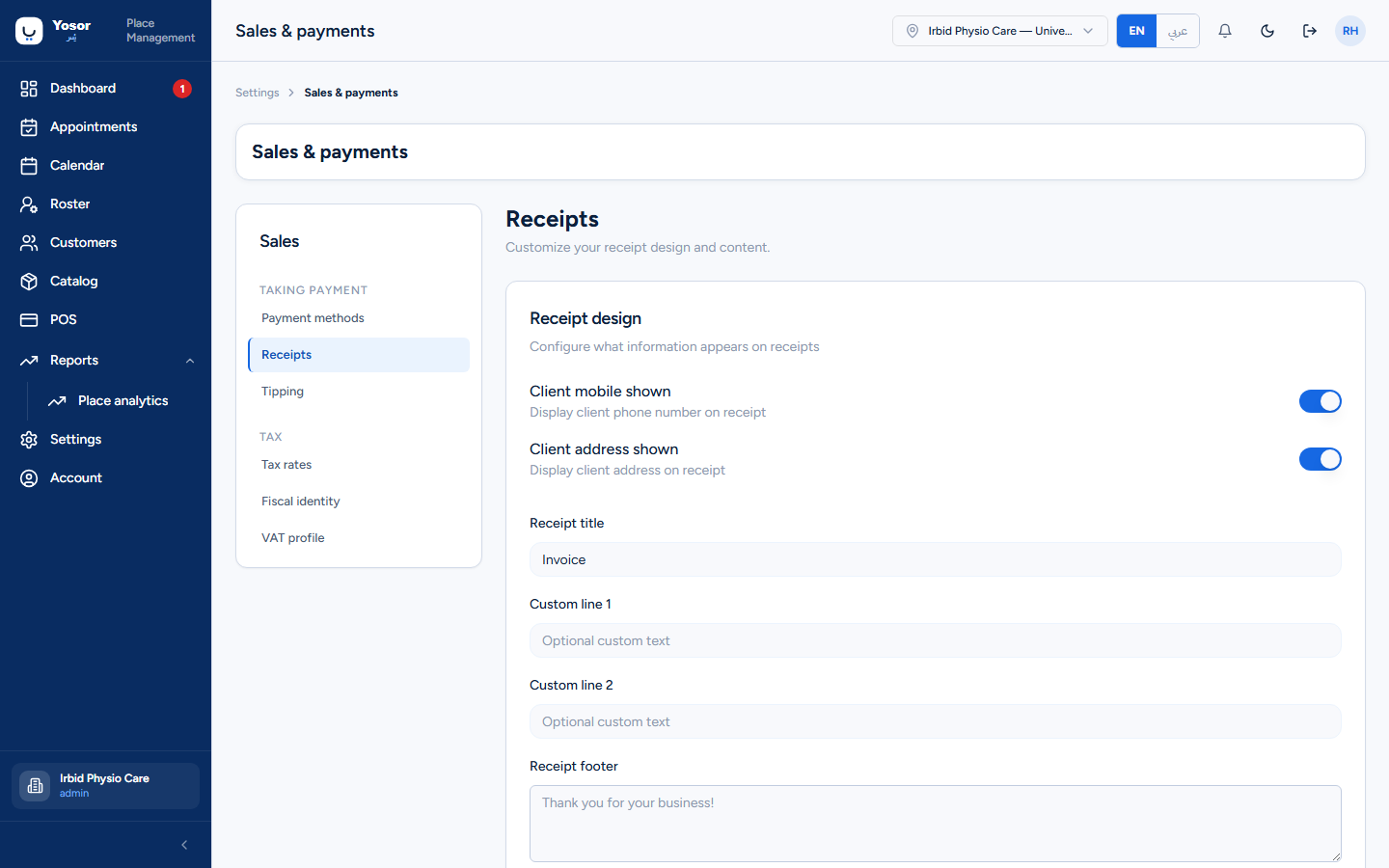
| Section | What it sets |
|---|---|
| Payment methods | the methods offered at checkout (Cash, Card, Insurance…), each with an icon and an active switch |
| Tax rates | named rates that POS can apply |
| Receipts | the receipt title, two custom lines, the footer, and whether the customer's phone and address are printed |
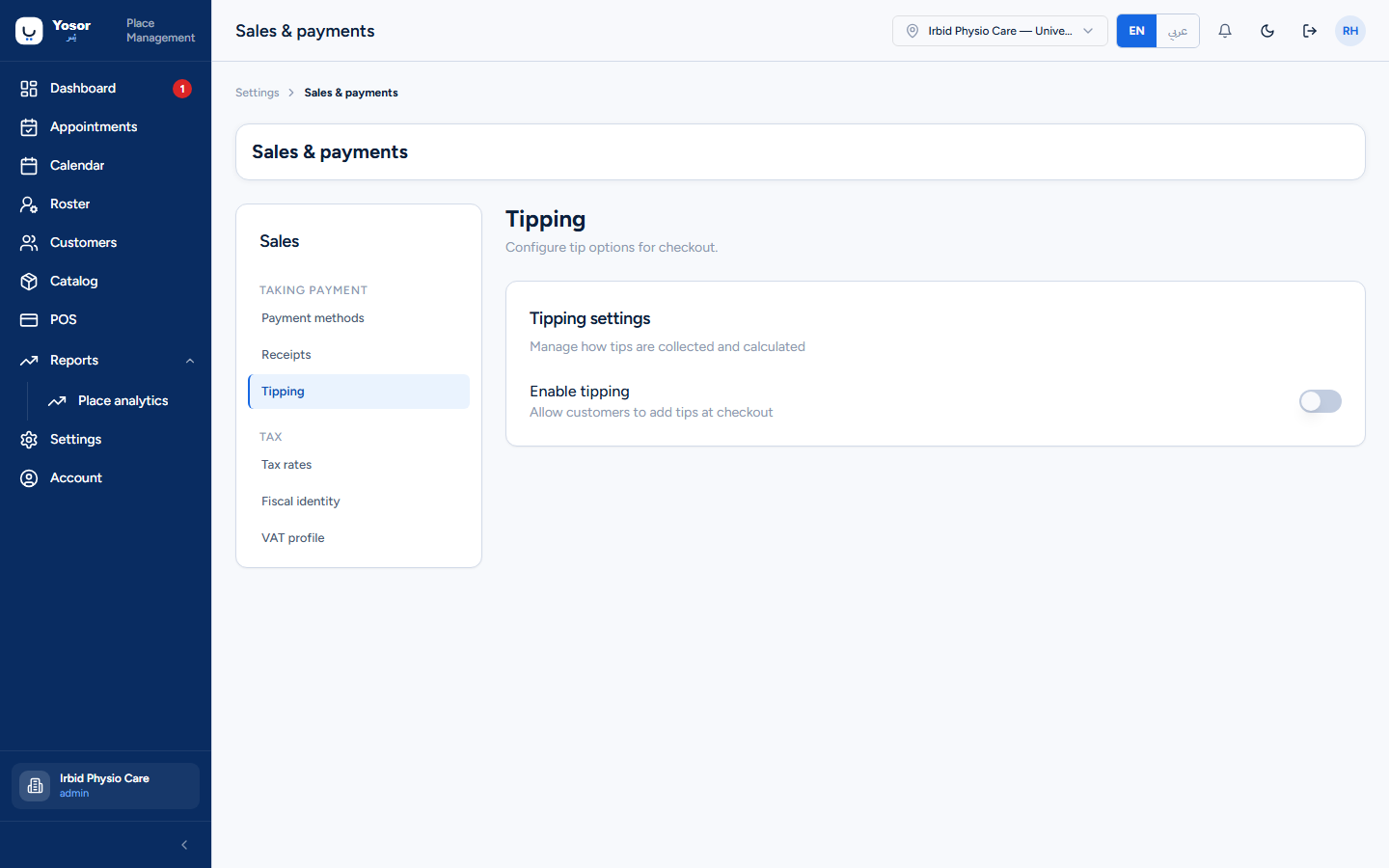
| Tipping | enable tips and the preset percentages offered at checkout |
| Fiscal identity / VAT profile | the same read-only cards as Business setup |
10.8 Insurance companies
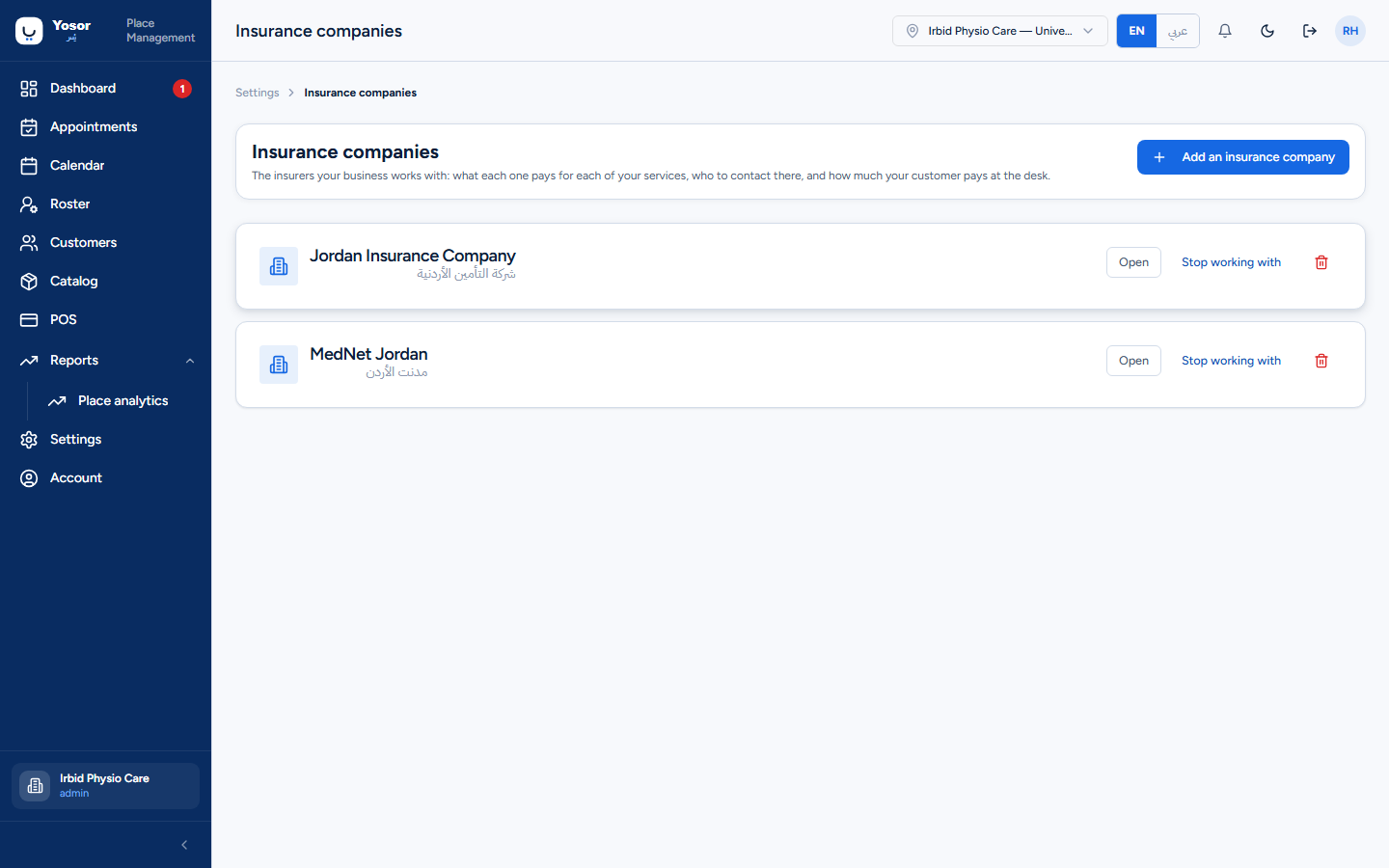
Needs the Insurance module. One entry per insurer the clinic works with:
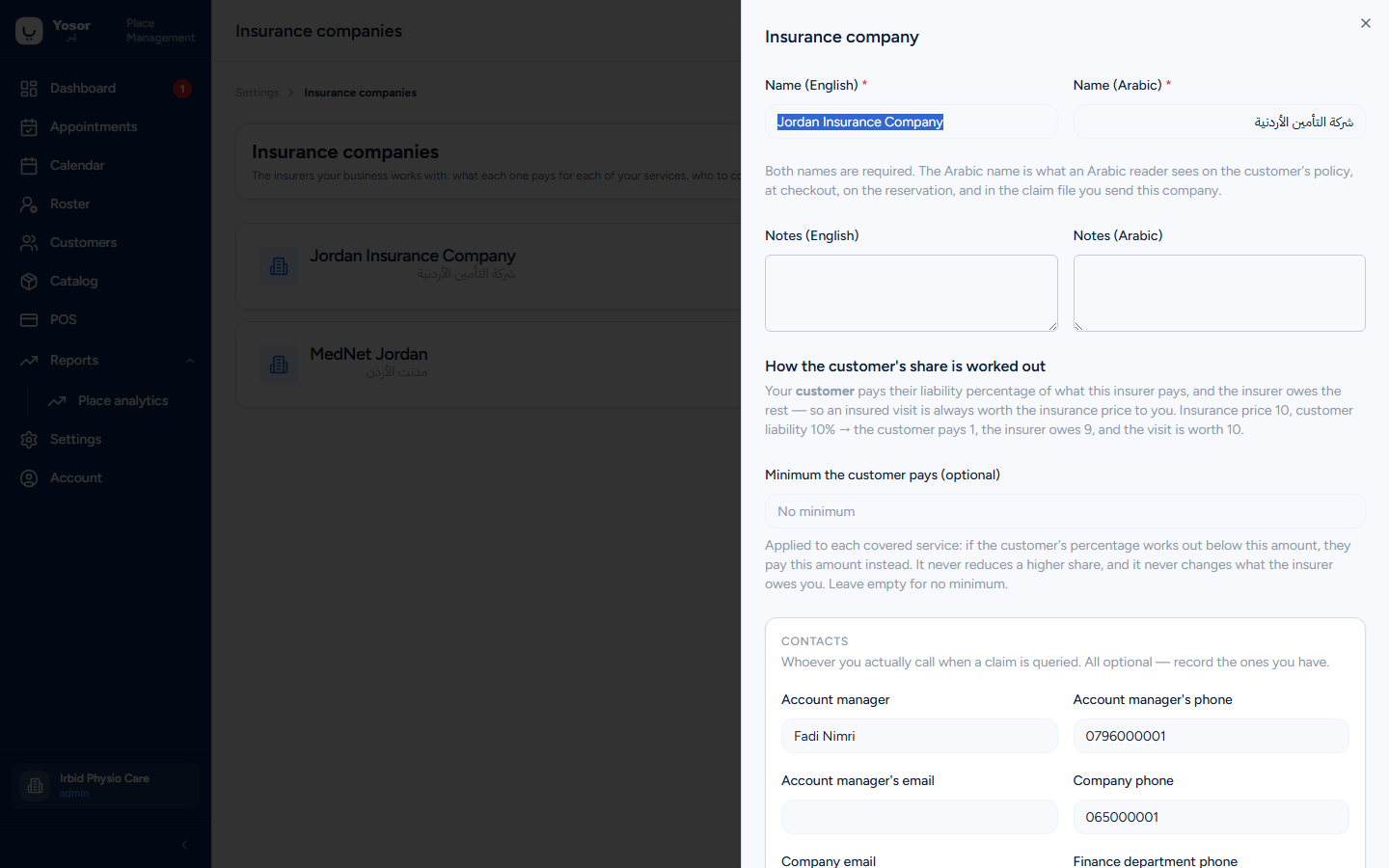
- Names in English and Arabic (both required; the Arabic name is what an Arabic reader sees on
the policy, at checkout and in the claim file), notes, an optional minimum the customer pays, and contacts (account manager, company, finance).
- The share rule: the customer pays their liability percentage of what the insurer pays for the
service, the insurer owes the rest; an insured visit is always worth the insurance price to the clinic.
- Logo (optional).
- Prices — for every catalogue service, the amount this insurer pays. Blank means not covered
and the customer pays the full price.
Stop working with retires a company (policies and history stay); Delete is refused when anything refers to it.
10.9 Forms
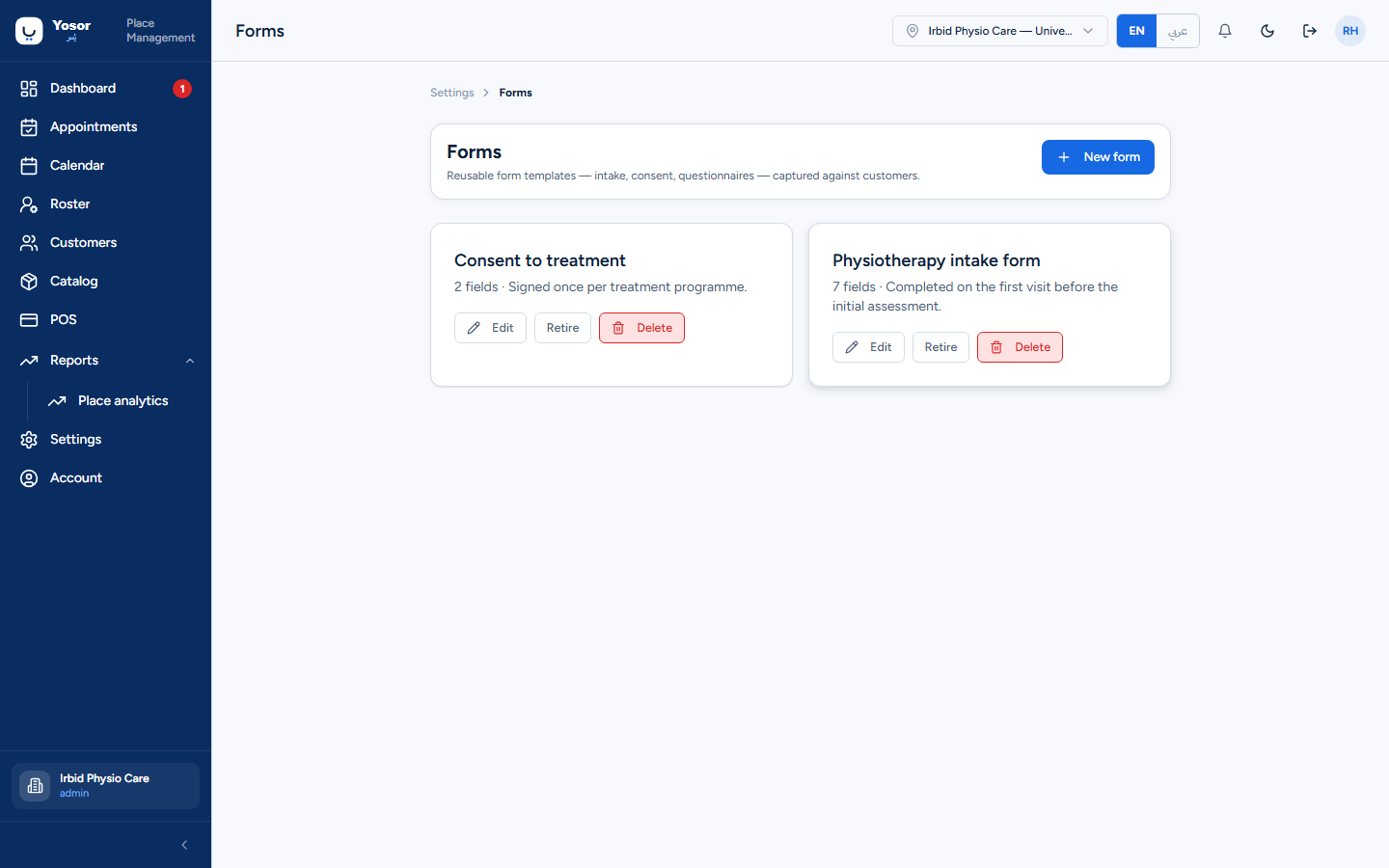
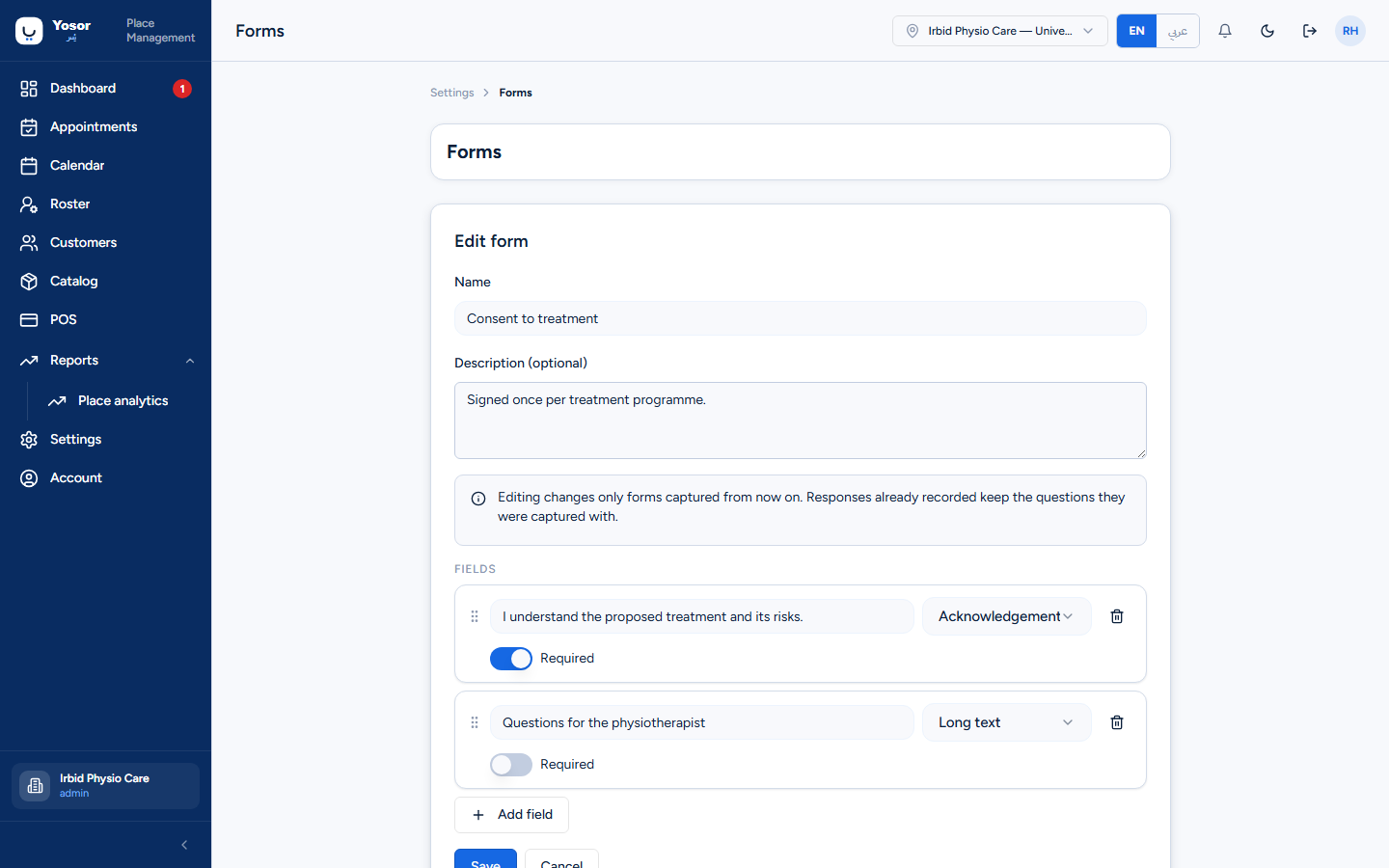
Templates for intake, consent and questionnaire forms. New form / Edit open the editor: a name, a description and the fields, each with a label, a type and a required switch. Types: short text, long text, single choice, multiple choice, date, number, yes/no, acknowledgement (a checkbox that records the time it was ticked). Choice fields need at least one option.
Editing a template changes future captures only; responses already recorded keep the questions they were captured with. Retire hides a template from the capture dialog; Reactivate brings it back.
10.10 Levels
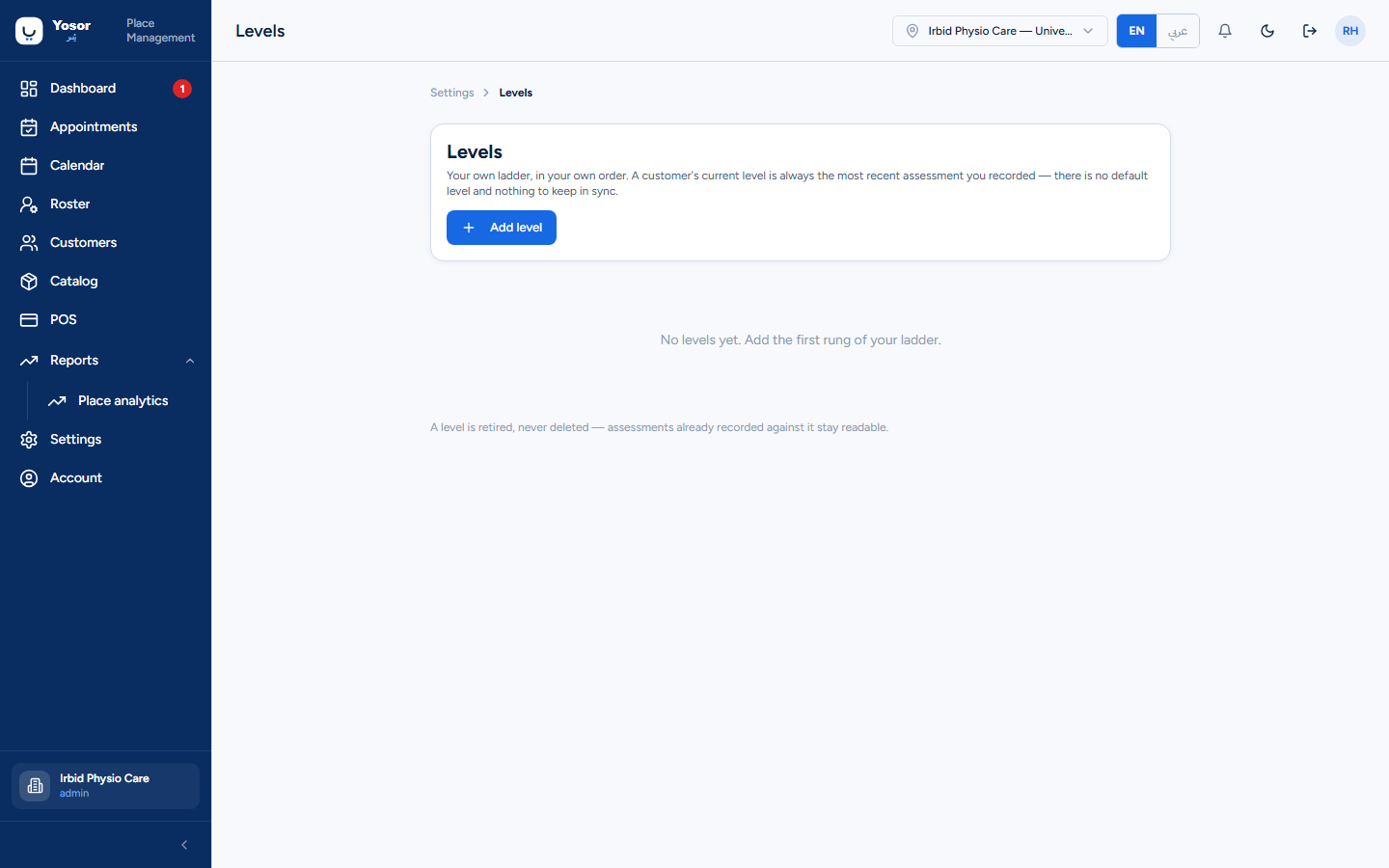
An ordered ladder (belts, grades, rehab stages) used by the Progression block on the customer's Plan tab, which only appears when the Classes module is on. A physiotherapy clinic that does not run classes can leave this empty.
10.11 Activity log
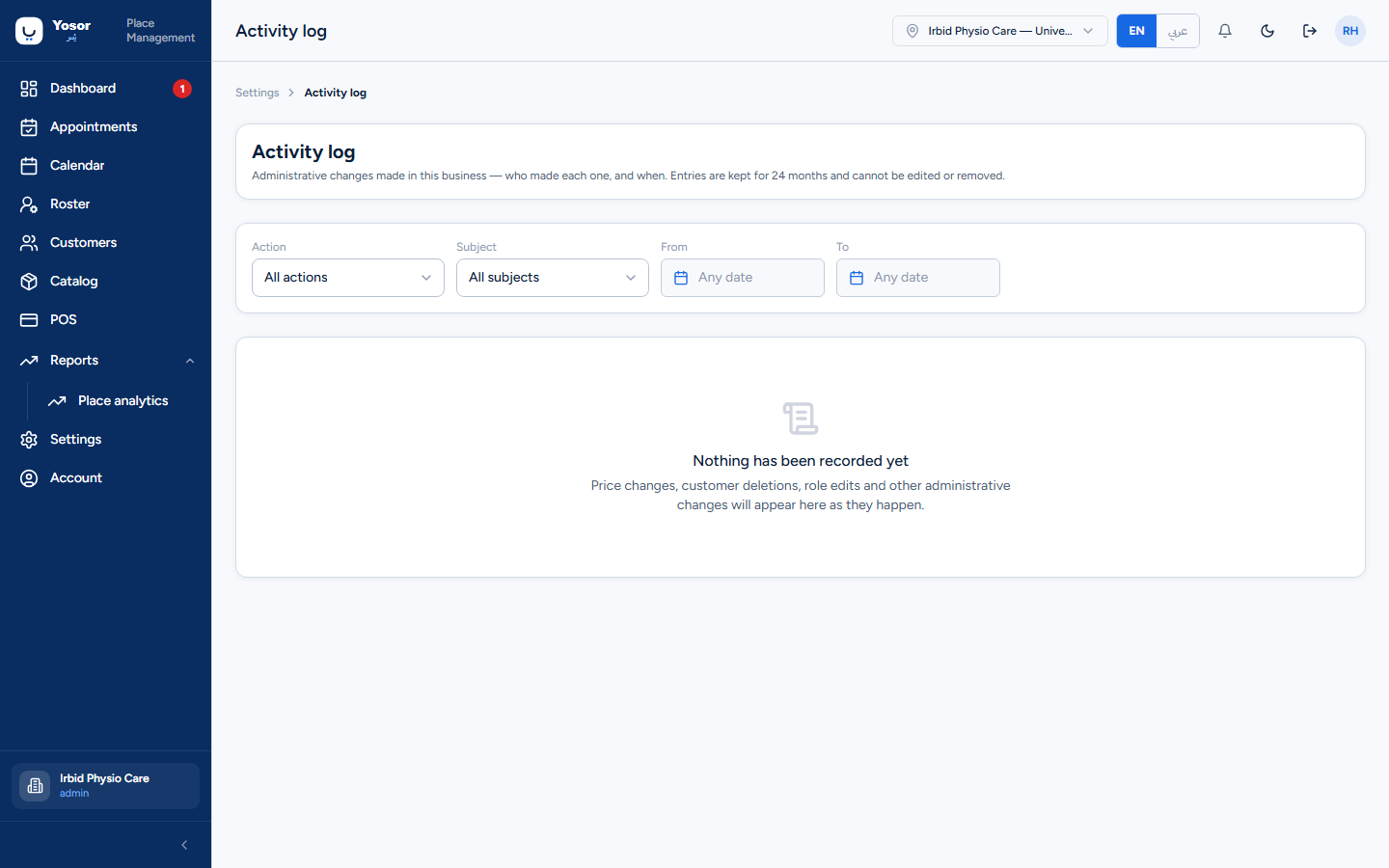
Administrative changes in the clinic, kept for 24 months: who changed a service price, deleted or merged a customer, edited a role, recorded or voided a payment, wrote off an invoice, and so on. Filter by action, subject and date. A Yosor support session badge marks changes made by Yosor staff on the clinic's behalf.
10.12 Notifications, SMS, Reviews
Covered in Messaging and reviews.
10.13 Integrations
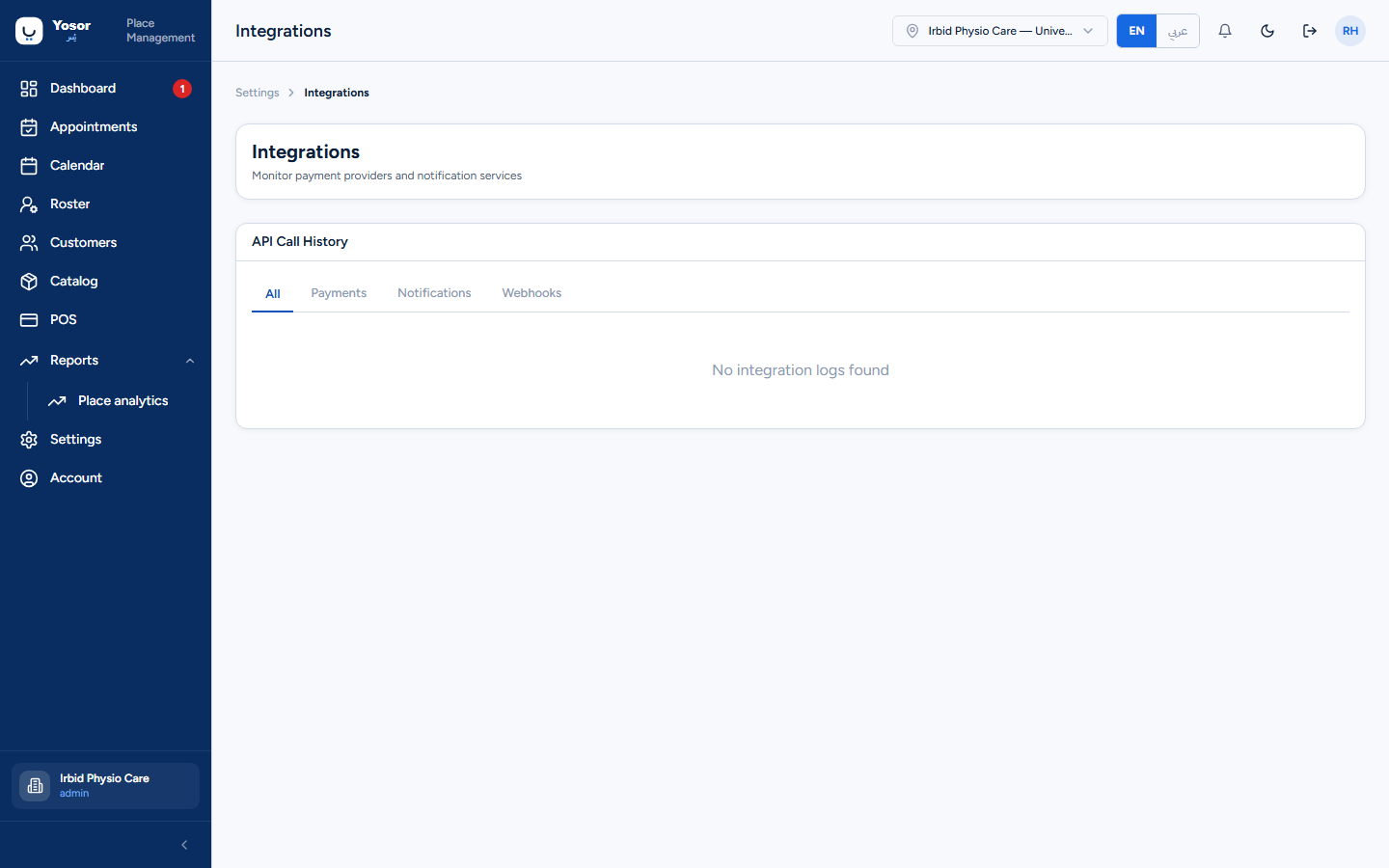
A read-only log of calls to payment providers and notification services (request, response, success or failure), for troubleshooting. It connects nothing; the WhatsApp connection is under Notifications › Connection.
10.14 Products
Only with the Retail module: goods sold over the counter (braces, supports, tape), with SKU, prices, tax treatment and stock tracking. Retired rather than deleted.
10.15 Places
Yosor staff only: every clinic on the platform.
10.16 Exceptions, roster and staff hours — which screen?
| I want to… | Go to |
|---|---|
| change when the clinic is open | Business setup › Opening hours |
| close for a holiday | Scheduling › Closed periods |
| open different hours on one date | Scheduling › Dated hours |
| set a physiotherapist's usual week | Team › staff record › Working hours |
| publish next week's shifts or swap a day | Roster |
| block lunch or a meeting | Calendar › right-click a slot › Add blocked time |
10.17 Account
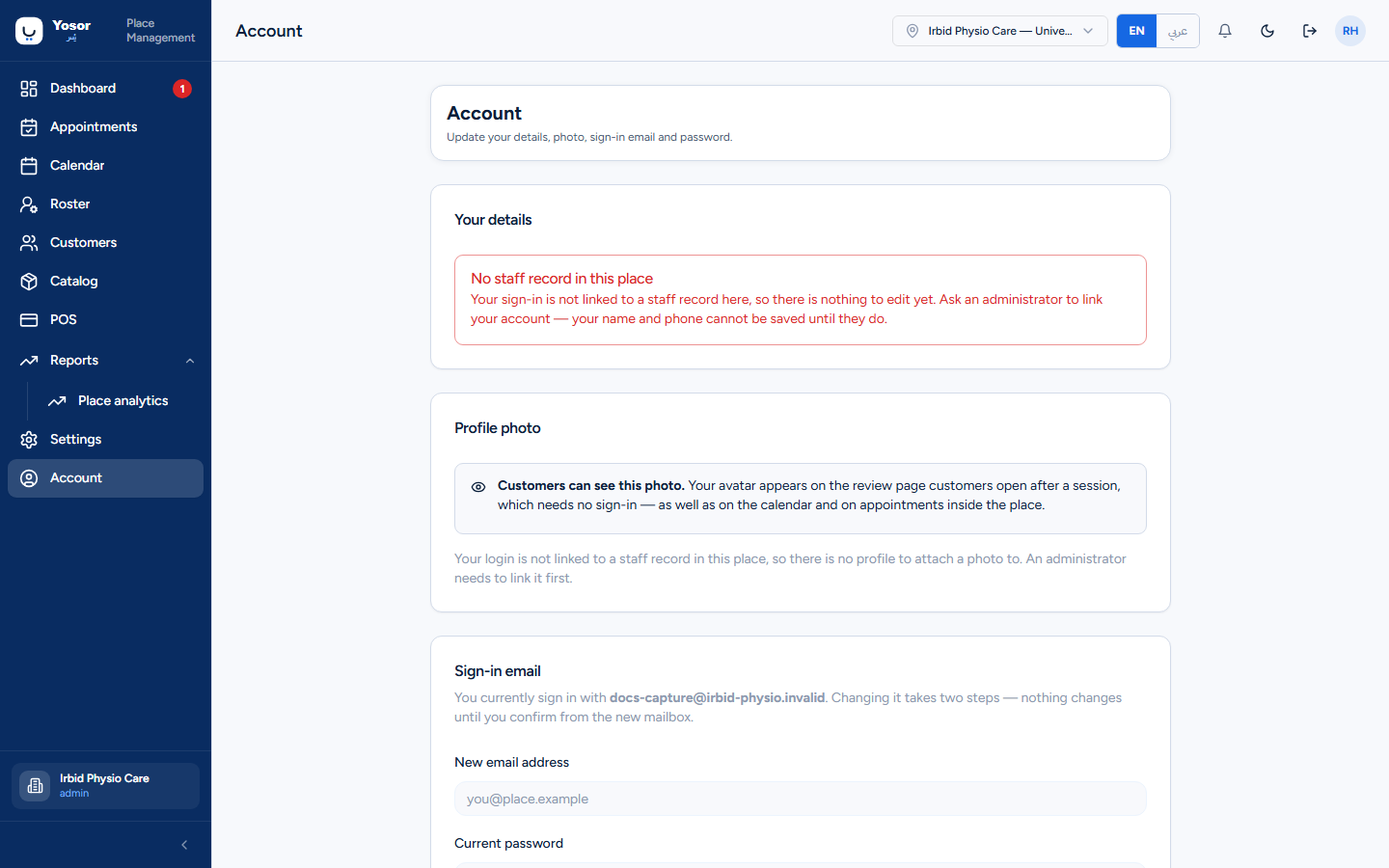
Your own profile: display name and phone; profile photo (customers can see it on the review page); sign-in email (a confirmation link is sent to the new address and the change takes effect only when it is followed; confirming signs you out everywhere); password (changing it signs out every other device); and Sign out everywhere, which ends your session on every device including this one without changing the password. Role, permissions and job title cannot be changed here.