9. Messaging and reviews
Customers hear from the clinic over WhatsApp (and optionally SMS) when an appointment is booked, confirmed, moved or cancelled, when a booking request is answered, and after a completed session when the clinic asks for a review. This chapter covers where the wording lives, how to see whether a message arrived, and how customers stop messages.
9.1 Notifications
Settings › Notifications. Five tabs.
Send
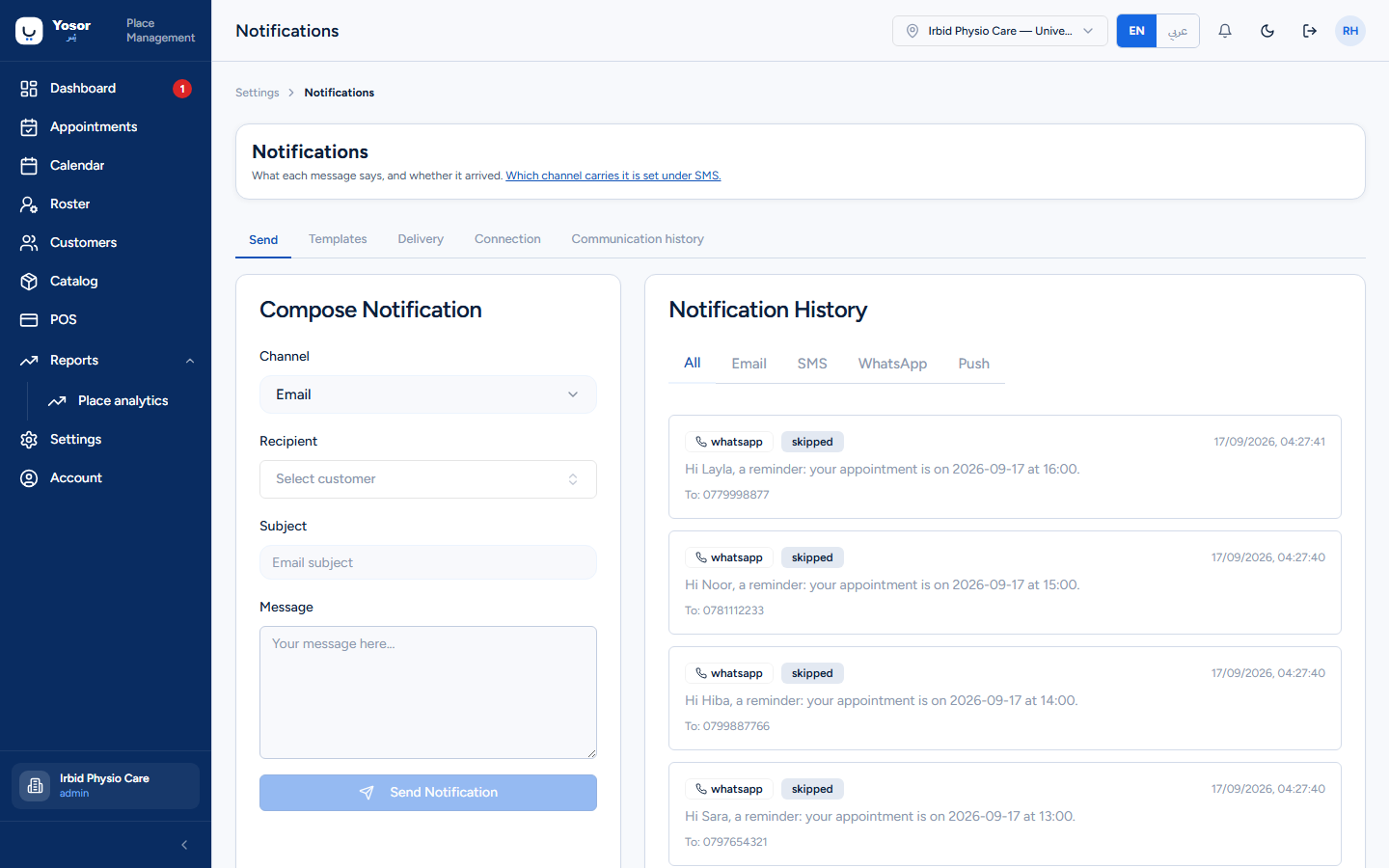
Compose a one-off message: channel, recipient (search the customer list), subject for email, and the message. The history card beside it lists recent sends.
Templates
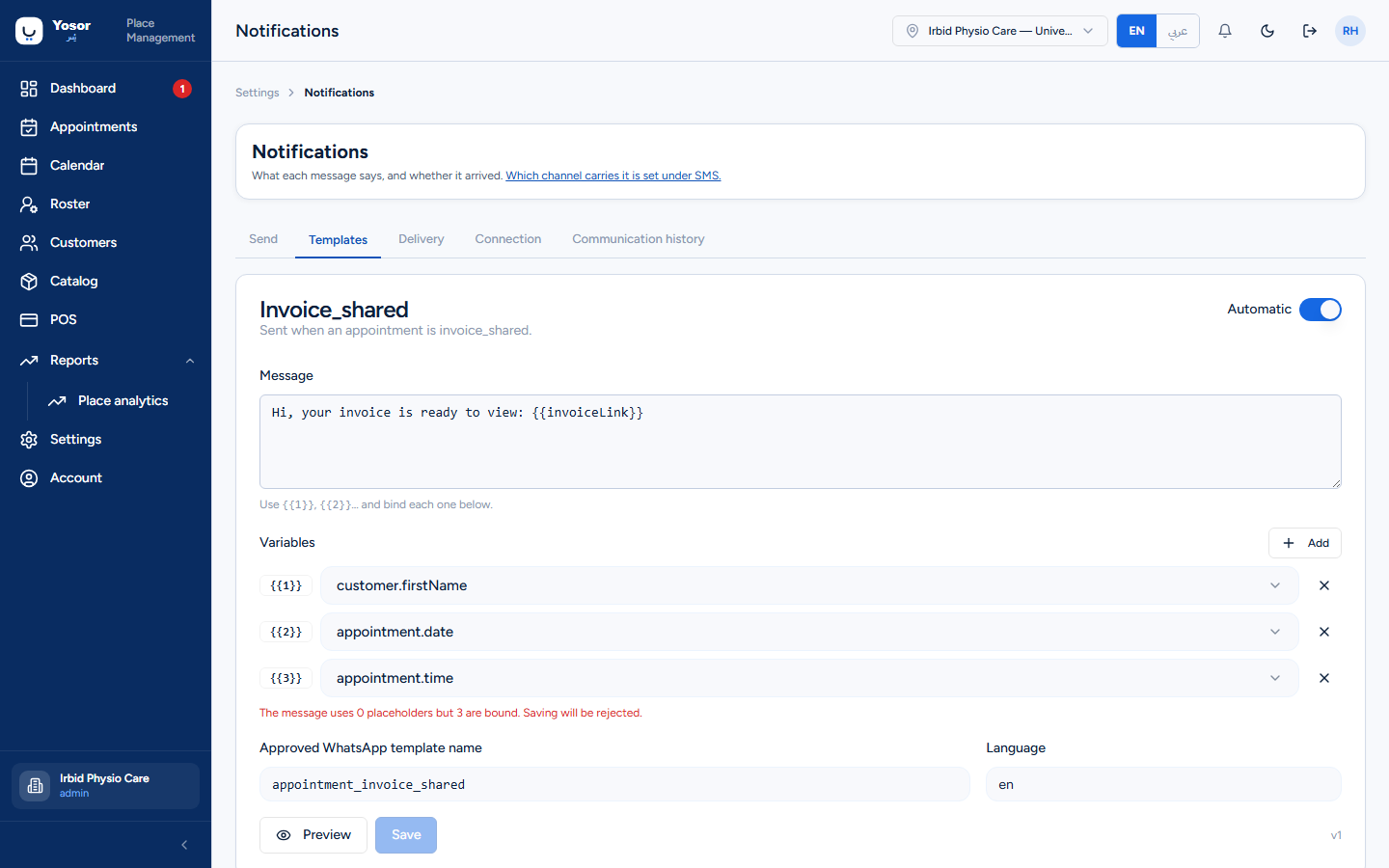
One editor per event: Booked, Confirmed, Rescheduled, Cancelled (and Running late). For each:
- Automatic — switch off to stop automatic sends for that event. Staff can still push a message
manually from the appointment page; a manual push ignores this switch.
- Message — the wording, with
{{1}},{{2}}… placeholders. - Variables — bind each placeholder to a value (customer first name, appointment date, time…).
The number of placeholders must match the number of bindings or the save is refused.
- Approved WhatsApp template name and Language — the Meta-approved template.
- Preview — shows the resolved text and tells you what will actually be sent: *This wording
will be delivered, or WhatsApp will send the approved template instead (outside the 24-hour customer-service window WhatsApp only delivers approved templates, so the customer sees the template's wording and only the variables carry over), or Nothing can be sent*.
- Save. If someone else edited the template meanwhile you are told and the latest version is
reloaded.
The message is sent in the customer's preferred language (English or Arabic, from their record).
Delivery
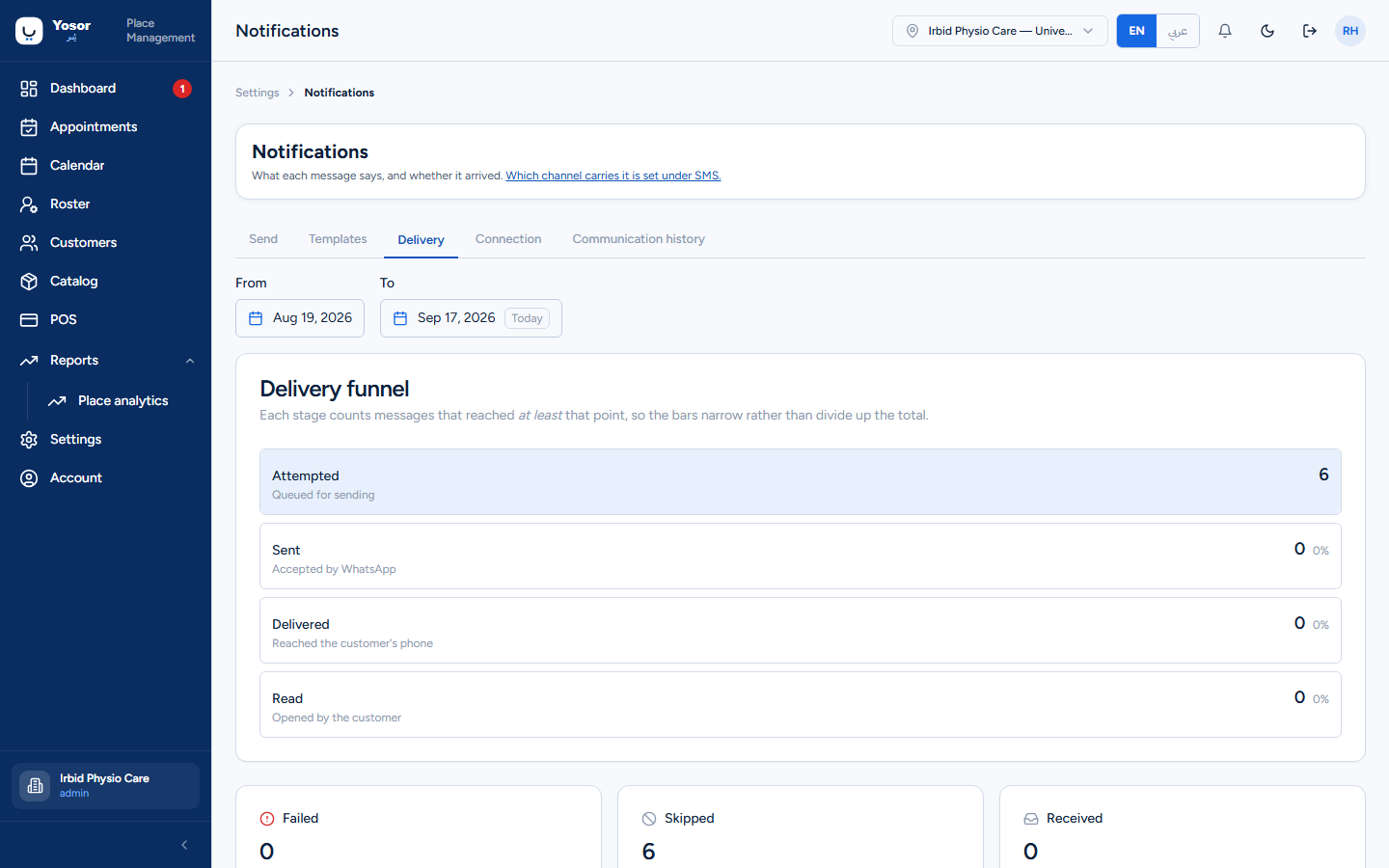
For a date range: the delivery funnel (attempted → sent → delivered → read), the failed, skipped and received counts (skipped means never sent: opted out, disabled, or no usable number), a breakdown by event and by source (automatic versus manual push), and the suppressed addresses list, where an email address that bounced can be cleared.
Connection
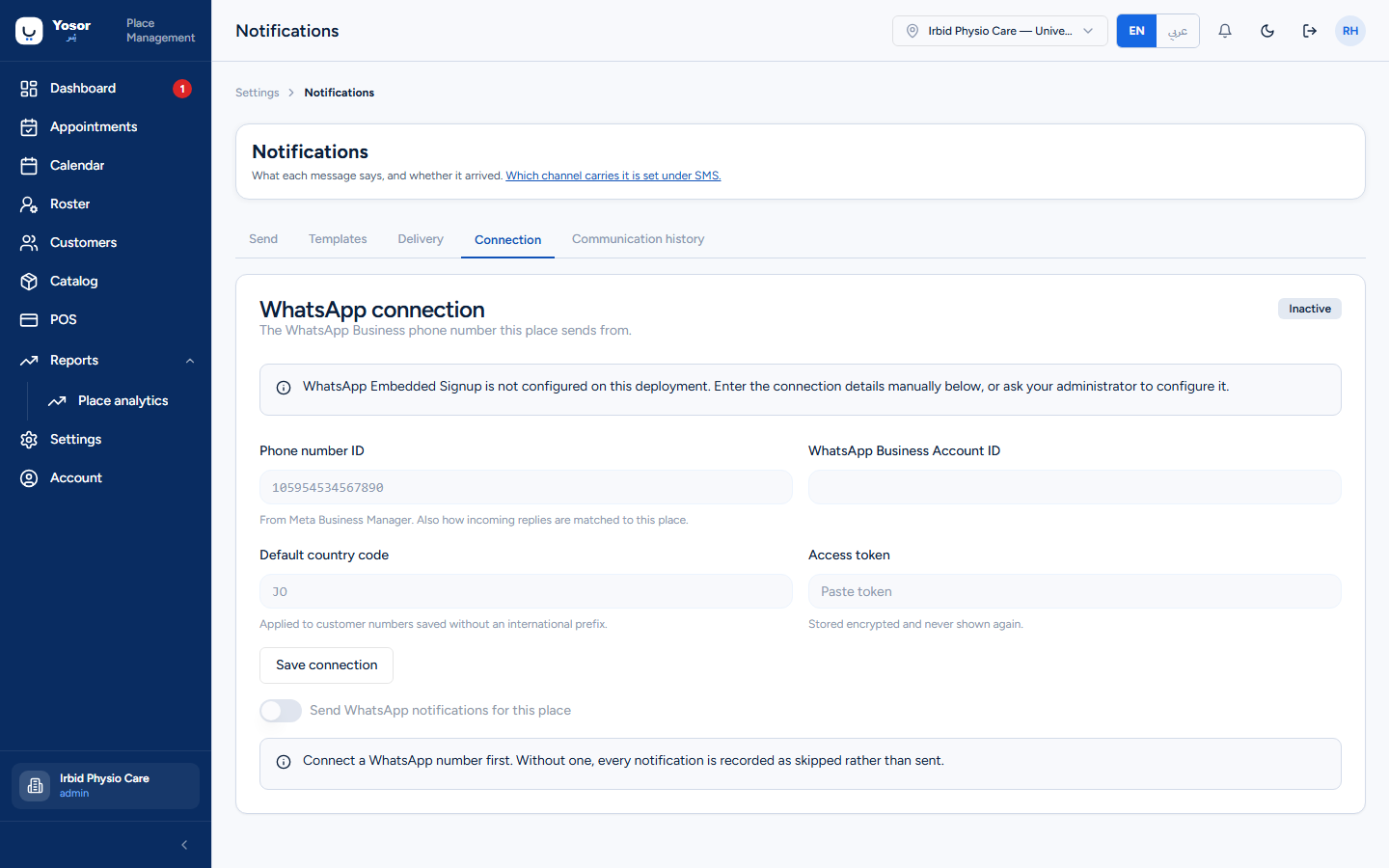
The clinic's WhatsApp Business connection: phone number ID, business account ID, default country code, access token, and the master switch Send WhatsApp notifications for this place. Only place admins can view or change it. When WhatsApp is not configured, every message is recorded as skipped and nothing is lost silently: the Delivery tab shows it.
Communication history
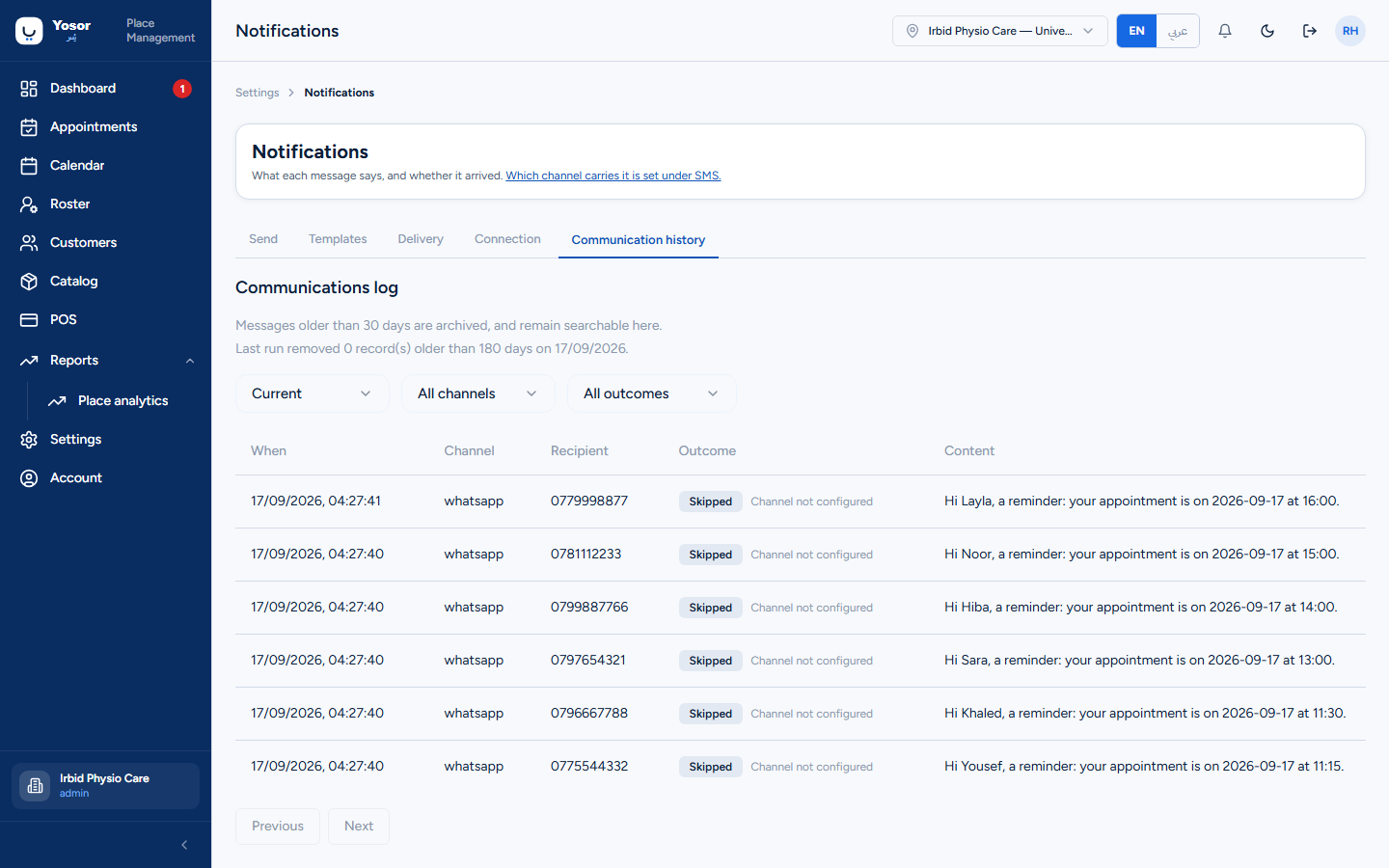
Needs the Communications Log permission. Every message sent, by channel and outcome, with the content when it was recorded, and the retention statement (older messages are archived but stay searchable).
9.2 SMS
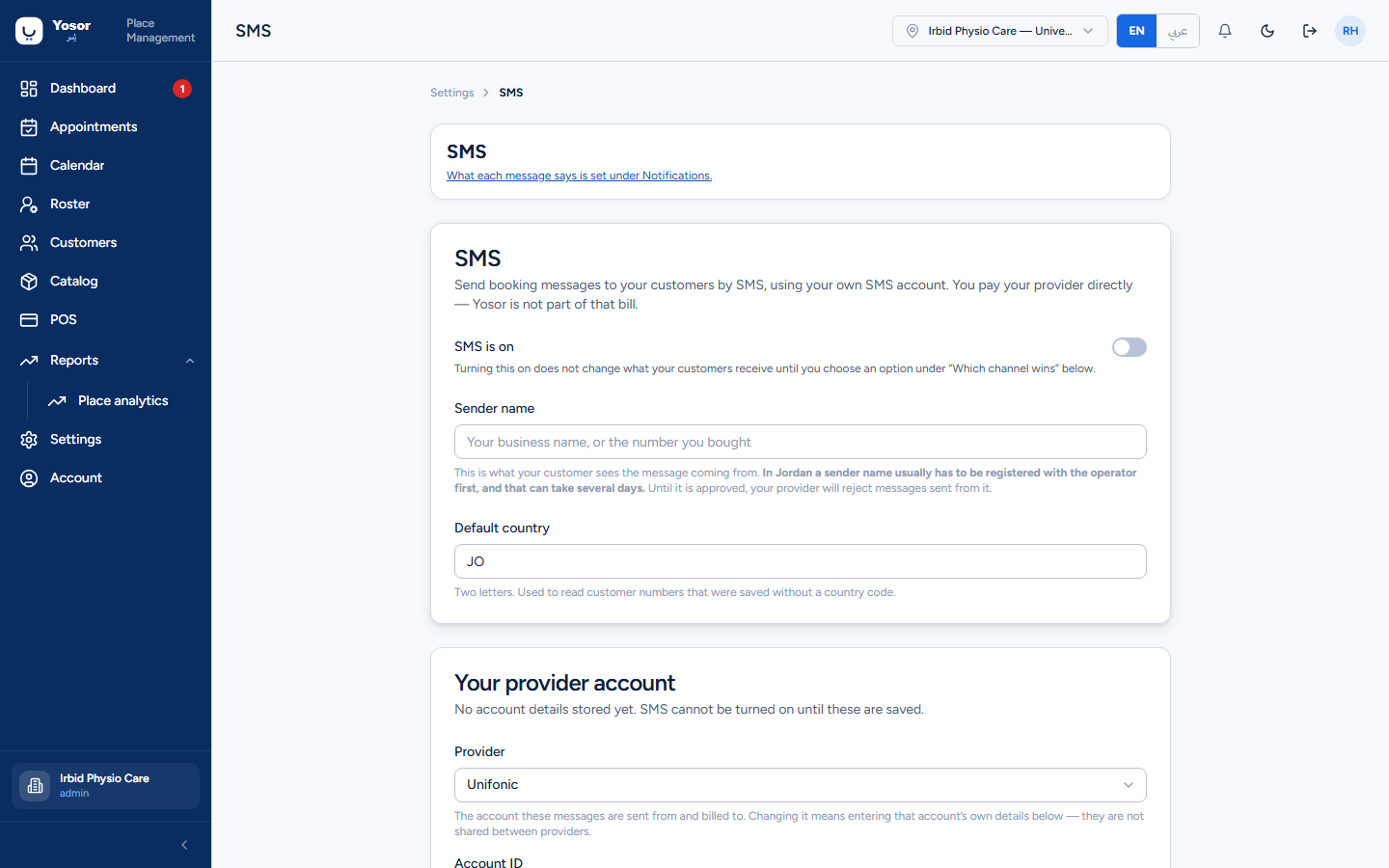
Settings › SMS. The clinic can carry the same messages by SMS through its own SMS provider account; Yosor is not part of the SMS bill.
- SMS is on — turning it on changes nothing until Which channel wins is chosen.
- Sender name — in Jordan a sender name usually has to be registered with the operator first.
- Your provider account — provider, account ID, auth token (stored encrypted, never shown
again). An optional backup provider is used only when the main one cannot be reached.
- Which channel wins — WhatsApp first (default), SMS first, or SMS only.
- Which messages go by SMS — a switch per event.
- Customers who have stopped SMS — a customer stops SMS by replying STOP or إيقاف; staff can
also add a number here. Opting out applies to the phone number across every record using it.
9.3 How customers stop messages
| Channel | How |
|---|---|
| WhatsApp review requests | reply STOP / unsubscribe to the message, or Customers › record › Preferences › Review invitations |
| Marketing broadcasts | reply STOP on WhatsApp (shown read-only on the record) |
| SMS | reply STOP / إيقاف, or Settings › SMS › Customers who have stopped SMS |
| Appointment messages | the Notify customer switch on each booking action (per action, not per customer) |
9.4 Review requests
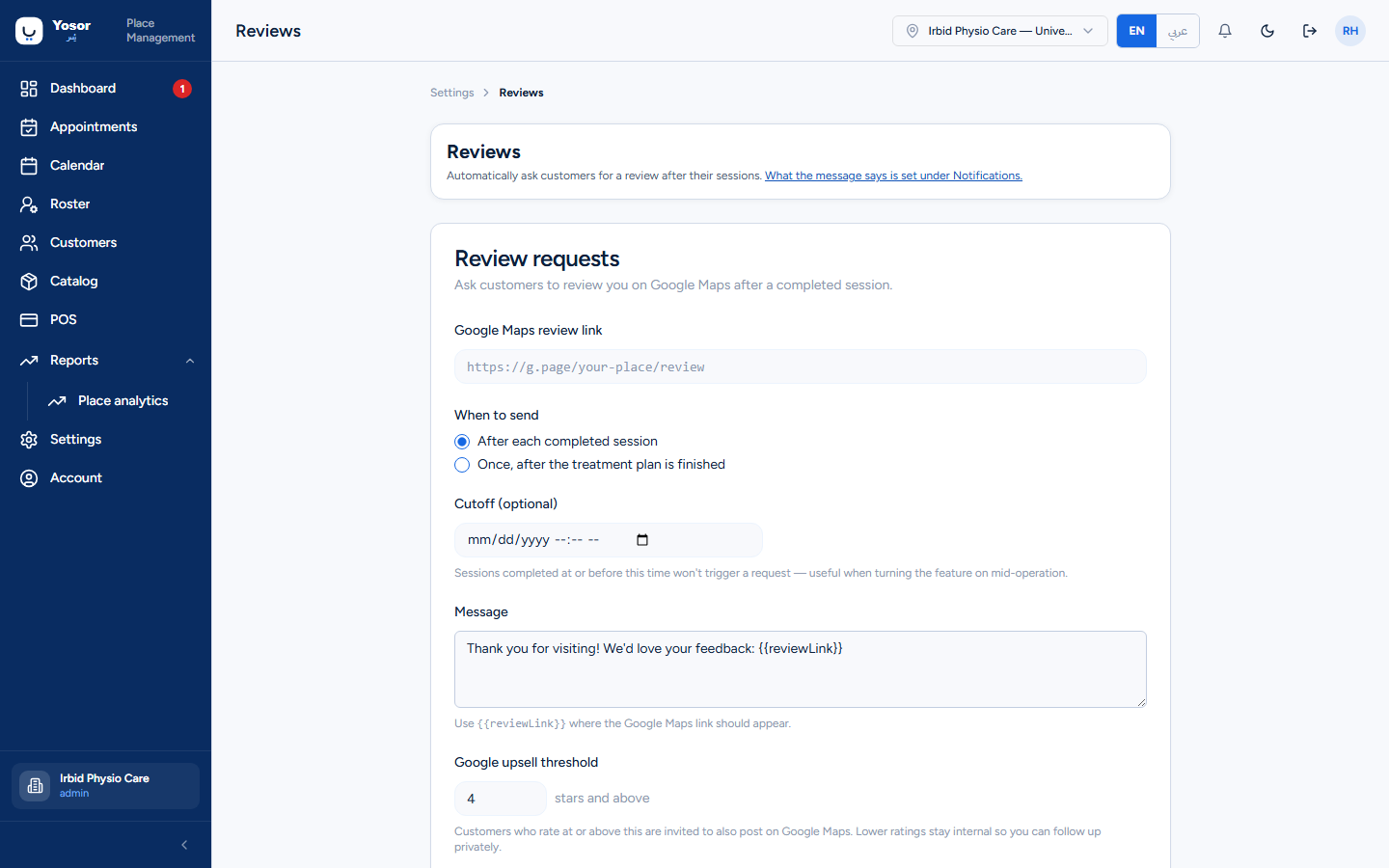
Settings › Reviews (Settings permission). After a completed session the customer receives a WhatsApp message with a single-use, 30-day link to rate the session and the physiotherapist (1–5 stars, optional comment). Ratings appear on the session, the customer record, the staff member's profile and the Staff ratings report.
- Google Maps review link — must be an https Google Maps link.
- When to send — After each completed session (the practical choice for a therapist-only
clinic) or Once, after the treatment plan is finished.
- Cutoff — sessions completed before this moment never trigger a request; useful when turning
the feature on.
- Message — must contain
{{reviewLink}}. - Google upsell threshold — customers who rate at or above it (default 4) are invited to also
post on Google Maps; lower ratings stay internal so you can follow up privately.
Requests go over the clinic's WhatsApp connection; without one they are recorded as skipped. The Review button on a completed appointment sends a request manually, even when automatic sending is off; a customer who opted out is respected unless you confirm the override.