7. Payments, POS and sales
Money in Yosor is an invoice (what was charged) and one or more payments against it. Every figure on the dashboard and in reports is derived from those two records, so the rule is simple: take money through the dashboard, never on paper.
Three places take money:
| Where | Use it for |
|---|---|
| Appointment page › Checkout | the quick till: one visit, one amount, one method |
| Calendar › reservation sheet › Checkout | the full till: items, discounts, tips, partial payment, void, write-off |
| POS | anything not tied to a visit: a walk-up sale, a session pack redemption, clearing an old invoice |
Take payment (customer record, appointment page, reservation sheet) settles an invoice that already exists.
7.1 POS
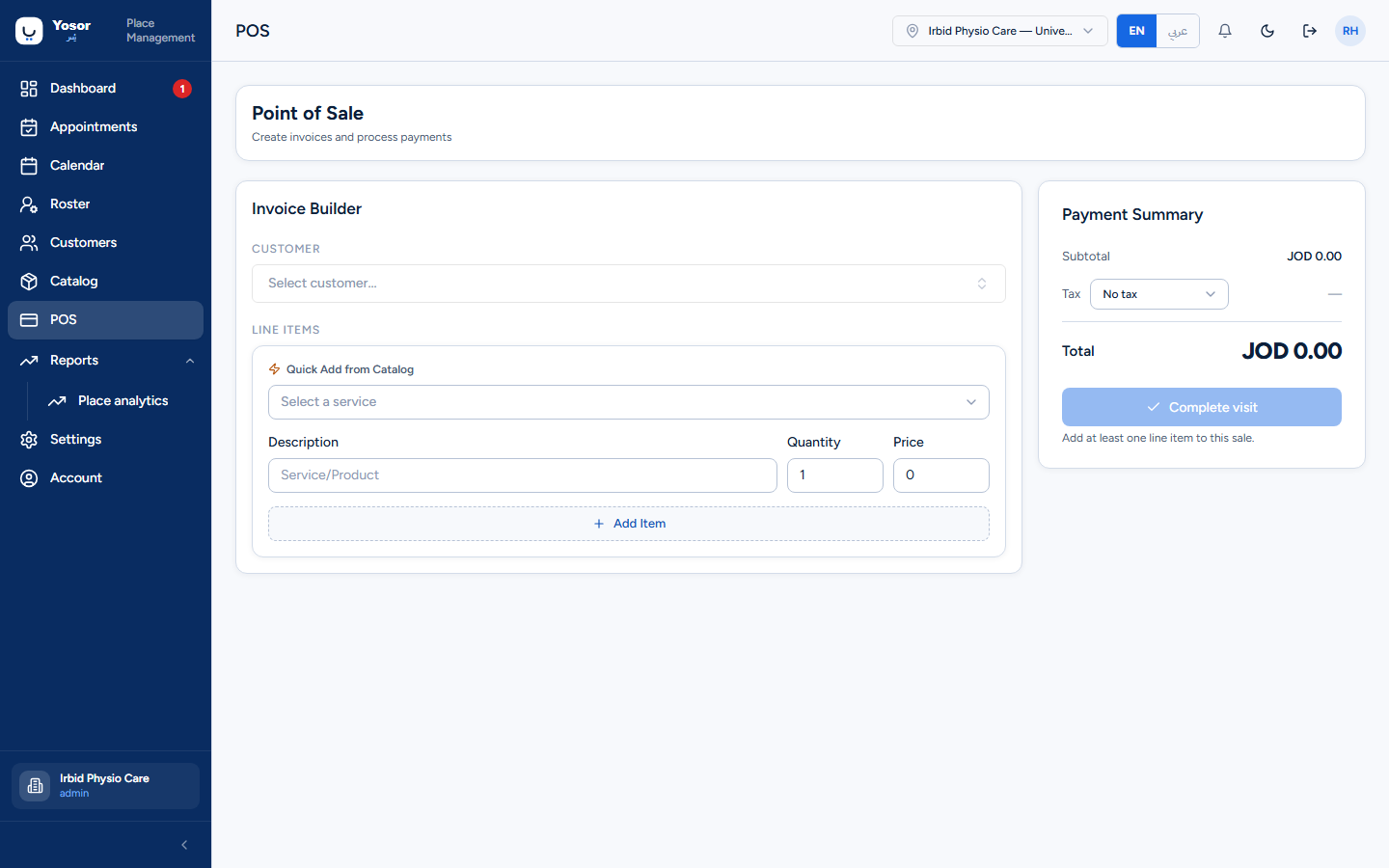
Needs the Billing permission. Left to right:
- Customer — pick the customer. Changing the customer clears any pack redemption or old
invoice you had added, because both belong to one person.
- Lines — add services (and products, if the Retail module is on) or a free-text line with a
price. A 0.00 line is allowed. Choose a tax rate if the clinic uses one (Settings › Sales & payments › Tax rates); none means no tax on this sale.
- Packages — the customer's session packs. Use a session adds a zero-priced line; the pack
is drawn down after the invoice is created. If that draw-down fails you get a loud Package NOT drawn down warning: the sale exists but the session is still on the pack.
- Clearances — add an earlier unpaid invoice to collect its remainder in the same transaction.
It sits beside the total as Total to collect.
- Payment summary — tip (if enabled), method and Process payment; Complete visit when
nothing is owed.
After a sale a strip offers to share the invoice by WhatsApp or link, or print it.
7.2 Invoices and receipts
- An invoice is created by checkout, by POS, or by selling a pack. Its status is Pending until
fully paid, then Paid; Void and Refunded are reached from the checkout sidebar's Manage action.
- Print and Share on the appointment page produce the invoice document; the receipt design
(title, footer lines, whether the customer's phone and address appear) is set under Settings › Sales & payments › Receipts.
- A customer can be sent their invoice as a link; the public invoice page needs no login.
7.3 Partial payments, voids, write-offs
- Partial payment — in the checkout sidebar enter less than the total in Amount received. The
remainder stays on the customer's balance and is visible on their record.
- Void a payment or void an invoice — checkout sidebar › Outstanding balance › Manage
(Billing). A refusal names the blocking payments.
- Write off — same place, for a remainder that will never be collected. Write-offs are listed
separately from payments and are not offered on a void or refunded invoice.
7.4 Daily sales summary
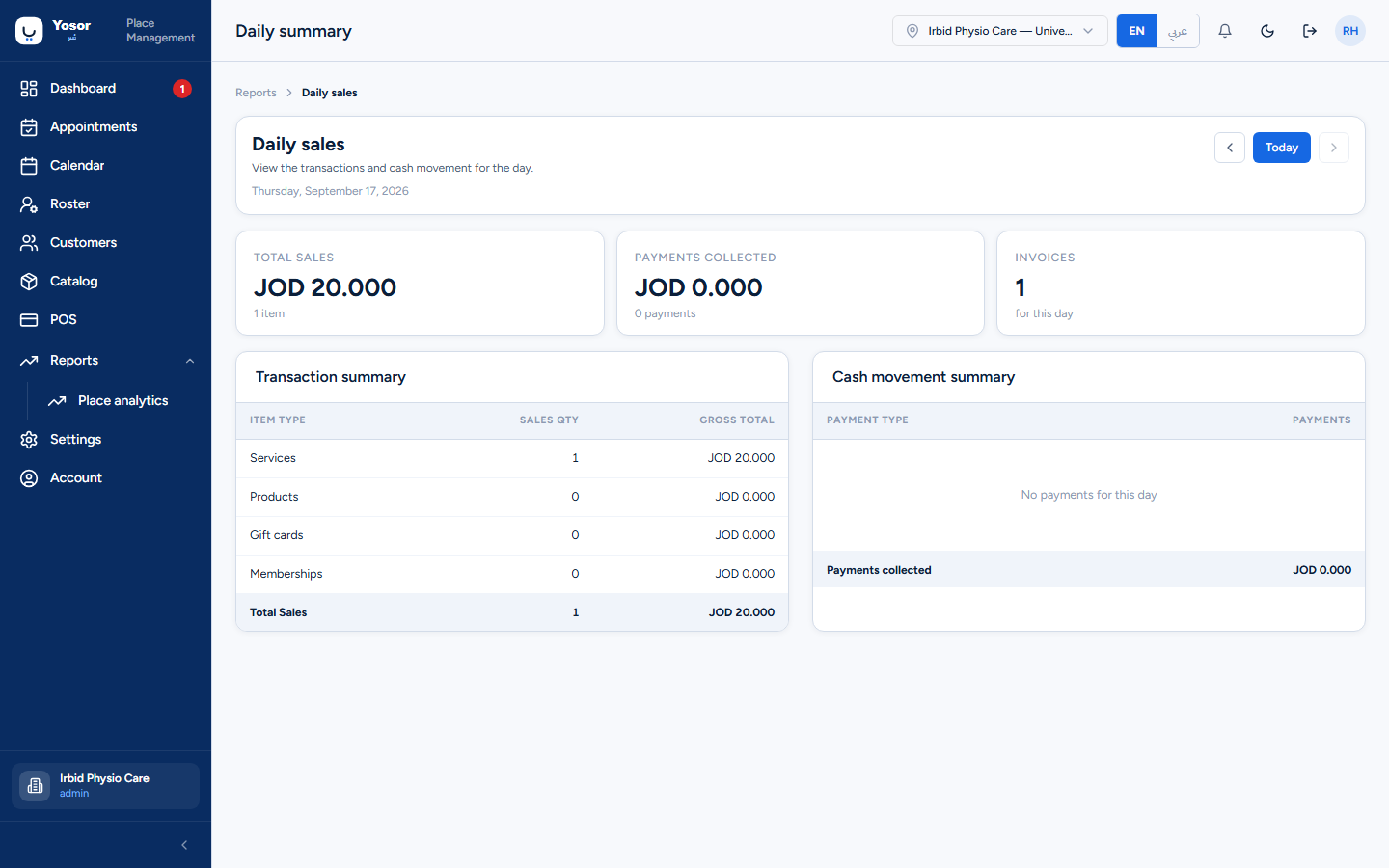
Reports › Sales › Daily summary (Sales or Billing permission). Move a day at a time. Three cards: total sales, payments collected, invoices. The Transaction summary groups lines by item type; in the current release every line lands under Services, so the other rows read zero. The Cash movement summary shows, per payment type, the number of payments (not the amount); the footer Payments collected is money.
7.5 Payments ledger
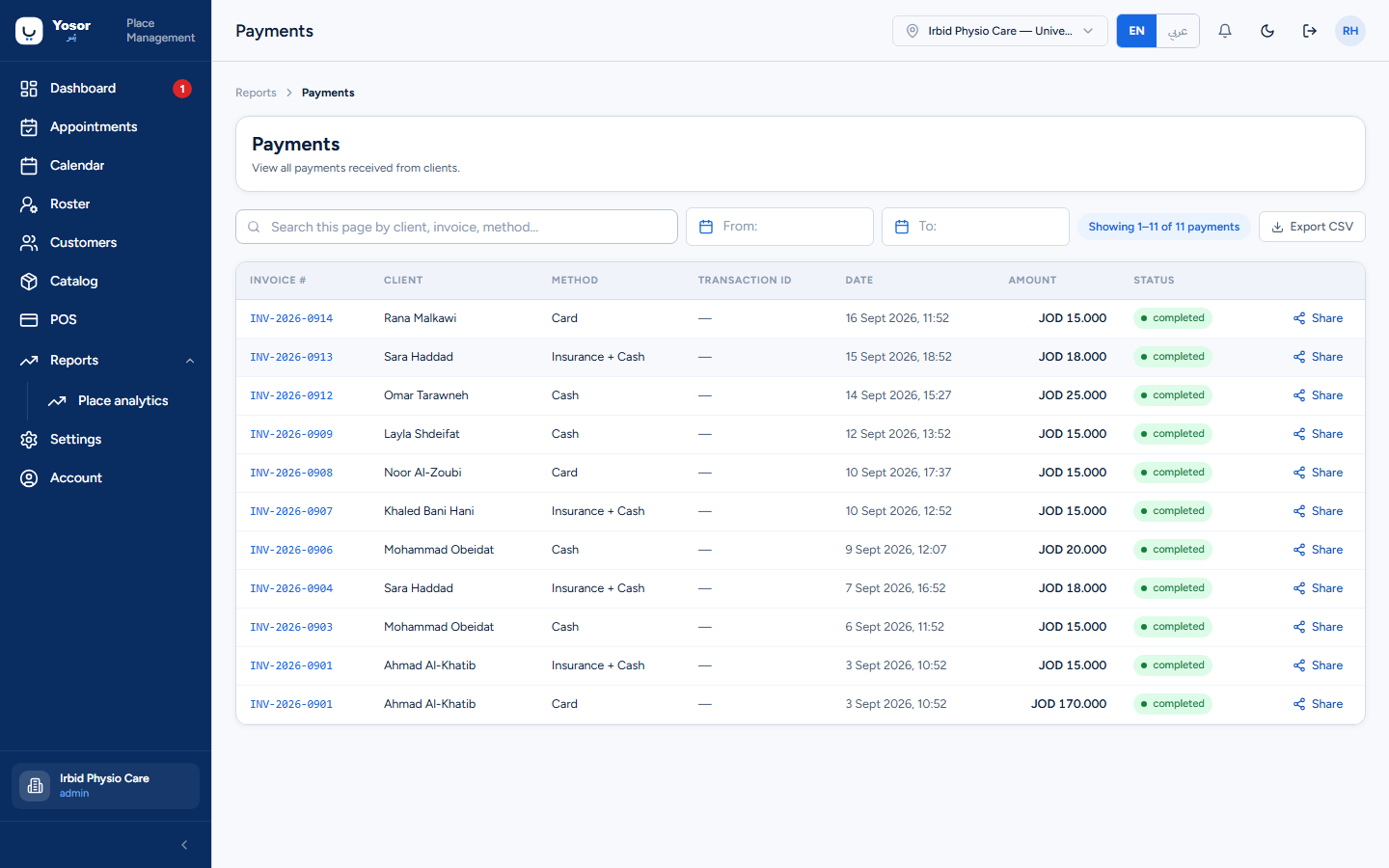
Reports › Payments (or Sales › Payments ledger). Every payment with its invoice, customer, method, transaction ID, date, amount and status, 100 per page, filtered by date. The search box searches the page shown, and Export CSV exports the rows on the page, not the whole ledger. Each row has a Share button for the invoice.
7.6 Insured visits
With the Insurance module on:
- Record the customer's policy on their record (company, policy number, customer's share %).
- Set what each insurer pays per service under Settings › Insurance companies › Prices.
- At checkout, apply the policy. The customer's share is computed and becomes the amount to
collect; the insurer's share is recorded as owed by the insurer.
- Reports › Insurance shows, per insurer and period, what was billed, settled and still open, and
produces the claim file to send.